







Question: Data analytics is the process of examining data sets in order to draw conclusions about the information they contain, If you haven't completed any of
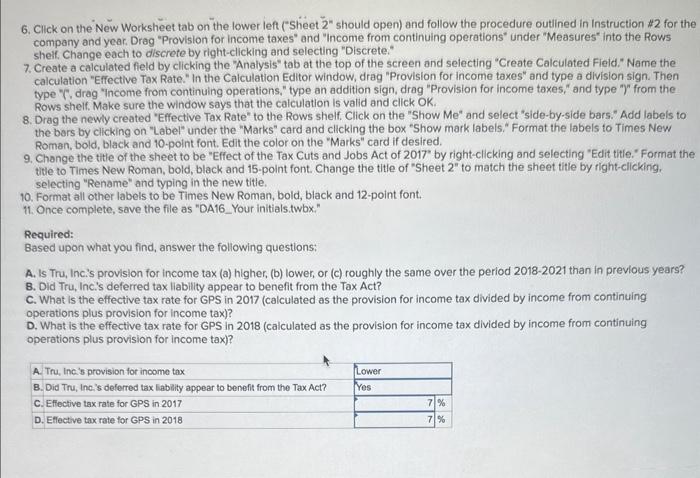
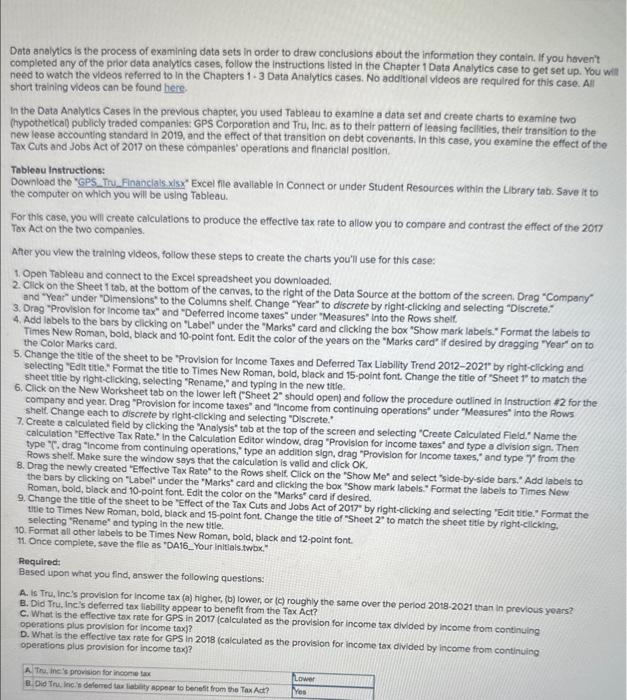
Data analytics is the process of examining data sets in order to draw conclusions about the information they contain, If you haven't completed any of the prior data analyuics cases, follow the instructions listed in the Chapter 1 Data Analytics case to get set up. You will need to watch the videos referred to in the Chapters 1 - 3 Data Analytics cases. No additional videos are required for this case. All short training videos can be found here. In the Dota Analytics Cases in the previous chapter, you used Tableau to examine a data set and create charts to examine two (trypothetical) publicly traded companies: GPS Corporation and Tru, Inc as to their pattern of leasing facilities, their transition to the new lease accounting standard in 2019, and the effect of that transition on debt covenants, In this case, you examine the effect of the Tax Cuts and Jobs Act of 2017 on these companies' operations and financlal position. Tableau Instructions: Download the "GPS. Tru Financials x/5x Excel file avallable in Connect or under Student Resources within the Library tab. Save it to the computer on which you will be using Tableau. For this case, you will create calculations to produce the effective tax rate to allow you to compare and contrast the effect of the 2017 Tax Act on the two companies. After you view the training videos, follow these steps to create the charts you'll use for this case: 1. Open Tobleau and connect to the Excel spreadsheet you downioaded. 2. Click on the Sheet 1 tab, at the bottom of the canvas, to the right of the Dota Source at the bottom of the screen. Drag "Company" and "Year" under "Dimensions" to the Columns shelf. Change "Year" to discrete by right-clicking and selecting "Discrete." 3. Drag "Provision for income tax" and "Deferred income taxes" under "Measures" into the Rows shelf. 4. Add Iabels to the bars by clicking on "Label" under the "Marks" card and clicking the box "Show mark labels." Format the labeis to Times New Roman, bold, black and 10-point font. Edit the color of the years on the "Marks card" if desired by dragging "Year" on to the Color Marks card. 5. Change the title of the sheet to be "Provision for income Taxes and Deferred Tax Liability Trend 2012-2021" by right-clicking and selecting "Edit title." Format the title to Times New Roman, bold, black and 15 -point font. Change the title of "Sheet 1 t to match the sheet titie by right-elicking, selecting "Rename," and typing in the new title. 6. Cick on the New Worksheet tab on the lower left ("Sheet 2 should open) and follow the procedure outined in instruction 22 for the company and yeat. Drag 'Provision for income taxes" and "Income from continuing operations" under "Measures" into the Rows shelf Change each to discrete by right-elicking and selecting "Discrete." 7. Create a calculated fleld by clicking the "Analysis" tab at the top of the screen and selecting "Create Caiculated Field." Name the calculation "Effective Tax Rate." In the Caiculation Editor window, drag "Provision for income taxes" and type a division sign. Then type "F, drag "Income from continuing operations," type an addition sign, drag "Provision for income taxes," and type "7" from the Rows shelf. Make sure the window says that the calculation is valid and click OK. 8. Drag the newly created "Effective Tax Rate" to the Rows shelf Click on the "Show Me" and select "side-by-side bars. "Add labels to the bars by clicking on "Laber" under the "Marks" card and clicking the box "Show mark labels." Format the labels to Times New Roman, bold, black and 10-point font. Edit the color on the "Marks" card if desired. 9. Change the title of the sheet to be "Effect of the Tax Cuts and Jobs Act of 2017 " by right-clicking and selecting "Edit title. "Format the titie to Times New Roman, boid, black and 15 -point font. Change the title of "Sheet 2 " to match the sheet title by right-clicking. 6. Click on the New Worksheet tab on the lower left ("Sheet 2 " should open) and follow the procedure outlined in Instruction #2 for the company and year. Drag "Provision for income taxes" and "Income from continuing operations" under "Measures" into the Rows shelf. Change each to discrete by right-clicking and selecting "Discrete." 7. Create a calculated field by clicking the "Analysis" tab at the top of the screen and selecting "Create Calculated Fieid." Name the calculation "Effective Tax Rate." In the Calculation Editor window, drag "Provision for income taxes" and type a division sign. Then type "F, drag "Income from continuing operations," type an addition sign, drag "Provision for income taxes," and type ")" from the Rows shelf. Make sure the window says that the calculation is valid and click OK. 8. Drag the newly created "Effective Tax Rate" to the Rows shelf. Click on the "Show Me" and select "side-by-side bars." Add labels to the bars by clicking on "Label" under the "Marks" card and clicking the box "Show mark labels." Format the labels to Times New Roman, bold, black and 10-point font. Edit the color on the "Marks" card if desired. 9. Change the title of the sheet to be "Effect of the Tax Cuts and Jobs Act of 2017 " by right-clicking and selecting "Edit title." Format the. titie to Times New Roman, bold, black and 15-point font. Change the title of "Sheet 2 " to match the sheet title by right-clicking. selecting "Rename" and typing in the new title. 10. Format all other labels to be Times New Roman, bold, black and 12-point font. 11. Once complete, save the file as "DA16_Your initials.twbx." Required: Based upon what you find, answer the following questions: A. Is Tru, Incis provision for income tax (a) higher, (b) lower, or (c) roughly the same over the period 20182021 than in previous years? B. Did Tru, Inc.'s deferred tax liability appear to benefit from the Tax Act? C. What is the effective tax rate for GPS in 2017 (calculated as the provision for income tax divided by income from continuing operations plus provision for income tax)? D. What is the effective tax rate for GPS in 2018 (calculated as the provision for income tax divided by income from continuing operations plus provision for income tax)
Step by Step Solution
There are 3 Steps involved in it

Get step-by-step solutions from verified subject matter experts
 Study Help