







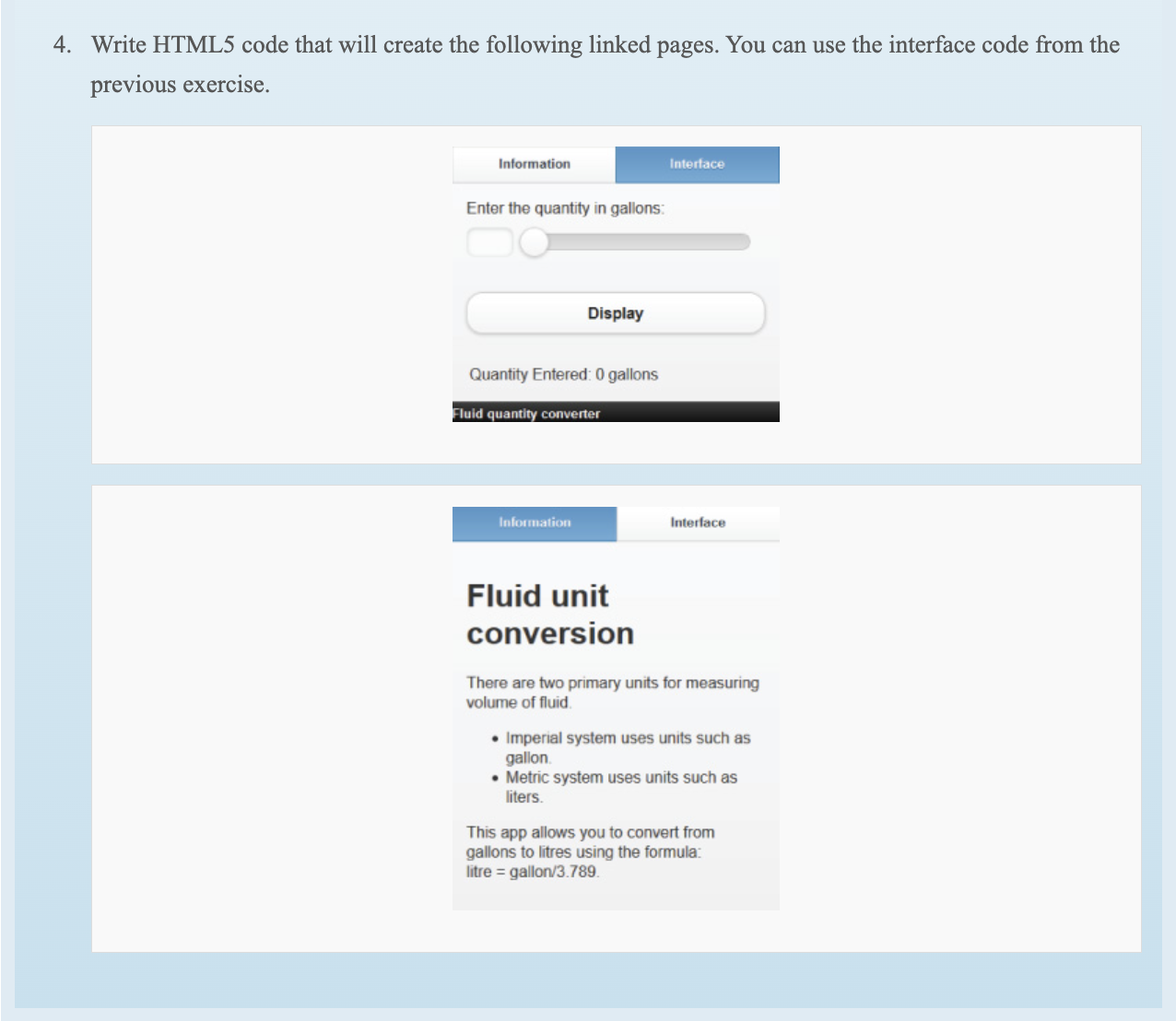
Question: MODIFY THE FOLLOWING CODE SO THE WEBPAGE APPEAR AS THE PICTURE Table: Column Toggle - jQuery Mobile Demos . slidecontainer { width: 1 0 0
MODIFY THE FOLLOWING CODE SO THE WEBPAGE APPEAR AS THE PICTURE
Table: Column Toggle jQuery Mobile Demos
slidecontainer
width: ;
slider
webkitappearance: none;
width: ;
height: px;
background: #ddd;
outline: none;
opacity: ;
webkittransition: s;
transition: opacity s;
slider:hover
opacity: ;
slider::webkitsliderthumb
webkitappearance: none;
appearance: none;
width: px;
height: px;
background: #CAF;
cursor: pointer;
slider::mozrangethumb
width: px;
height: px;
background: #CAF;
cursor: pointer;
$documentreadyfunction
$#submit"clickfunction
var txtval$#myRange"val;
$#qval"htmltxtval;
;
;
Enter the quantity in gallonsQunatity Entered: gallonsEnter the quantity in gallonsQunatity Entered: gallons
Step by Step Solution
There are 3 Steps involved in it
1 Expert Approved Answer
Step: 1 Unlock

Question Has Been Solved by an Expert!
Get step-by-step solutions from verified subject matter experts
Step: 2 Unlock
Step: 3 Unlock
 Study Help