







Question: MS Excel Exercise: GPA Calculator You will be constructing a spreadsheet that you can use to calculate your current Grade Point Average. ( GPA )
MS Excel Exercise: GPA Calculator
You will be constructing a spreadsheet that you can use to calculate your current Grade
Point Average. GPA
Open a New Worksheet in Microsoft Excel.
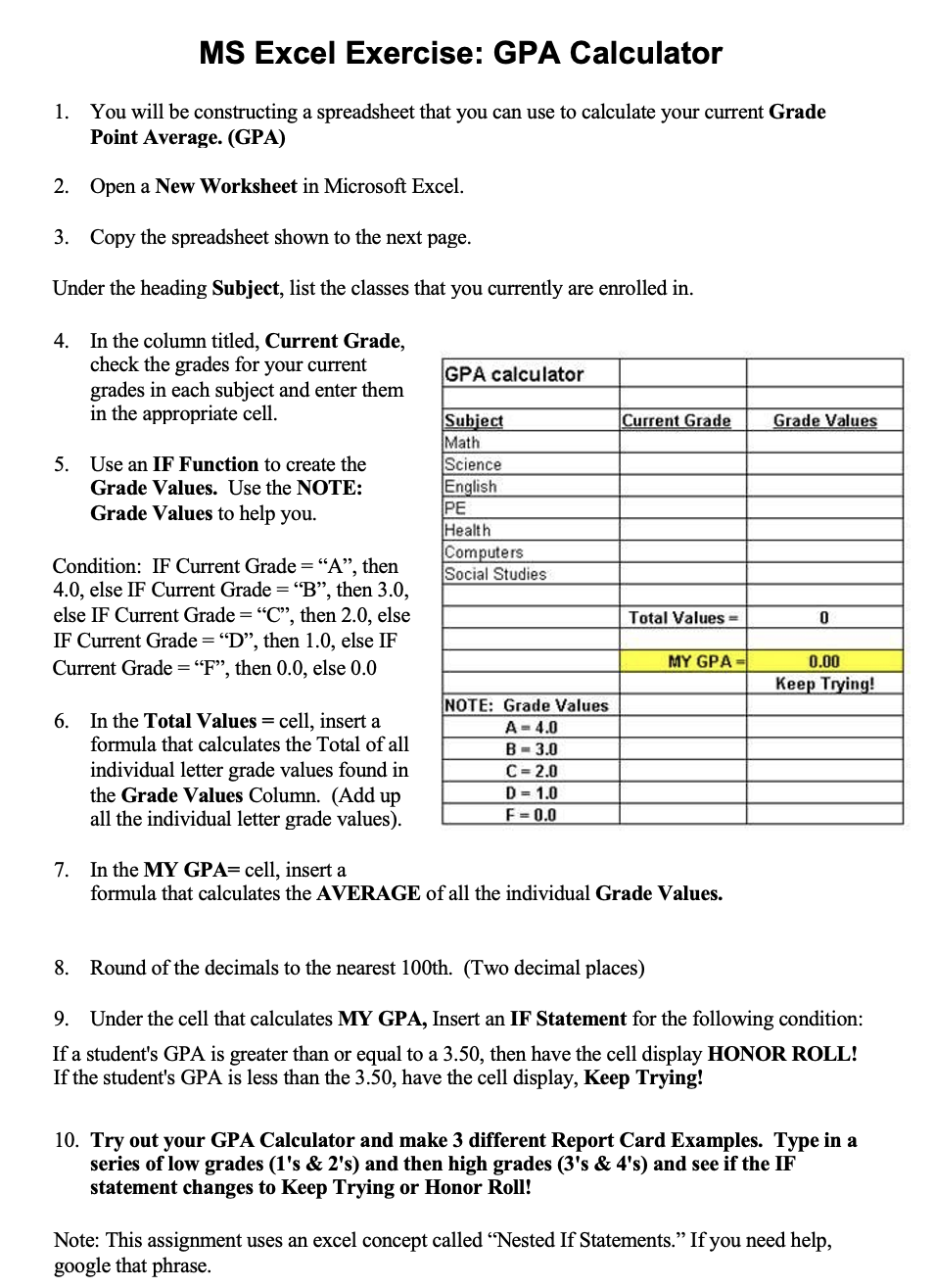
Copy the spreadsheet shown to the next page.
Under the heading Subject, list the classes that you currently are enrolled in
In the column titled, Current Grade,
check the grades for your current
grades in each subject and enter them
in the appropriate cell.
Use an IF Function to create the
Grade Values. Use the NOTE:
Grade Values to help you.
Condition: IF Current Grade A then
else IF Current Grade B then
else IF Current Grade then else
IF Current Grade D then else IF
Current Grade then else
In the Total Values cell, insert a
formula that calculates the Total of all
individual letter grade values found in
the Grade Values Column. Add up
all the individual letter grade values
In the MY GPA cell, insert a
formula that calculates the AVERAGE of all the individual Grade Values.
Round of the decimals to the nearest thTwo decimal places
Under the cell that calculates MY GPA, Insert an IF Statement for the following condition:
If a student's GPA is greater than or equal to a then have the cell display HONOR ROLL!
If the student's GPA is less than the have the cell display, Keep Trying!
Try out your GPA Calculator and make different Report Card Examples. Type in a
series of low grades s & s and then high grades s & s and see if the IF statement changes to Keep Trying or Honor Roll!
Answer the questions to
Step by Step Solution
There are 3 Steps involved in it
1 Expert Approved Answer
Step: 1 Unlock

Question Has Been Solved by an Expert!
Get step-by-step solutions from verified subject matter experts
Step: 2 Unlock
Step: 3 Unlock
 Study Help