







Question: MS Project Activity- Intro, WBS/Gantt, auto leveling *please send files to vcd988636@gnspes.ca for a thumbs up 1. Create a Microsoft Project MPP file titled yourname
MS Project Activity- Intro, WBS/Gantt, auto leveling 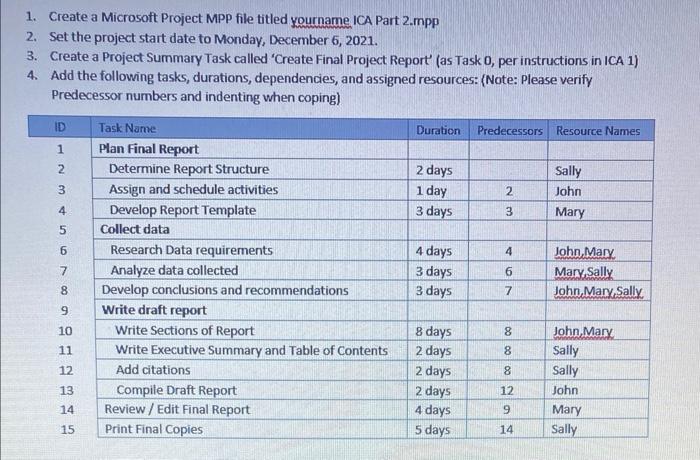
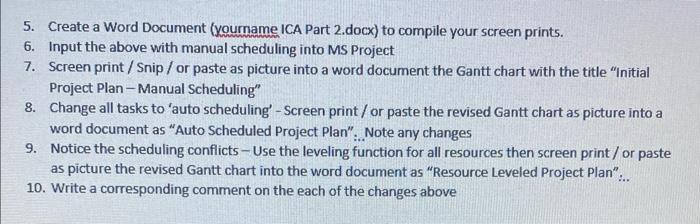
1. Create a Microsoft Project MPP file titled yourname ICA Part 2.mpp 2. Set the project start date to Monday, December 6, 2021. 3. Create a Project Summary Task called 'Create Final Project Report' (as Task o, per instructions in ICA 1) 4. Add the following tasks, durations, dependencies, and assigned resources: (Note: Please verify Predecessor numbers and indenting when coping) ID Duration Predecessors Resource Names 1 2 3 2 days 1 day 3 days 2 Sally John Mary 4 3 5 4 6 7 8 Task Name Plan Final Report Determine Report Structure Assign and schedule activities Develop Report Template Collect data Research Data requirements Analyze data collected Develop conclusions and recommendations Write draft report Write Sections of Report Write Executive Summary and Table of Contents Add citations Compile Draft Report Review / Edit Final Report Print Final Copies 4 days 3 days 3 days 6 John Mary Mary, Sally John Mary Sally 7 9 10 11 8 8 8 12 8 days 2 days 2 days 2 days 4 days 5 days John Mary Sally Sally John Mary Sally 12 13 14 9 15 14 5. Create a Word Document (yourname ICA Part 2.docx) to compile your screen prints. 6. Input the above with manual scheduling into MS Project 7. Screen print / Snip / or paste as picture into a word document the Gantt chart with the title "Initial Project Plan - Manual Scheduling" 8. Change all tasks to 'auto scheduling - Screen print/or paste the revised Gantt chart as picture into a word document as "Auto Scheduled Project Plan". Note any changes 9. Notice the scheduling conflicts - Use the leveling function for all resources then screen print/ or paste as picture the revised Gantt chart into the word document as "Resource Leveled Project Plan"... 10. Write a corresponding comment on the each of the changes above 1. Create a Microsoft Project MPP file titled yourname ICA Part 2.mpp 2. Set the project start date to Monday, December 6, 2021. 3. Create a Project Summary Task called 'Create Final Project Report' (as Task o, per instructions in ICA 1) 4. Add the following tasks, durations, dependencies, and assigned resources: (Note: Please verify Predecessor numbers and indenting when coping) ID Duration Predecessors Resource Names 1 2 3 2 days 1 day 3 days 2 Sally John Mary 4 3 5 4 6 7 8 Task Name Plan Final Report Determine Report Structure Assign and schedule activities Develop Report Template Collect data Research Data requirements Analyze data collected Develop conclusions and recommendations Write draft report Write Sections of Report Write Executive Summary and Table of Contents Add citations Compile Draft Report Review / Edit Final Report Print Final Copies 4 days 3 days 3 days 6 John Mary Mary, Sally John Mary Sally 7 9 10 11 8 8 8 12 8 days 2 days 2 days 2 days 4 days 5 days John Mary Sally Sally John Mary Sally 12 13 14 9 15 14 5. Create a Word Document (yourname ICA Part 2.docx) to compile your screen prints. 6. Input the above with manual scheduling into MS Project 7. Screen print / Snip / or paste as picture into a word document the Gantt chart with the title "Initial Project Plan - Manual Scheduling" 8. Change all tasks to 'auto scheduling - Screen print/or paste the revised Gantt chart as picture into a word document as "Auto Scheduled Project Plan". Note any changes 9. Notice the scheduling conflicts - Use the leveling function for all resources then screen print/ or paste as picture the revised Gantt chart into the word document as "Resource Leveled Project Plan"... 10. Write a corresponding comment on the each of the changes above
*please send files to vcd988636@gnspes.ca for a thumbs up
Step by Step Solution
There are 3 Steps involved in it
1 Expert Approved Answer
Step: 1 Unlock

Question Has Been Solved by an Expert!
Get step-by-step solutions from verified subject matter experts
Step: 2 Unlock
Step: 3 Unlock
 Study Help