







Question: Must create a Context Diagram, then level 0, then a level 1 - A context diagram based on your knowledge of Canvas System. Use page

Must create a Context Diagram, then level 0, then a level 1
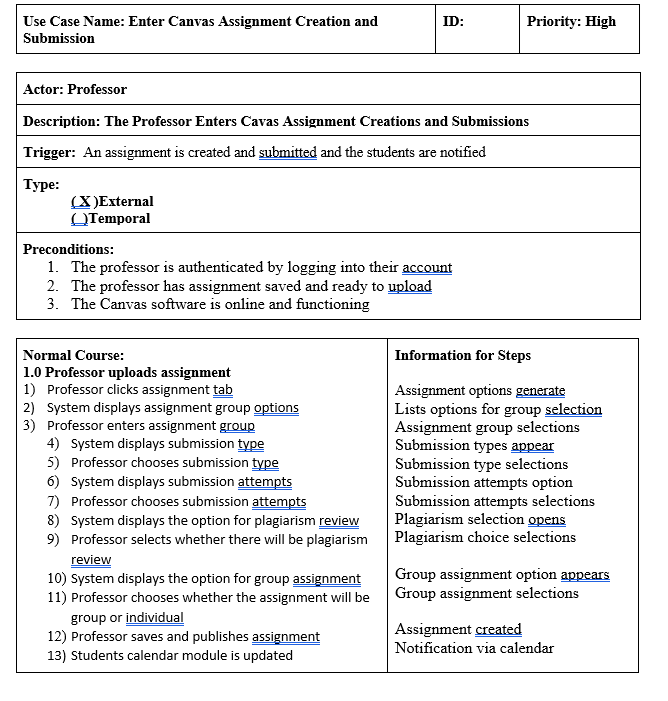
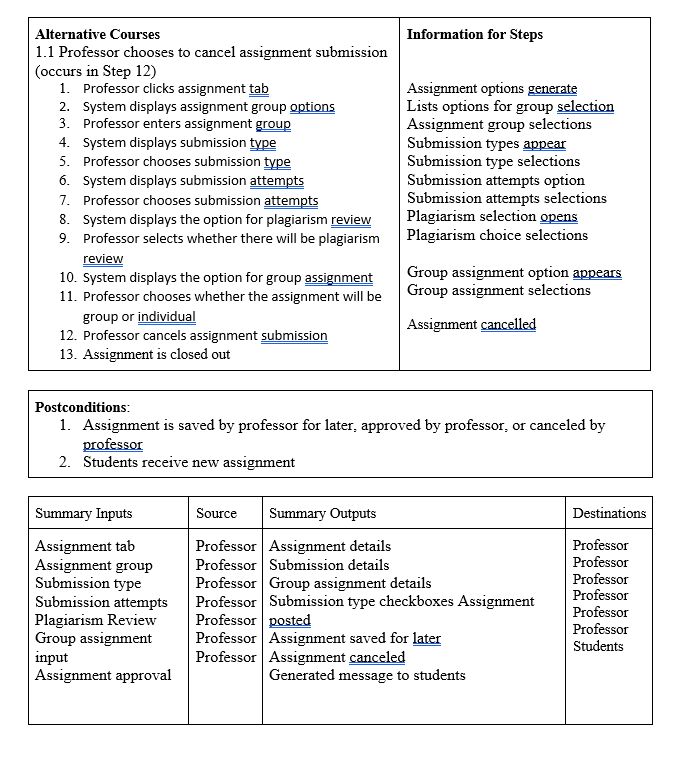
- A context diagram based on your knowledge of Canvas System. Use page 165 of the book as an example. - Create Level 0 diagram based on the Use Case you Developed on Hands on Assignment 4. Please provide the use case diagram in your solution. Use Page 166 of your book as an example - Create Level 1 diagram for one of the processes in your level 0 diagram. \begin{tabular}{|l|l|l|} \hline UseCaseName:EnterCanvasAssignmentCreationandSubmission & ID: & Priority: High \\ \hline \end{tabular} \begin{tabular}{|l|} \hline Actor: Professor \\ \hline Description: The Professor Enters Cavas Assignment Creations and Submissions \\ \hline Trigger: An assignment is created and submitted and the students are notified \\ \hline Type: \\ (X) External \\ (C) Temporal \\ \hline \end{tabular} Preconditions: 1. The professor is authenticated by logging into their account 2. The professor has assignment saved and ready to upload 3. The Canvas software is online and functioning \begin{tabular}{|l|l|} \hline Normal Course: & Information for Steps \\ 1.0 Professor uploads assignment & \\ 1) Professor clicks assignment tab & Assignment options generate \\ 2) System displays assignment group options & Lists options for group selection \\ 3) Professor enters assignment group & Assignment group selections \\ 4) System displays submission type & Submission types appear \\ 5) Professor chooses submission type & Submission type selections \\ 6) System displays submission attempts & Submission attempts option \\ 7) Professor chooses submission attempts & Submission attempts selections \\ 8) System displays the option for plagiarism review & Plagiarism selection opens \\ 9) Professor selects whether there will be plagiarism & Plagiarism choice selections \\ 10) System displays the option for group assignment & Group assignment option appears \\ 11) Professor chooses whether the assignment will be & Group assignment selections \\ group or individual & \\ 12) Professor saves and publishes assignment & Assignment created \\ 13) Students calendar module is updated & Notification via calendar \\ \hline \end{tabular} Postconditions: 1. Assignment is saved by professor for later, approved by professor, or canceled by professor 2. Students receive new assignment - A context diagram based on your knowledge of Canvas System. Use page 165 of the book as an example. - Create Level 0 diagram based on the Use Case you Developed on Hands on Assignment 4. Please provide the use case diagram in your solution. Use Page 166 of your book as an example - Create Level 1 diagram for one of the processes in your level 0 diagram. \begin{tabular}{|l|l|l|} \hline UseCaseName:EnterCanvasAssignmentCreationandSubmission & ID: & Priority: High \\ \hline \end{tabular} \begin{tabular}{|l|} \hline Actor: Professor \\ \hline Description: The Professor Enters Cavas Assignment Creations and Submissions \\ \hline Trigger: An assignment is created and submitted and the students are notified \\ \hline Type: \\ (X) External \\ (C) Temporal \\ \hline \end{tabular} Preconditions: 1. The professor is authenticated by logging into their account 2. The professor has assignment saved and ready to upload 3. The Canvas software is online and functioning \begin{tabular}{|l|l|} \hline Normal Course: & Information for Steps \\ 1.0 Professor uploads assignment & \\ 1) Professor clicks assignment tab & Assignment options generate \\ 2) System displays assignment group options & Lists options for group selection \\ 3) Professor enters assignment group & Assignment group selections \\ 4) System displays submission type & Submission types appear \\ 5) Professor chooses submission type & Submission type selections \\ 6) System displays submission attempts & Submission attempts option \\ 7) Professor chooses submission attempts & Submission attempts selections \\ 8) System displays the option for plagiarism review & Plagiarism selection opens \\ 9) Professor selects whether there will be plagiarism & Plagiarism choice selections \\ 10) System displays the option for group assignment & Group assignment option appears \\ 11) Professor chooses whether the assignment will be & Group assignment selections \\ group or individual & \\ 12) Professor saves and publishes assignment & Assignment created \\ 13) Students calendar module is updated & Notification via calendar \\ \hline \end{tabular} Postconditions: 1. Assignment is saved by professor for later, approved by professor, or canceled by professor 2. Students receive new assignmentStep by Step Solution
There are 3 Steps involved in it
1 Expert Approved Answer
Step: 1 Unlock

Question Has Been Solved by an Expert!
Get step-by-step solutions from verified subject matter experts
Step: 2 Unlock
Step: 3 Unlock
 Study Help