







Question: My Code so far: Public Class Form1 Private xid(), xname() As String Private xscore() As Decimal Private i As Integer Private Sub Button1_Click(sender As Object,
My Code so far:
Public Class Form1 Private xid(), xname() As String Private xscore() As Decimal Private i As Integer
Private Sub Button1_Click(sender As Object, e As EventArgs) Handles Button1.Click ReDim Preserve xid(0 To i) ReDim Preserve xname(0 To i) ReDim Preserve xscore(0 To i)
xid(i) = TextBox2.Text xname(i) = TextBox3.Text xscore(i) = CDec(TextBox4.Text)
i = i + 1 TextBox2.Text = "" TextBox3.Text = "" TextBox4.Text = ""
TextBox1.Text = Format(i, "0") & "Record Submiteed" & vbNewLine
End Sub
Private Sub Button2_Click(sender As Object, e As EventArgs) Handles Button2.Click For k = 0 To i - 1 TextBox1.Text = TextBox1.Text & xid(k) & " " & xname(k) & " " & Format(xscore(k), "0.00") & vbNewLine Next
End Sub
Private Sub Button3_Click(sender As Object, e As EventArgs) Handles Button3.Click Dim j As Integer Dim tempid, tempname As String Dim tempscore As Decimal
For j = 0 To i - 1 - 1 If xscore(j) > xscore(j + 1) Then
Else
End If TextBox1.Text = xid(j - 1) & xname(j - 1) & Format(xscore(j - 1), "0.00")
Next End Sub
Private Sub Form1_Load(sender As Object, e As EventArgs) Handles MyBase.Load i = 0 End Sub End Class
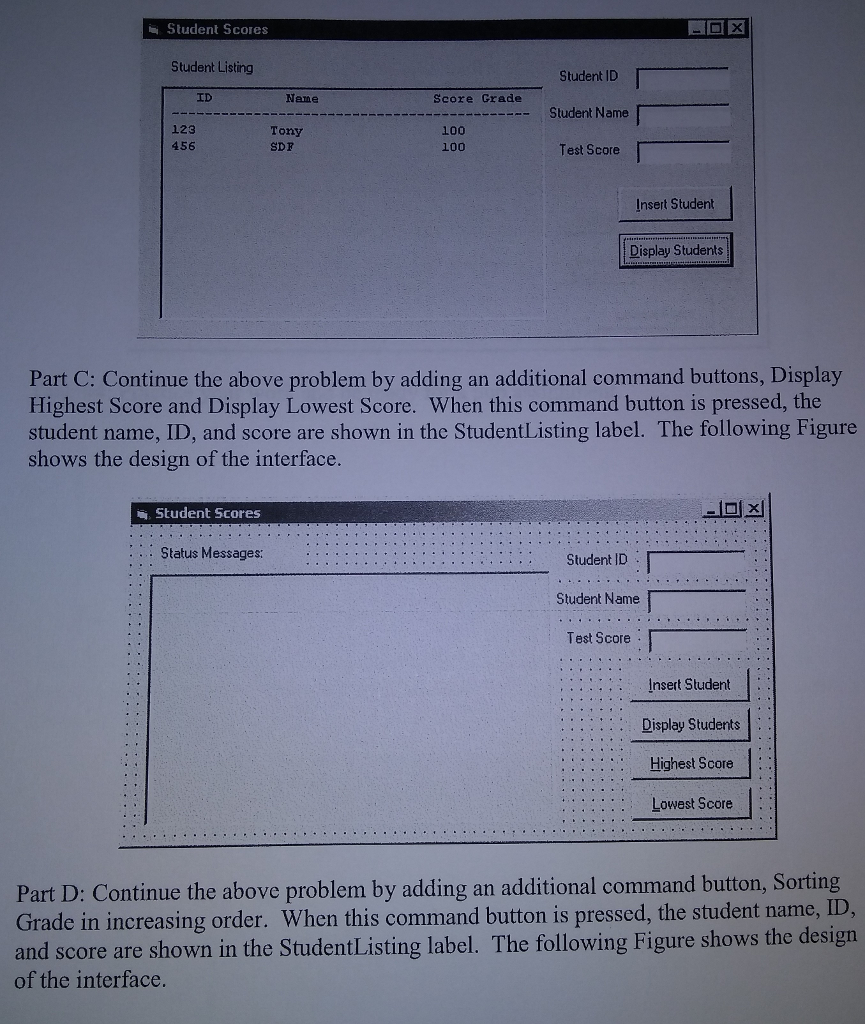
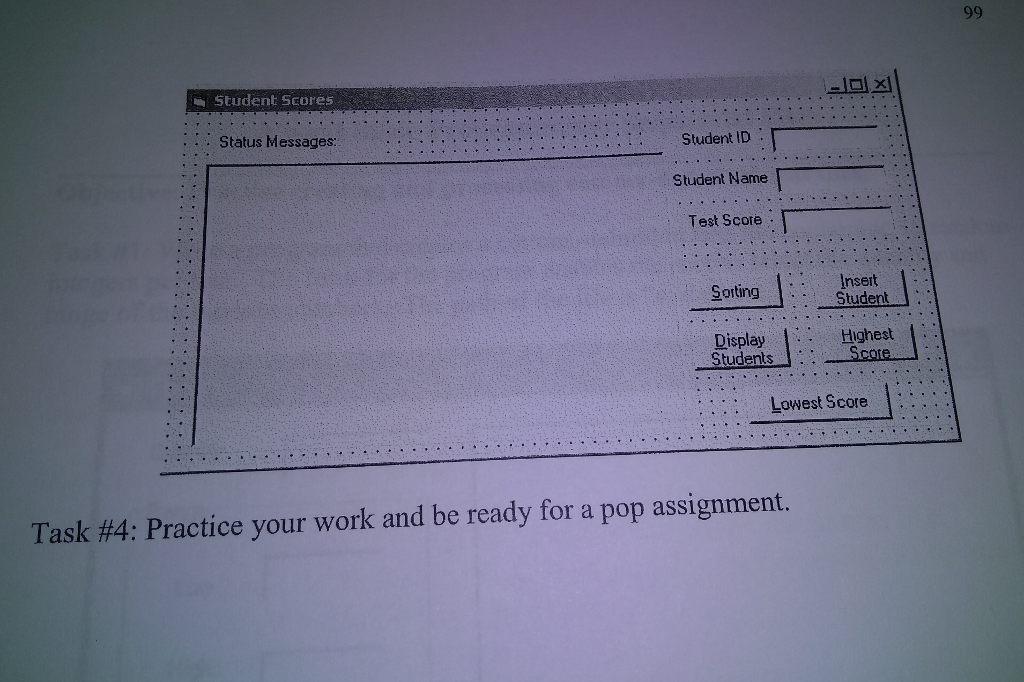
Student Scores Student Listing Student ID Student Name Test Score ID Name Score Grade 123 456 Tony SDF 100 100 Insert Student Display Students Part C: Continue the above problem by adding an additional command buttons, Display Highest Score and Display Lowest Score. When this command button is pressed, the student name, ID, and score are shown in the StudentListing label. The following Figure shows the design of the interface. Student Scores - Status Messages: Student ID Student Name Test Score Insert Student Display Students Highest Score Lowest Score Part D: Continue the above problem by adding an additional command button, Sorting Grade in increasing order. When this command button is pressed, the student name, ID, and score are shown in the StudentListing label. The following Figure shows the design of the interface
Step by Step Solution
There are 3 Steps involved in it

Get step-by-step solutions from verified subject matter experts
 Study Help