


Question: Need guidance to complete the following steps 7. Create a query to display sales of truffle flavored popcorn with a quantity greater than ten from

Need guidance to complete the following steps
Need guidance to complete the following steps 7.Need guidance to complete the following steps 7.Need guidance to complete the following steps 7.Need guidance to complete the following steps 7.
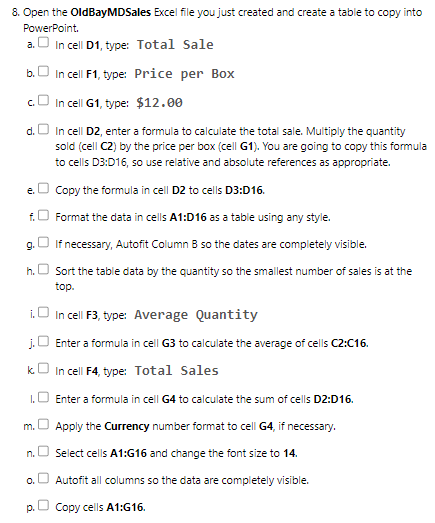
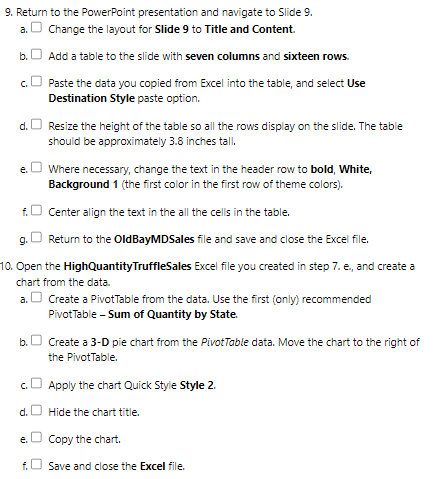
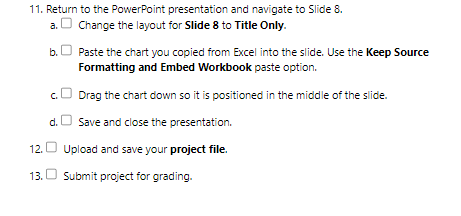
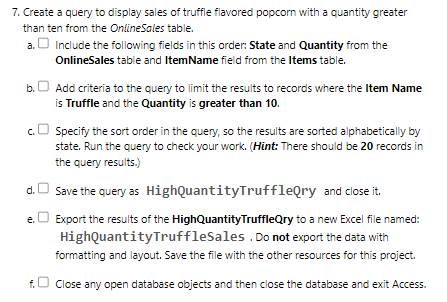
7. Create a query to display sales of truffle flavored popcorn with a quantity greater than ten from the OnlineSales table. a. Include the following fields in this order: State and Quantity from the OnlineSales table and ItemName field from the Items table. b. Add criteria to the query to limit the results to records where the Item Name is Truffle and the Quantity is greater than 10. c. Specify the sort order in the query, so the results are sorted alphabetically by state. Run the query to check your work. (Hint: There should be 20 records in the query results.) d. Save the query as HighQuantityTruffleQry and close it. e. O Export the results of the HighQuantityTruffleQry to a new Excel file named; HighQuantityTruffleSales . Do not export the data with formatting and layout. Save the file with the other resources for this project. f. Close any open database objects and then close the database and exit Access.6. Open the OldBayMDSales Excel file you just created and create a table to copy into PowerPoint. a. In cell D1, type: Total Sale b. In cell F1, type: Price per Box c. In cell G1, type: $12.00 d. In cell D2, enter a formula to calculate the total sale. Multiply the quantity sold (cell C2) by the price per box (cell G1). You are going to copy this formula to cells D3:D16, so use relative and absolute references as appropriate. e. Copy the formula in cell D2 to cells D3:D16. f. Format the data in cells A1:D16 as a table using any style. g. If necessary, Autofit Column B so the dates are completely visible. h. Sort the table data by the quantity so the smallest number of sales is at the top. i. In cell F3, type: Average Quantity j.O Enter a formula in cell G3 to calculate the average of cells C2:C16. k In cell F4, type: Total Sales I. Enter a formula in cell G4 to calculate the sum of cells D2:D16. m. Apply the Currency number format to cell G4, if necessary. n. Select cells A1:G16 and change the font size to 14. o. Autofit all columns so the data are completely visible. p. Copy cells A1:G16.9. Return to the Powerpoint presentation and navigate to Slide 9. a. Change the layout for Slide 9 to Title and Content. b. Add a table to the slide with seven columns and sixteen rows. c. Paste the data you copied from Excel into the table, and select Use Destination Style paste option. d. Resize the height of the table so all the rows display on the slide. The table should be approximately 3.8 inches tall. e. Where necessary, change the text in the header row to bold, White, Background 1 (the first color in the first row of theme colors). f. Center align the text in the all the cells in the table. g. Return to the OldBayMDSales file and save and close the Excel file. 10. Open the HighQuantityTruffleSales Excel file you created in step 7. e., and create a chart from the data. a. Create a PivotTable from the data. Use the first (only) recommended PivotTable - Sum of Quantity by State. b. Create a 3-D pie chart from the PivotTable data. Move the chart to the right of the PivotTable. c. Apply the chart Quick Style Style 2. d. Hide the chart title. e. Copy the chart. f. Save and close the Excel file.11. Return to the PowerPoint presentation and navigate to Slide 8. a. Change the layout for Slide 8 to Title Only. b. O Paste the chart you copied from Excel into the slide. Use the Keep Source Formatting and Embed Workbook paste option. c. Drag the chart down so it is positioned in the middle of the slide. d. Save and close the presentation. 12. Upload and save your project file. 13. O Submit project for grading

Step by Step Solution

There are 3 Steps involved in it

1 Expert Approved Answer
Step: 1 Unlock blur-text-image

Question Has Been Solved by an Expert!

Get step-by-step solutions from verified subject matter experts

Step: 2 Unlock
Step: 3 Unlock

Students Have Also Explored These Related Accounting Questions!