Question: NEED HELP 10. Create and save a parameter query named qryLevelParameter that displays the FirstName, LastName, Phone, Email, JoinDate, and Level fields in ascending order
NEED HELP
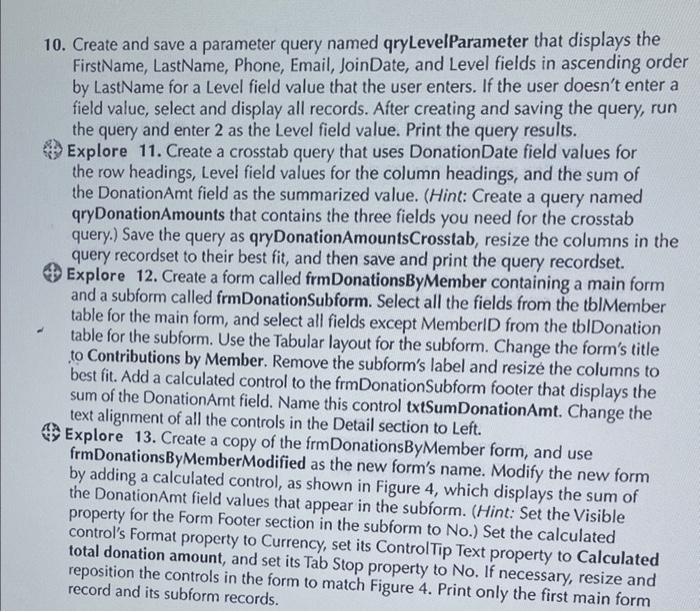
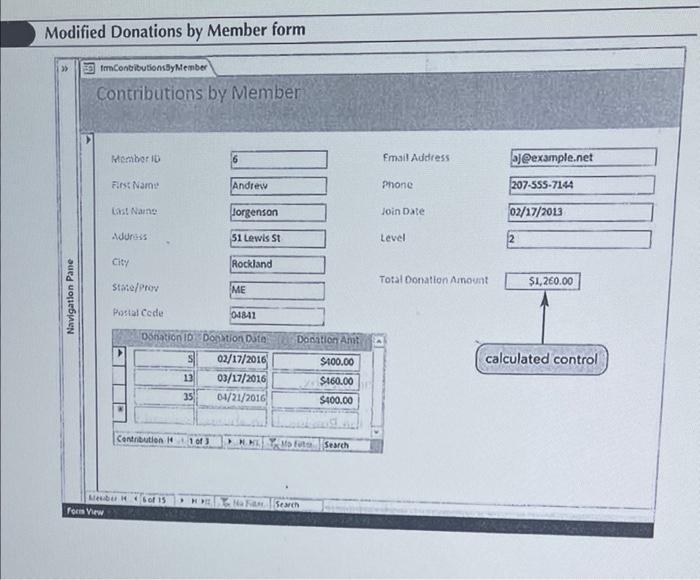
10. Create and save a parameter query named qryLevelParameter that displays the FirstName, LastName, Phone, Email, JoinDate, and Level fields in ascending order by LastName for a Level field value that the user enters. If the user doesn't enter a field value, select and display all records. After creating and saving the query, run the query and enter 2 as the Level field value. Print the query results. Explore 11. Create a crosstab query that uses DonationDate field values for the row headings, Level field values for the column headings, and the sum of the DonationAmt field as the summarized value. (Hint: Create a query named qryDonationAmounts that contains the three fields you need for the crosstab query.) Save the query as qryDonationAmountsCrosstab, resize the columns in the query recordset to their best fit, and then save and print the query recordset. Explore 12. Create a form called frmDonationsByMember containing a main form and a subform called frmDonationSubform. Select all the fields from the tblMember table for the main form, and select all fields except MemberID from the tbIDonation table for the subform. Use the Tabular layout for the subform. Change the form's title to Contributions by Member. Remove the subform's label and resize the columns to best fit. Add a calculated control to the frmDonationSubform footer that displays the sum of the DonationAmt field. Name this control txtSumDonationAmt. Change the text alignment of all the controls in the Detail section to Left. Explore 13. Create a copy of the frmDonationsByMember form, and use frmDonationsByMemberModified as the new form's name. Modify the new form by adding a calculated control, as shown in Figure 4, which displays the sum of the DonationAmt field values that appear in the subform. (Hint: Set the Visible property for the form Footer section in the subform to No.) Set the calculated control's Format property to Currency, set its ControlTip Text property to Calculated total donation amount, and set its Tab Stop property to No. If necessary, resize and reposition the controls in the form to match Figure 4. Print only the firct resize and Modified Donations by Member form









 Study Help