







Question: need help please Guided Project 1-3 In this project, you edit a worksheet for Wear-Ever Shoes that tracks their product inventory. You change the zoom
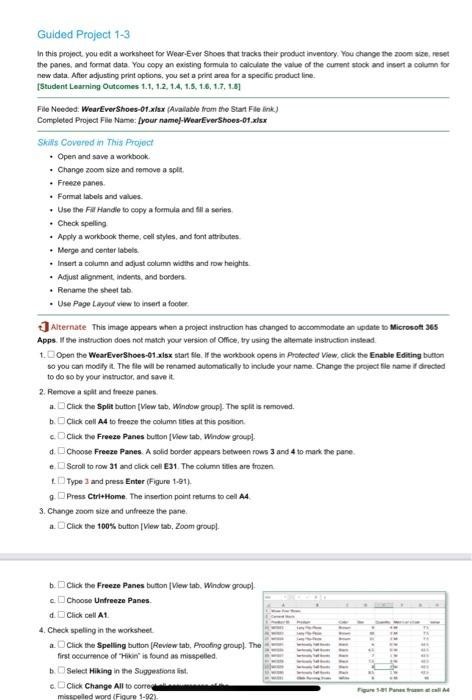
Guided Project 1-3 In this project, you edit a worksheet for Wear-Ever Shoes that tracks their product inventory. You change the zoom siz, reset the panes, and format data. You copy an existing formula to calculate the value of the current stock and insert a column for new data. After adjusting print options, you set a priest area for a specific product line [Student Learning Outcomes 1.1, 1.2, 1.4, 1.5, 1.6, 1.7, 1.8) File Needed: Wear Ever Shoes 01.xlsx (Available from the Start File link.) Completed Project File Name: your namel-WearEver Shoes-1.xlsx Skills Covered in This Project Open and save a workbook Change zoom size and remove a split - Freeze panes Format labels and values. Use the Fit Handle to copy a formula and fit a series . Check spelling Apply a workbook theme, coll styles, and font attributes . Merge and center labels Insert a column and adjust column widths and row heights Adjust alignment indents, and borders. . Rename the sheet tab Use Page Layout view to insert a footer Alternate This image appears when a project instruction has changed to accommodate update to Microsoft 365 Apps. If the instruction does not match your version of Office, try using the altemate instruction instead 1. Open the WearEverShoes-91.xlsx star file. If the workbook Opens in Protected View, click the Enable Editing button so you can modify it. The file will be renamed automatically to include your name. Change the project file name directed to do so by your instructor, and save it 2. Remove a split and freeze panel. a. Click the Split button (View tab, Window group. The split is removed. b. Click coll A4 to freeze the column titles at this position c. Click the Freeze Panes button View tab, Window group] d. Choose Freeze Panes. A solid border appears between rows 3 and 4 to mark the pane. e Scroll to row 31 and click cell E31. The column titles are frozen Type 3 and press Enter (Figure 1-21) Press Ctrl+Home. The insertion point returns to cell A4 3. Change zoom size and unfreeze the pane. 1. Click the 100% button [View tab, Zoom group] b. Click the Freeze Panes button View tab. Window group Choose Unfreeze Panes. d. Click cell A1 4. Check speling in the worksheet a Click the Speling button (Review tab. Proofing group. The first occurrence of "Hikin" is found as misspelled Select Hiking in the Sugestioni c.Click Change All to corre misspelled word (Figure 1-92). Figures Para Guided Project 1-3 In this project, you edit a worksheet for Wear-Ever Shoes that tracks their product inventory. You change the zoom siz, reset the panes, and format data. You copy an existing formula to calculate the value of the current stock and insert a column for new data. After adjusting print options, you set a priest area for a specific product line [Student Learning Outcomes 1.1, 1.2, 1.4, 1.5, 1.6, 1.7, 1.8) File Needed: Wear Ever Shoes 01.xlsx (Available from the Start File link.) Completed Project File Name: your namel-WearEver Shoes-1.xlsx Skills Covered in This Project Open and save a workbook Change zoom size and remove a split - Freeze panes Format labels and values. Use the Fit Handle to copy a formula and fit a series . Check spelling Apply a workbook theme, coll styles, and font attributes . Merge and center labels Insert a column and adjust column widths and row heights Adjust alignment indents, and borders. . Rename the sheet tab Use Page Layout view to insert a footer Alternate This image appears when a project instruction has changed to accommodate update to Microsoft 365 Apps. If the instruction does not match your version of Office, try using the altemate instruction instead 1. Open the WearEverShoes-91.xlsx star file. If the workbook Opens in Protected View, click the Enable Editing button so you can modify it. The file will be renamed automatically to include your name. Change the project file name directed to do so by your instructor, and save it 2. Remove a split and freeze panel. a. Click the Split button (View tab, Window group. The split is removed. b. Click coll A4 to freeze the column titles at this position c. Click the Freeze Panes button View tab, Window group] d. Choose Freeze Panes. A solid border appears between rows 3 and 4 to mark the pane. e Scroll to row 31 and click cell E31. The column titles are frozen Type 3 and press Enter (Figure 1-21) Press Ctrl+Home. The insertion point returns to cell A4 3. Change zoom size and unfreeze the pane. 1. Click the 100% button [View tab, Zoom group] b. Click the Freeze Panes button View tab. Window group Choose Unfreeze Panes. d. Click cell A1 4. Check speling in the worksheet a Click the Speling button (Review tab. Proofing group. The first occurrence of "Hikin" is found as misspelled Select Hiking in the Sugestioni c.Click Change All to corre misspelled word (Figure 1-92). Figures Para
Step by Step Solution
There are 3 Steps involved in it

Get step-by-step solutions from verified subject matter experts
 Study Help