







Question: Need Help With File Writer Application (Like Example Photo Below), Using Microsoft Visual Studio 2017 In C# code please! Given Code: namespace FileWriter { public
Need Help With File Writer Application (Like Example Photo Below), Using Microsoft Visual Studio 2017 In C# code please!
Given Code:
namespace FileWriter { public partial class Form1 : Form { public Form1() { InitializeComponent(); }
private void btnCreate_Click(object sender, EventArgs e) { try { //write code that assigns the value in the textbox to an Integer variable
if (/* write code that validates whether or not the data entered in the textbox is greater than or equal to 1 */) {
try {
SaveFileDialog saveFileDialog1 = new SaveFileDialog(); saveFileDialog1.Filter = "txt files (*.txt)|*.txt|All files (*.*)|*.*"; saveFileDialog1.FilterIndex = 1; saveFileDialog1.CheckFileExists = false; saveFileDialog1.InitialDirectory = //complete the code for the InitialDirectory property saveFileDialog1.RestoreDirectory = true;
if (saveFileDialog1.ShowDialog() == DialogResult.OK) { string strFileName = saveFileDialog1.FileName; FileStream fileOut = new FileStream(strFileName, FileMode.Create); StreamWriter writer = new StreamWriter(fileOut);
//Create an object of the Random class
for (/* program a loop condition that repeats a number of times equal to the number entered in the textbox */) { //write code that generates a random number and writes it into the .txt file } //close the writer object } } catch { MessageBox.Show("Error saving the changes to the data file.", "Error Saving Data", MessageBoxButtons.OK, MessageBoxIcon.Error); } } else { MessageBox.Show("Please enter an integer greater than zero"); } }
catch { MessageBox.Show("Please enter an integer greater than zero"); }
} } }
To whomever has been assisting with my questions, I thank you very, very much! I appreciate the time. I appreciate the explanations. I wish Chegg would bring back the comment section that is continually referenced that is no longer available.
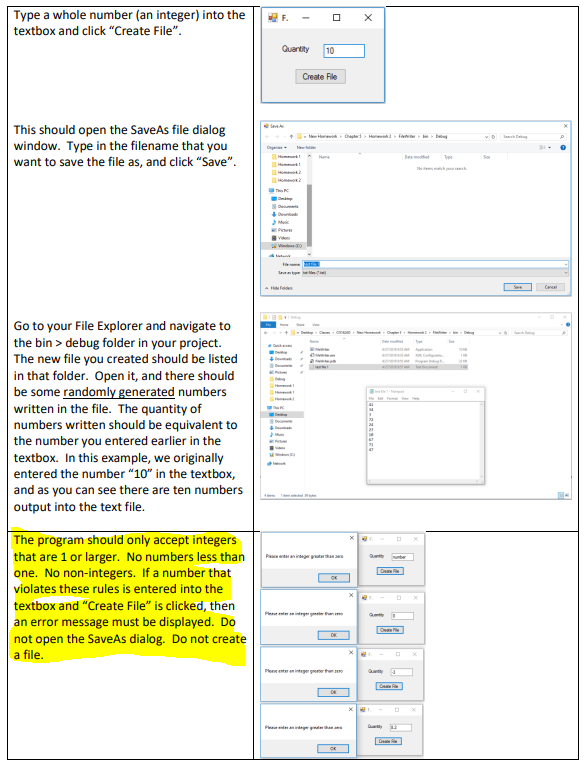
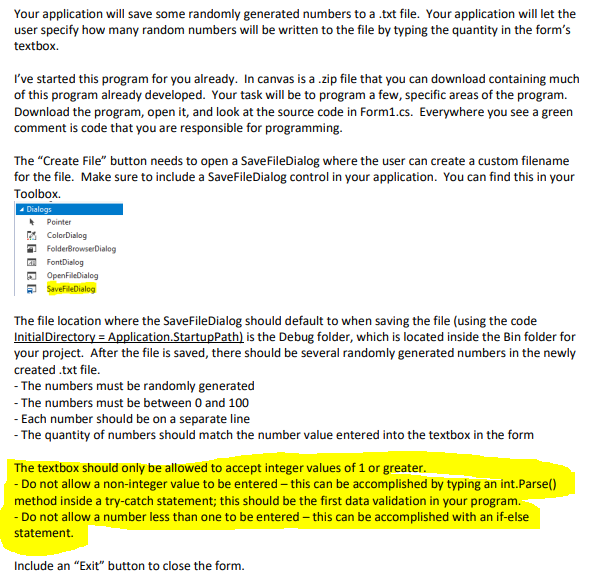
Type a whole number (an integer) into the textbox and click "Create File". This should open the SaveAs file dialog window. Type in the filename that you want to save the file as, and click "Save". Go to your File Explorer and navigate to the bin > debug folder in your project. The new file you created should be listed in that folder. Open it, and there should be some randomly generated numbers written in the file. The quantity of numbers written should be equivalent to the number you entered earlier in the textbox. In this example, we originally entered the number " 10 " in the textbox, and as you can see there are ten numbers output into the text file. The program should only accept integers that are 1 or larger. No numbers less than one. No non-integers. If a number that violates these rules is entered into the textbox and "Create File" is clicked, then an error message must be displayed. Do not open the SaveAs dialog. Do not create a file. Your application will save some randomly generated numbers to a .txt file. Your application will let the user specify how many random numbers will be written to the file by typing the quantity in the form's textbox. I've started this program for you already. In canvas is a .zip file that you can download containing much of this program already developed. Your task will be to program a few, specific areas of the program. Download the program, open it, and look at the source code in Form1.cs. Everywhere you see a green comment is code that you are responsible for programming. The "Create File" button needs to open a SaveFileDialog where the user can create a custom filename for the file. Make sure to include a SaveFileDialog control in your application. You can find this in your Toolbox. The file location where the SaveFileDialog should default to when saving the file (using the code InitialDirectory = Application.StartupPath) is the Debug folder, which is located inside the Bin folder for your project. After the file is saved, there should be several randomly generated numbers in the newly created.txt file. - The numbers must be randomly generated - The numbers must be between 0 and 100 - Each number should be on a separate line - The quantity of numbers should match the number value entered into the textbox in the form The textbox should only be allowed to accept integer values of 1 or greater. - Do not allow a non-integer value to be entered - this can be accomplished by typing an int.Parse() method inside a try-catch statement; this should be the first data validation in your program. - Do not allow a number less than one to be entered - this can be accomplished with an if-else statement. Include an "Exit" button to close the form
Step by Step Solution
There are 3 Steps involved in it

Get step-by-step solutions from verified subject matter experts
 Study Help