







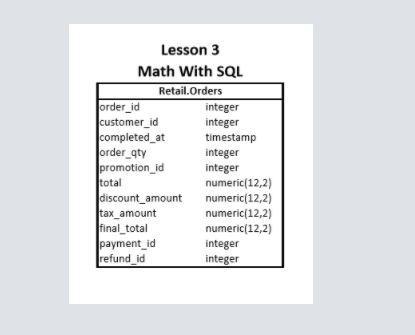
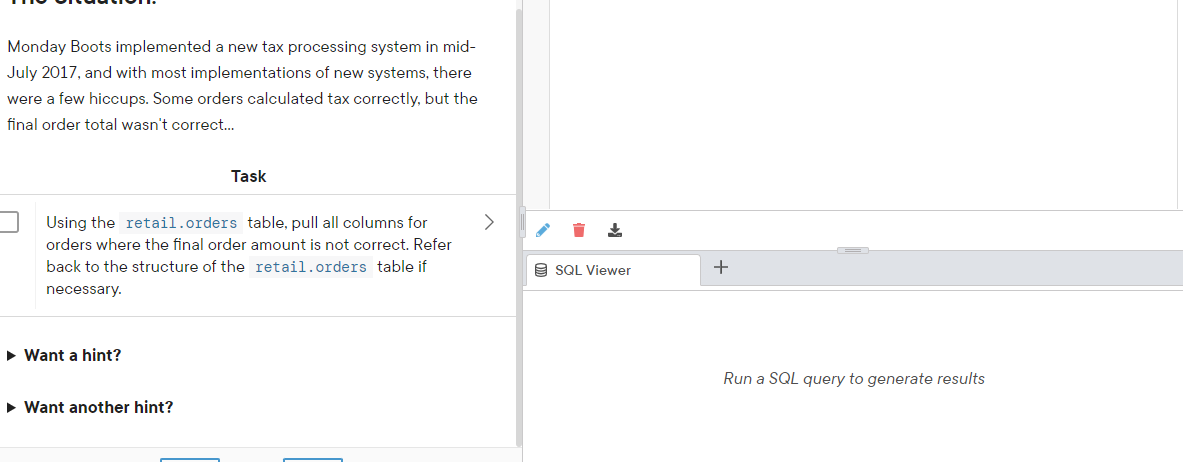
Question: Need help with Math with SQL Background information plus table ach mathematical operator is represented like so: Add: + Subtract: - Multiply: * Divide: /
Need help with Math with SQL
Background information plus table
ach mathematical operator is represented like so:
- Add: +
- Subtract: -
- Multiply: *
- Divide: /
When using mathematical operations, you can only do the arithmetic across a row, not up and down a column (mathematical operations within columns requires an aggregate function, which will be covered in a much later lesson).
SELECT product_code, original_price, current_price, original_price - current_price AS discount_amount FROM example.products;
In the example above, you can see that the value in current_price is being subtracted from the value in original_price. Since every row in each of those columns has a value, the mathematical operation is being done across each row.
Note from Jason: You may have noticed the AS discount_amount portion of the last query. This is a calculated column and is not saved data in the database. To have a descriptive name on this column, you can rename the resulting column in your query by writing AS and then whatever name you choose. If you want spaces, symbols, or capitalized letters in the name, you will have to format it with quotes: AS "Discount Amount". If you don't format the name of the column with quotes then it can only be one word and cannot begin with a number. Throughout this course, most column names will not use quotes.
Mathematical operations can also be done in the WHERE clause, they aren't just limited to the SELECT statement.
Something like the example below is perfectly fine!
SELECT product_code, full_name FROM example.products WHERE (original_price - current_price) = 40;
The subtraction of the two fields was put in parentheses to show that the mathematical operation is clearly separate from the =. And remember from your old math classes in school: whatever is within the parentheses is calculated first!
The data columns you are calculating are not displayed in the results. If you want to see those as well, add them to the column list after the SELECT (and remember the , (commas). You can also change the 40 to another amount to see how this changes the results displayed.
When working with numerical fields, the decimal places are always going to be important.
With SQL, if you are performing mathematical operations on whole numbers (or fields with a data type of integer), the results will also be whole numbers. When you are dividing numbers to get something like a percentage, this is not always going to be what you want...
A trick to getting your results to have the correct number of decimal places is to multiply a field by 1, along with the number of decimal places you want to see.
For example:
SELECT product_code, current_price, current_price*1.00 FROM example.products;
If you run that query, you will see that 2 decimal places were added to the value because the field was multiplied by a number with 2 decimal places.
Another more advanced option is to use a ROUND function. This function allows you to specify how many decimal places you want to see for a particular field or calculation.
Here's an example of rounding a field:
SELECT product_code, current_price ROUND(current_price,2) FROM example.products;
And here is one of rounding a calculation (note the use of parentheses):
SELECT product_code, current_price, ROUND((current_price + original_price),3) FROM example.products;
Step by Step Solution
There are 3 Steps involved in it

Get step-by-step solutions from verified subject matter experts
 Study Help