







Question: Need help with MySQL: *Code for creating mma schema database* product-- create and select the database DROP DATABASE IF EXISTS mma; CREATE DATABASE mma; USE
Need help with MySQL:
*Code for creating mma schema database*
product-- create and select the database DROP DATABASE IF EXISTS mma; CREATE DATABASE mma; USE mma;
-- create the Product table CREATE TABLE Product ( ProductID INT PRIMARY KEY AUTO_INCREMENT, Code VARCHAR(10) NOT NULL UNIQUE, Description VARCHAR(255) NOT NULL, ListPrice DECIMAL(10,2) NOT NULL );
-- insert some rows into the Product table INSERT INTO Product VALUES (1, 'java', 'Murach''s Java Programming', '57.50'), (2, 'jsp', 'Murach''s Java Servlets and JSP', '57.50'), (3, 'mysql', 'Murach''s MySQL', '54.50'), (4, 'android', 'Murach''s Android Programming', '57.50'), (5, 'html5', 'Murach''s HTML5 and CSS3', '54.50'), (6, 'oracle', 'Murach''s Oracle and PL/SQL', '54.50'), (7, 'javascript', 'Murach''s JavaScript and jQuery', '54.50');
-- create a user and grant privileges to that user GRANT SELECT, INSERT, DELETE, UPDATE ON mma.* TO mma_user@localhost IDENTIFIED BY 'sesame';
*Code provided from insert_product.sql script file*:
USE mma;
SELECT * FROM Product;
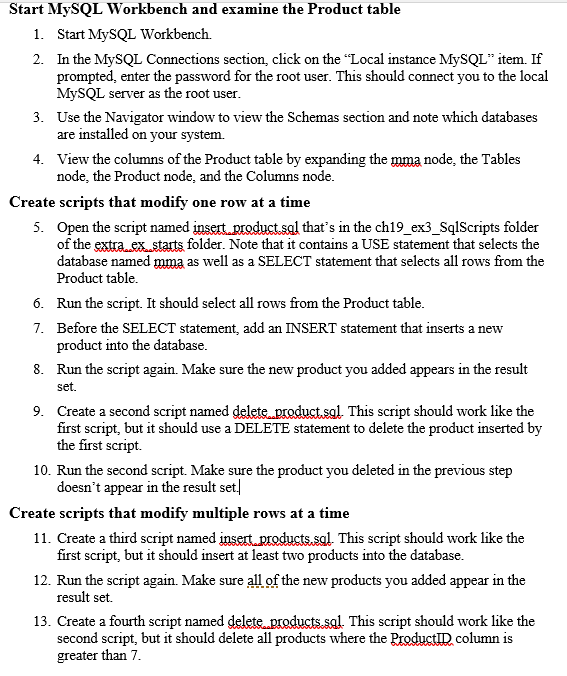
Start MySQL Workbench and examine the Product table 1. Start MySQL Workbench. In the MySQL Connections section, click on the "Local instance MySQL" item. If prompted, enter the password for the root user. This should connect you to the local MySQL server as the root user Use the Navigator window to view the Schemas section and note which databases are installed on your system. 2. 3. View the columns of the Product table by expanding the mma node, the Tables node, the Product node, and the Columns node 4. Create scripts that modify one row at a time 5. Open the script named insert product.sal that's in the ch19 ex3_SqlScripts folder of the extraexstarts folder. Note that it contains a USE statement that selects the database named mma as well as a SELECT statement that selects all rows from the Product table. 6. Run the script. It should select all rows from the Product table 7. Before the SELECT statement, add an INSERT statement that inserts a new 8. Run the script again. Make sure the new product you added appears in the result 9. Create a second script named delete.product.sal This script should work like the product into the database set. first script, but it should use a DELETE statement to delete the product inserted by the first script. 10. Run the second script. Make sure the product you deleted in the previous step doesn't appear in the result set. Create scripts that modify multiple rows at a time 11. Create a third script named jnsert products.sal This script should work like the 12. Run the script again. Make sure all of the new products you added appear in the 13. Create a fourth script named delete"productssal This script should work like the first script, but it should insert at least two products into the database result set. second script, but it should delete all products where the Productl column is greater than 7
Step by Step Solution
There are 3 Steps involved in it

Get step-by-step solutions from verified subject matter experts
 Study Help