







Question: Need help writing Java Code to indent pragraph of the Jmenu, count the line/word of the paragraph , and change the font of the paragraph
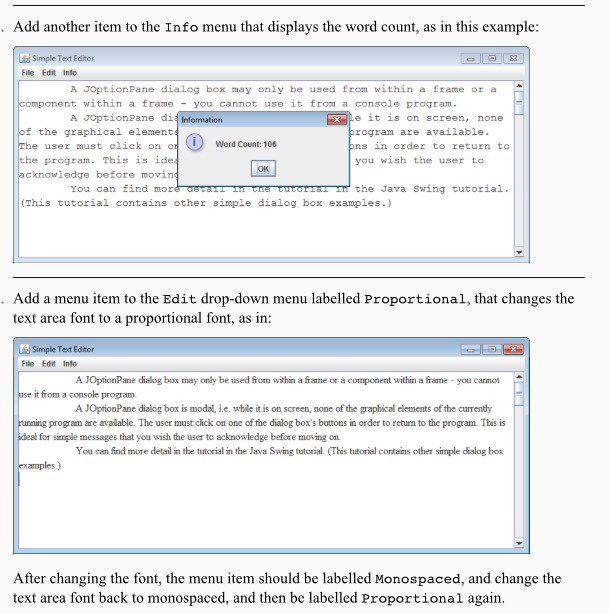
Need help writing Java Code to indent pragraph of the Jmenu, count the line/word of the paragraph , and change the font of the paragraph to a proportional one (base on the requirement below). Also, part of the codes are done and is posted below.
import java.awt.Font;
import java.awt.event.ActionEvent;
import java.awt.event.ActionListener;
import java.io.File;
import java.io.FileWriter;
import java.io.IOException;
import java.util.Scanner;
import javax.swing.JFileChooser;
import javax.swing.JFrame;
import javax.swing.JMenu;
import javax.swing.JMenuBar;
import javax.swing.JMenuItem;
import javax.swing.JOptionPane;
import javax.swing.JScrollPane;
import javax.swing.JTextArea;
// --------------------------------------------------------------------
@SuppressWarnings("serial")
public class TextFrame extends JFrame {
// --------------------------------------------------------------------
/**
* @param args
*/
public static void main(String[] args) {
TextFrame output = new TextFrame("Simple Text Editor");
output.setVisible(true);
}
// --------------------------------------------------------------------
// Define the list of acceptable file extensions.
public static final String[] EXTENSIONS = { "txt" };
public static final String DESCRIPTION = "Text Files (*.txt)";
private final JFileChooser chooser = new JFileChooser();
private final JMenu editMenu = new JMenu("Edit");
private final JMenuItem editMenuCopy = new JMenuItem("Copy");
private final JMenuItem editMenuCopyAll = new JMenuItem("Copy All");
private final JMenuItem editMenuWrap = new JMenuItem("Wrap");
private final JMenu fileMenu = new JMenu("File");
private final JMenuItem fileMenuExit = new JMenuItem("Exit");
private final JMenuItem fileMenuOpen = new JMenuItem("Open");
private final JMenuItem fileMenuSave = new JMenuItem("Save As");
private final JMenuBar menuBar = new JMenuBar();
/**
* Defines the frame's text area.
*/
private final JTextArea textArea = new JTextArea(80, 20);
/**
* Places the text area inside a scroll bar pane.
*/
private final JScrollPane textScroll = new JScrollPane(this.textArea);
// --------------------------------------------------------------------
/**
* The TextFrame constructor.
*
* @param title
* The title to display on the frame.
*/
public TextFrame(String title) {
this.setTitle(title);
// Define the file chooser filter.
this.chooser.setFileFilter(new SimpleFilenameFilter(EXTENSIONS,
DESCRIPTION));
// The file chooser may not display "All Files" as an option.
this.chooser.setAcceptAllFileFilterUsed(false);
this.layoutView();
this.registerListeners();
}
// --------------------------------------------------------------------
/**
* Lays out the contents of the frame.
*/
private void layoutView() {
// Set a monospaced font for the text area.
this.textArea.setFont(new Font("Monospaced", Font.PLAIN, 14));
// Wrap text on word boundaries within the text area.
this.textArea.setWrapStyleWord(true);
// Forbid the text area to wrap its contents.
this.textArea.setLineWrap(false);
// Add the scroll bar pane (and its included text area) to the frame.
this.getContentPane().add(this.textScroll);
// Add the file options to the File menu.
this.fileMenu.add(this.fileMenuOpen);
this.fileMenu.add(this.fileMenuSave);
this.fileMenu.add(this.fileMenuExit);
// Add the File heading to the menu bar.
this.menuBar.add(this.fileMenu);
// Add the editing options to the Edit menu.
this.editMenu.add(this.editMenuCopy);
this.editMenu.add(this.editMenuCopyAll);
this.editMenu.add(this.editMenuWrap);
// Add the Edit heading to the menu bar.
this.menuBar.add(this.editMenu);
// Attach the menu bar to the frame.
this.setJMenuBar(this.menuBar);
// Set the size of the frame.
this.setSize(800, 400);
}
// --------------------------------------------------------------------
/**
* Pops up a dialog box to save the contents of the text area. Modified from
* Developing Java Software, 2nd Edition by Winder and Roberts.
*/
private void openFile() {
File file = null;
if (this.chooser.showOpenDialog(this) == JFileChooser.APPROVE_OPTION) {
try {
// Grab the file select and open it with a buffer.
file = this.chooser.getSelectedFile();
Scanner stream = new Scanner(file);
while (stream.hasNextLine()) {
this.textArea.append(stream.nextLine());
// Required for line break in a JTextArea.
this.textArea.append(" ");
}
stream.close();
} catch (IOException e) {
JOptionPane.showMessageDialog(null, "Could not read from file "
+ file.getName(), "Error", JOptionPane.ERROR_MESSAGE);
}
}
}
// --------------------------------------------------------------------
/**
* Attaches listeners to the frames menu items.
*/
private void registerListeners() {
this.editMenuCopy.addActionListener(new ActionListener() {
public void actionPerformed(ActionEvent e) {
TextFrame.this.textArea.copy();
TextFrame.this.textArea.requestFocus();
}
});
this.editMenuCopyAll.addActionListener(new ActionListener() {
public void actionPerformed(ActionEvent e) {
TextFrame.this.textArea.selectAll();
TextFrame.this.textArea.copy();
TextFrame.this.textArea.requestFocus();
}
});
this.editMenuWrap.addActionListener(new ActionListener() {
public void actionPerformed(ActionEvent e) {
// Toggle the current line wrap setting.
TextFrame.this.textArea.setLineWrap(!TextFrame.this.textArea
.getLineWrap());
}
});
this.fileMenuOpen.addActionListener(new ActionListener() {
public void actionPerformed(ActionEvent e) {
TextFrame.this.openFile();
}
});
this.fileMenuSave.addActionListener(new ActionListener() {
public void actionPerformed(ActionEvent e) {
TextFrame.this.saveFile();
}
});
this.fileMenuExit.addActionListener(new ActionListener() {
public void actionPerformed(ActionEvent e) {
TextFrame.this.dispose();
System.exit(0);
}
});
}
// --------------------------------------------------------------------
/**
* Pops up a dialog box to save the contents of the text area. Taken from
* Developing Java Software, 2nd Edition by Winder and Roberts.
*/
private void saveFile() {
File file = null;
if (this.chooser.showSaveDialog(this) == JFileChooser.APPROVE_OPTION) {
try {
file = this.chooser.getSelectedFile();
this.textArea.write(new FileWriter(file));
} catch (IOException e) {
this.textArea.append("Error: Could not write to file "
+ file.getName());
}
}
}
// --------------------------------------------------------------------
}
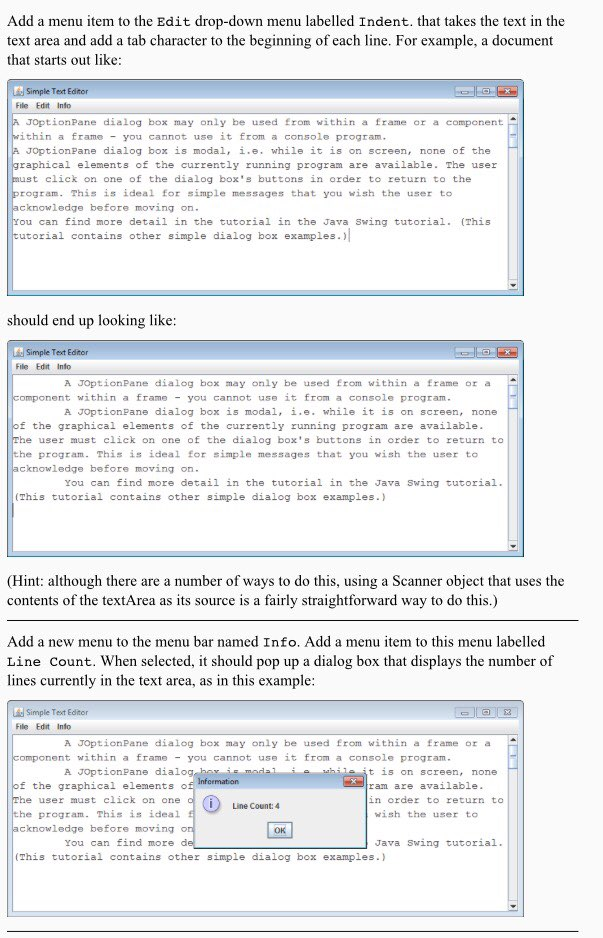
Add a menu item to the Edit drop-down menu labelled Indent. that takes the text in the text area and add a tab character to the beginning of each line. For example, a document that starts out like: Simple Text Editor File Edrt Info JoptionPane dialog box may only be used Erom within a frame or a component ithin a frame -you cannot use it from a console program JOptionPane dialog box is modal, i.e. while it is on screen, none of the raphical elements of the currently running program are available. The user st click on one of the dialog box's buttons in order to return to the rogram. This is ideal for simple messages that you wish the user to cknowledge before moving on. ou can find more detail in the tutorial in the Java Swing tutorial. (This utorial contains other simple dialog box examples.) should end up looking ike: Simple Text Editor File Edit Info A JoptionPane dialog box may only be used from within a frame or a omponent within a frae you cannot use it from a console program A JOptionPane dialog box is modal, i.e. while it is on screen, none f the graphical elements of the currently running program are available he user must click on one of the dialog box's buttons in order to return to program. This is ideal for simple messages that you wish the user to cknowledge before moving on You can find more detail in the tutorial in the Java Swing tutorial (This tutorial contains other simple dialog box examples.) (Hint: although there are a number of ways to do this, using a Scanner object that uses the contents of the textArea as its source is a fairly straightforward way to do this.) Add a new menu to the menu bar named Info. Add a menu item to this menu labelled Line Count. When selected, it should pop up a dialog box that displays the number of lines currently in the text area, as in this example Simple Text Editor File Edit Info A JoptionPane dialog box may only be used from within a frame or a omponent within a frame - you cannot us. it from a con ole program A JOptionPane dialog f the graphical elements o he user must click on one (i Line Count:4 t 15 on screen,none ram are available in order to return to program. This is idea.l wish the user to cknowledge before moving You can find more OK Java Swing tutorial (This tutorial contains other simple dialog box examples.)
Step by Step Solution
There are 3 Steps involved in it

Get step-by-step solutions from verified subject matter experts
 Study Help