







Question: Need help writing VBA code for this problem : 2. Display the specified number of random values Instead of using Msgbox and Inputbox to get
Need help writing VBA code for this problem :
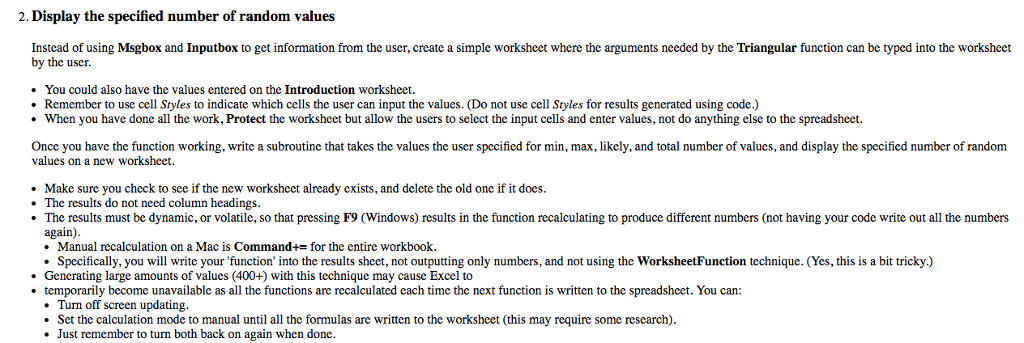
2. Display the specified number of random values Instead of using Msgbox and Inputbox to get information from the user, create a simple worksheet where the arguments needed by the Triangular function can be typed into the worksheet by the user You could also have the values entered on the Introduction worksheet. Remember to use cell Styles to indicate which cells the user can input the values. (Do not use cell Styles for results generated using code.) When you have done all the work, Protect the worksheet but allow the users to select the input cells and enter values, not do anything else to the spreadsheet Once you have the function working, write a subroutine that takes the values the user specified for min, max, likely, and total number of values, and display the specified number of random values on a new worksheet Make sure you check to see if the new worksheet already exists, and delete the old one if it does. The results do not need column headings The results must be dynamic, or volatile, so that pressing F9 (Windows) results in the function recalculating to produce different numbers (not having your code write out all the numbers again) Manual recalculation on a Mac is Command+= for the entire workbook. Specifically, you will write your function' into the results sheet, not outputting only numbers, and not using the WorksheetFunction technique. (Yes, this is a bit tricky.) Generating large amounts of values (400+) with this technique may cause Excel to temporarily become unavailable as all the functions are recalculated each time the next function is written to the spreadsheet. You can Turn off screen updating Set the calculation mode to manual until all the formulas are written to the worksheet (this may require some research Just remember to turn both back on again when done 2. Display the specified number of random values Instead of using Msgbox and Inputbox to get information from the user, create a simple worksheet where the arguments needed by the Triangular function can be typed into the worksheet by the user You could also have the values entered on the Introduction worksheet. Remember to use cell Styles to indicate which cells the user can input the values. (Do not use cell Styles for results generated using code.) When you have done all the work, Protect the worksheet but allow the users to select the input cells and enter values, not do anything else to the spreadsheet Once you have the function working, write a subroutine that takes the values the user specified for min, max, likely, and total number of values, and display the specified number of random values on a new worksheet Make sure you check to see if the new worksheet already exists, and delete the old one if it does. The results do not need column headings The results must be dynamic, or volatile, so that pressing F9 (Windows) results in the function recalculating to produce different numbers (not having your code write out all the numbers again) Manual recalculation on a Mac is Command+= for the entire workbook. Specifically, you will write your function' into the results sheet, not outputting only numbers, and not using the WorksheetFunction technique. (Yes, this is a bit tricky.) Generating large amounts of values (400+) with this technique may cause Excel to temporarily become unavailable as all the functions are recalculated each time the next function is written to the spreadsheet. You can Turn off screen updating Set the calculation mode to manual until all the formulas are written to the worksheet (this may require some research Just remember to turn both back on again when done
Step by Step Solution
There are 3 Steps involved in it

Get step-by-step solutions from verified subject matter experts
 Study Help