







Question: Objectives: 1. Apply WebGL API 2. Apply JS API 3. Understand and modify existing programs Problem Description: Refer to Exercise 2.1. A slight variation on
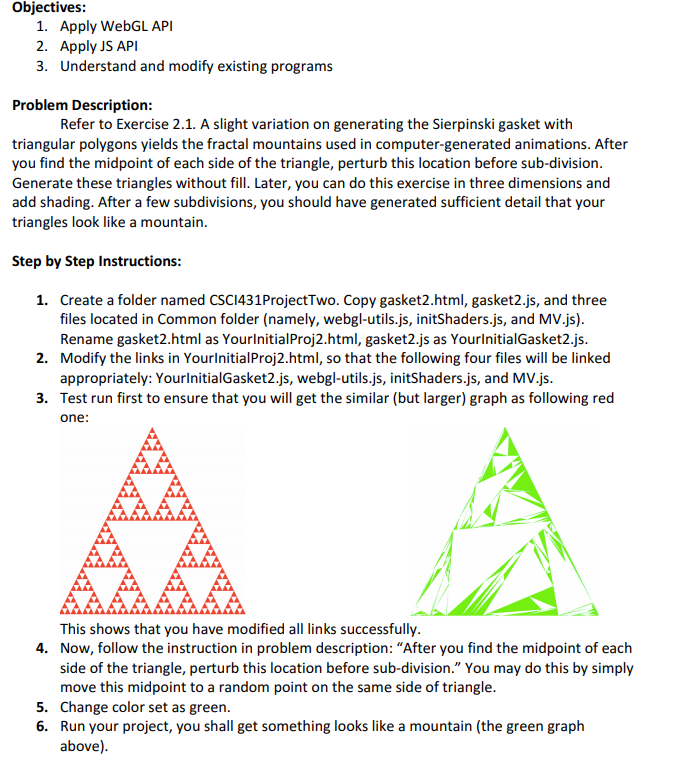
Objectives: 1. Apply WebGL API 2. Apply JS API 3. Understand and modify existing programs Problem Description: Refer to Exercise 2.1. A slight variation on generating the Sierpinski gasket with triangular polygons yields the fractal mountains used in computer-generated animations. After you find the midpoint of each side of the triangle, perturb this location before sub-division. Generate these triangles without fill. Later, you can do this exercise in three dimensions and add shading. After a few subdivisions, you should have generated sufficient detail that your triangles look like a mountain. Step by Step Instructions: 1. Create a folder named CSC1431Project Two. Copy gasket2.html, gasket2.js, and three files located in Common folder (namely, webgl-utils.js, initShaders.js, and MV.js). Rename gasket2.html as YourlnitialProj2.html, gasket2.js as YourlnitialGasket2.js. 2. Modify the links in YourInitialProj2.html, so that the following four files will be linked appropriately: YourInitialGasket2.js, webgl-utils.js, initShaders.js, and MV.js. 3. Test run first to ensure that you will get the similar (but larger) graph as following red one: This shows that you have modified all links successfully. 4. Now, follow the instruction in problem description: "After you find the midpoint of each side of the triangle, perturb this location before sub-division." You may do this by simply move this midpoint to a random point on the same side of triangle. 5. Change color set as green. 6. Run your project, you shall get something looks like a mountain (the green graph above). Objectives: 1. Apply WebGL API 2. Apply JS API 3. Understand and modify existing programs Problem Description: Refer to Exercise 2.1. A slight variation on generating the Sierpinski gasket with triangular polygons yields the fractal mountains used in computer-generated animations. After you find the midpoint of each side of the triangle, perturb this location before sub-division. Generate these triangles without fill. Later, you can do this exercise in three dimensions and add shading. After a few subdivisions, you should have generated sufficient detail that your triangles look like a mountain. Step by Step Instructions: 1. Create a folder named CSC1431Project Two. Copy gasket2.html, gasket2.js, and three files located in Common folder (namely, webgl-utils.js, initShaders.js, and MV.js). Rename gasket2.html as YourlnitialProj2.html, gasket2.js as YourlnitialGasket2.js. 2. Modify the links in YourInitialProj2.html, so that the following four files will be linked appropriately: YourInitialGasket2.js, webgl-utils.js, initShaders.js, and MV.js. 3. Test run first to ensure that you will get the similar (but larger) graph as following red one: This shows that you have modified all links successfully. 4. Now, follow the instruction in problem description: "After you find the midpoint of each side of the triangle, perturb this location before sub-division." You may do this by simply move this midpoint to a random point on the same side of triangle. 5. Change color set as green. 6. Run your project, you shall get something looks like a mountain (the green graph above)
Step by Step Solution
There are 3 Steps involved in it

Get step-by-step solutions from verified subject matter experts
 Study Help