







Question: Objectives After completing this lab, you should be able to: create a class invoke methods draw simple shapes Practice Good Coding Style Elegant source code
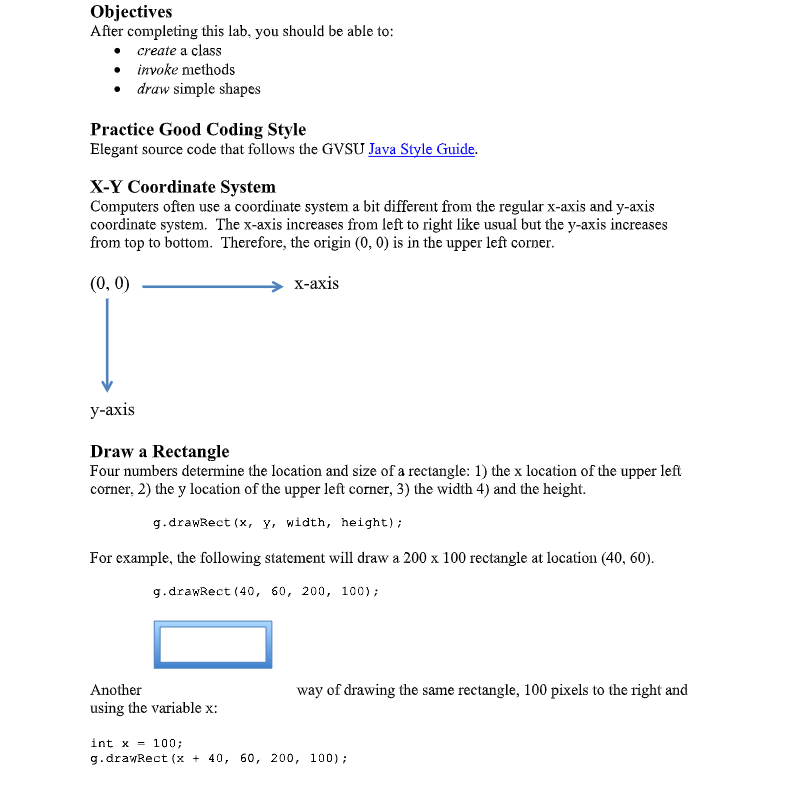
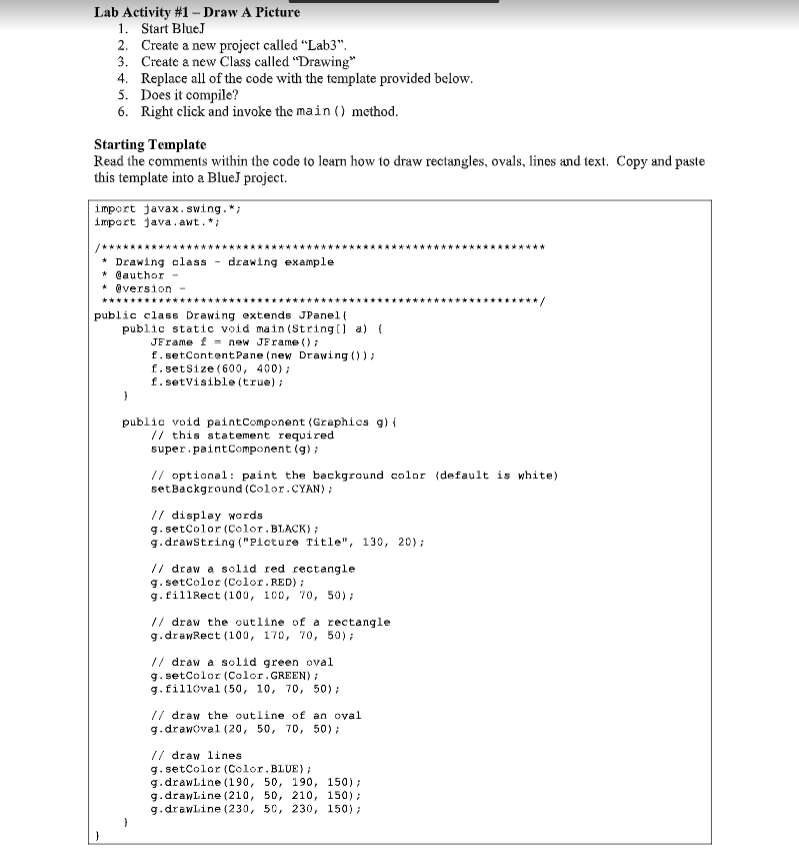
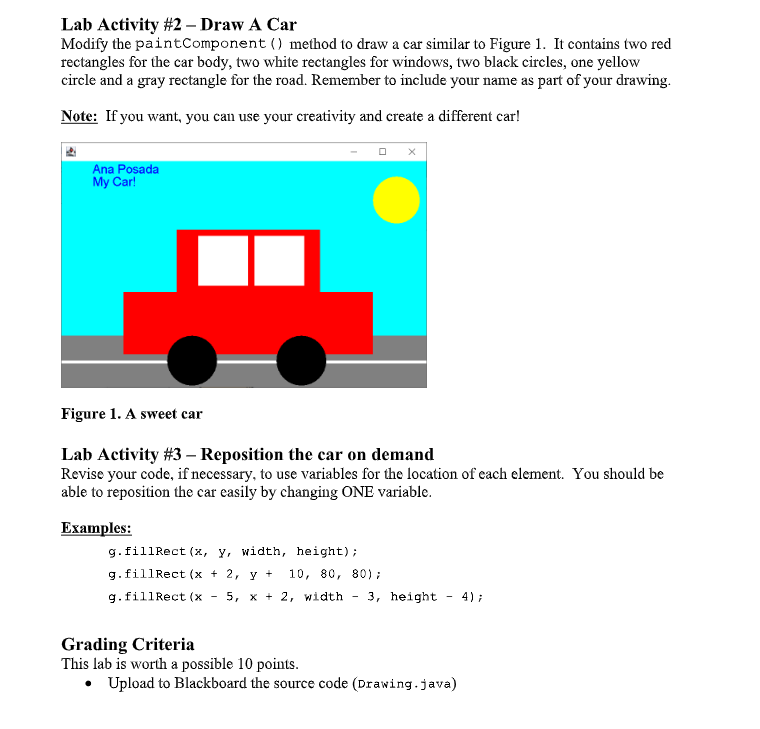
Objectives After completing this lab, you should be able to: create a class invoke methods draw simple shapes Practice Good Coding Style Elegant source code that follows the GVSU Java Style Guide. X-Y Coordinate System Computers often use a coordinate system a bit different from the regular x-axis and y-axis coordinate system. The x-axis increases from left to right like usual but the y-axis increases from top to bottom. Therefore, the origin (0,0) is in the upper left corner. (0,0) ) X-axis y-axis Draw a Rectangle Four numbers determine the location and size of a rectangle: 1) the x location of the upper left corner, 2) the y location of the upper left corner, 3) the width 4) and the height. g.drawRect(X, Y, width, height); For example, the following statement will draw a 200 x 100 rectangle at location (40, 60). a g. drawRect (40, 50, 200, 100); Another using the variable x: way of drawing the same rectangle, 100 pixels to the right and int x = 100; g.drawRect (x + 40, 60, 200, 100); Lab Activity #1 - Draw A Picture 1. Start Blue 2. Create a new project called "Lab3". 3. Create a new Class called "Drawing 4. Replace all of the code with the template provided below. 5. Does it compile? 6. Right click and invoke the main () method. Starting Template Read the comments within the code to learn how to draw rectangles, ovals, lines and text. Copy and paste this template into a Blue) project. import javax.swing.*; import java.awt.*; /********** WWW*** * Drawing class - drawing example * Cauthor - * @version public class Drawing extends JPanel public static void main(String[] a) ( JFrame f = new JFrame(); f.setContentPane(new Drawing()); f.setSize(600, 400); f.setVisible(true); 1 public void paint Component (Graphics g) { // this statement required super.paint Component (g); // optional: paint the background color (default is white) setBackground (Color.CYAN); // display words g.setColor (Color.BLACK) g.drawstring("Picture Title", 130, 20); // draw a solid red rectangle g.setColor (Color. RED); g.fillRect (100, 100, 70, 50); // draw the outline of a rectangle g.drawRect (100, 170, 70, 50); // draw a solid green oval 9.setColor (Color.GREEN); g.filloval (50, 10, 70, 50); // draw the outline of an oval g.drawval (20, 50, 70, 50); // draw lines g. setColor (Color.BLUE); g.drawLine (190, 50, 190, 150); g.drawLine (210, 50, 210, 150); g.drawLine (230, 50, 230, 150); Lab Activity #2 - Draw A Car Modify the paint Component() method to draw a car similar to Figure 1. It contains two red rectangles for the car body, two white rectangles for windows, two black circles, one yellow circle and a gray rectangle for the road. Remember to include your name as part of your drawing. Note: If you want, you can use your creativity and create a different car! Ana Posada My Car! Figure 1. A sweet car Lab Activity #3 - Reposition the car on demand Revise your code, if necessary, to use variables for the location of each element. You should be able to reposition the car easily by changing ONE variable. Examples: g.fillRect(x, y, width, height); g.fillRect (x + 2, Y + 10, 80, 80); g.fillRect (x 5, X + 2, width 3, height 4); Grading Criteria This lab is worth a possible 10 points. Upload to Blackboard the source code (Drawing.java) Objectives After completing this lab, you should be able to: create a class invoke methods draw simple shapes Practice Good Coding Style Elegant source code that follows the GVSU Java Style Guide. X-Y Coordinate System Computers often use a coordinate system a bit different from the regular x-axis and y-axis coordinate system. The x-axis increases from left to right like usual but the y-axis increases from top to bottom. Therefore, the origin (0,0) is in the upper left corner. (0,0) ) X-axis y-axis Draw a Rectangle Four numbers determine the location and size of a rectangle: 1) the x location of the upper left corner, 2) the y location of the upper left corner, 3) the width 4) and the height. g.drawRect(X, Y, width, height); For example, the following statement will draw a 200 x 100 rectangle at location (40, 60). a g. drawRect (40, 50, 200, 100); Another using the variable x: way of drawing the same rectangle, 100 pixels to the right and int x = 100; g.drawRect (x + 40, 60, 200, 100); Lab Activity #1 - Draw A Picture 1. Start Blue 2. Create a new project called "Lab3". 3. Create a new Class called "Drawing 4. Replace all of the code with the template provided below. 5. Does it compile? 6. Right click and invoke the main () method. Starting Template Read the comments within the code to learn how to draw rectangles, ovals, lines and text. Copy and paste this template into a Blue) project. import javax.swing.*; import java.awt.*; /********** WWW*** * Drawing class - drawing example * Cauthor - * @version public class Drawing extends JPanel public static void main(String[] a) ( JFrame f = new JFrame(); f.setContentPane(new Drawing()); f.setSize(600, 400); f.setVisible(true); 1 public void paint Component (Graphics g) { // this statement required super.paint Component (g); // optional: paint the background color (default is white) setBackground (Color.CYAN); // display words g.setColor (Color.BLACK) g.drawstring("Picture Title", 130, 20); // draw a solid red rectangle g.setColor (Color. RED); g.fillRect (100, 100, 70, 50); // draw the outline of a rectangle g.drawRect (100, 170, 70, 50); // draw a solid green oval 9.setColor (Color.GREEN); g.filloval (50, 10, 70, 50); // draw the outline of an oval g.drawval (20, 50, 70, 50); // draw lines g. setColor (Color.BLUE); g.drawLine (190, 50, 190, 150); g.drawLine (210, 50, 210, 150); g.drawLine (230, 50, 230, 150); Lab Activity #2 - Draw A Car Modify the paint Component() method to draw a car similar to Figure 1. It contains two red rectangles for the car body, two white rectangles for windows, two black circles, one yellow circle and a gray rectangle for the road. Remember to include your name as part of your drawing. Note: If you want, you can use your creativity and create a different car! Ana Posada My Car! Figure 1. A sweet car Lab Activity #3 - Reposition the car on demand Revise your code, if necessary, to use variables for the location of each element. You should be able to reposition the car easily by changing ONE variable. Examples: g.fillRect(x, y, width, height); g.fillRect (x + 2, Y + 10, 80, 80); g.fillRect (x 5, X + 2, width 3, height 4); Grading Criteria This lab is worth a possible 10 points. Upload to Blackboard the source code (Drawing.java)
Step by Step Solution
There are 3 Steps involved in it

Get step-by-step solutions from verified subject matter experts
 Study Help