







Question: Objectives Part 1 : Import the Data into Microsoft Excel Part 2 : Get the Month out of a Date Part 3 : Split Full
Objectives
Part : Import the Data into Microsoft Excel
Part : Get the Month out of a Date
Part : Split Full Name Column into Different Columns
Part : Concatenate Columns
Background Scenario
Preparing the data is a critical step in data analysis. You may receive data from different sources and you will
need to manipulate the data and extract the necessary information.
In this lab, you will explore how to use the look up information function. You will also explore how to split and
concatenate columns of data.
Required Resources
PC with Microsoft Excel installed Other spreadsheet programs, such as LibreOffice or Google Sheets,
may be used, but they may not have the same formula syntax
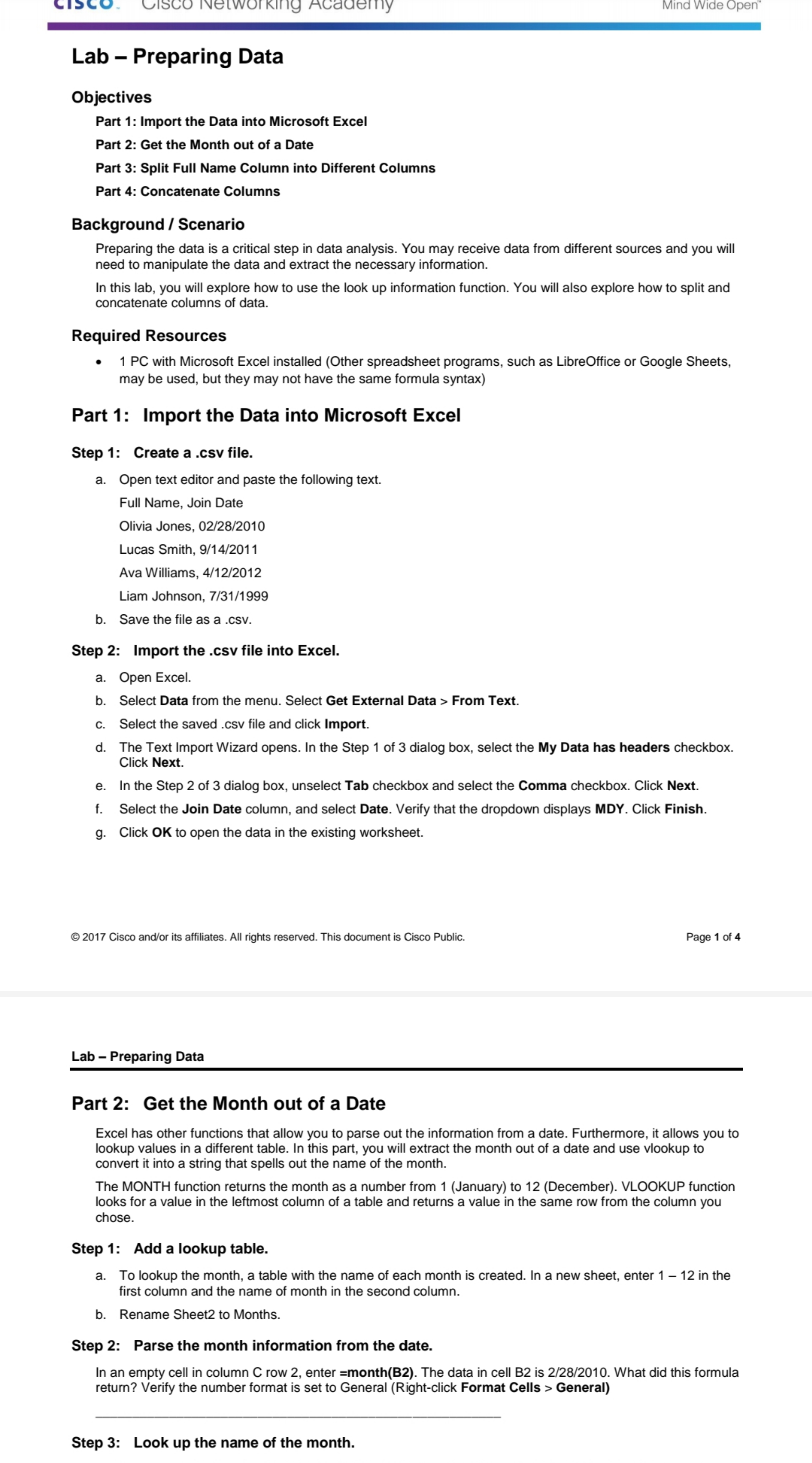
Part : Import the Data into Microsoft Excel
Step : Create a csv file.
a Open text editor and paste the following text.
Full Name, Join Date
Olivia Jones,
Lucas Smith,
Ava Williams,
Liam Johnson,
b Save the file as a csv
Step : Import the csv file into Excel.
a Open Excel.
b Select Data from the menu. Select Get External Data From Text.
c Select the saved csv file and click Import.
d The Text Import Wizard opens. In the Step of dialog box, select the My Data has headers checkbox.
Click Next.
e In the Step of dialog box, unselect Tab checkbox and select the Comma checkbox. Click Next.
f Select the Join Date column, and select Date. Verify that the dropdown displays MDY Click Finish.
g Click OK to open the data in the existing worksheet.
Lab Preparing Data
Part : Get the Month out of a Date
Excel has other functions that allow you to parse out the information from a date. Furthermore, it allows you to
lookup values in a different table. In this part, you will extract the month out of a date and use vlookup to
convert it into a string that spells out the name of the month.
The MONTH function returns the month as a number from January to December VLOOKUP function
looks for a value in the leftmost column of a table and returns a value in the same row from the column you
chose.
Step : Add a lookup table.
a To lookup the month, a table with the name of each month is created. In a new sheet, enter in the
first column and the name of month in the second column.
b Rename Sheet to Months.
Step : Parse the month information from the date.
In an empty cell in column C row enter monthB The data in cell B is What did this formula
return? Verify the number format is set to General Rightclick Format Cells General
Step : Look up the name of the month.
Step by Step Solution
There are 3 Steps involved in it
1 Expert Approved Answer
Step: 1 Unlock

Question Has Been Solved by an Expert!
Get step-by-step solutions from verified subject matter experts
Step: 2 Unlock
Step: 3 Unlock
 Study Help