







Question: Open Visual Basic and create a new Project. Select Windows Form New Project window. You will save this project in your CS 3 folder and
- Open Visual Basic and create a new Project. Select Windows Form New Project window. You will save this project in your CS 3 folder and name it as: yourlastname-firstname-Grader.
- In this project user inputs three test scores, a button calculates the average and displays the average and grade. Another button clears the entries.
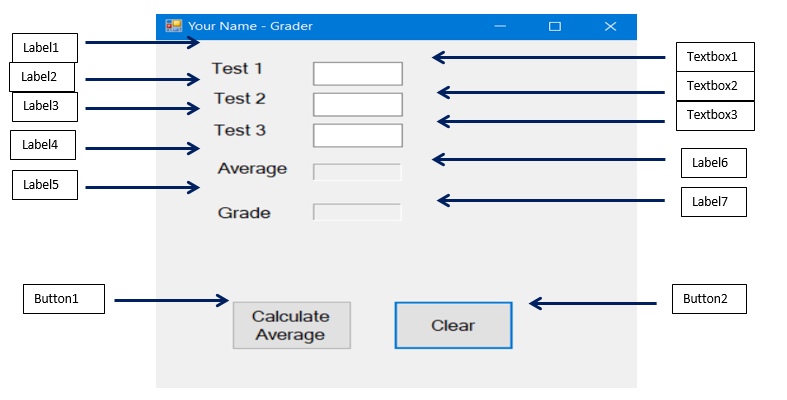
- Create a form with seven labels, threetextboxes and two buttons, similar to below form layout with each control.
- Here are the properties of the form and each control:
- Form: change the title of the form to:
- Grader - Label1, Text: Test1; Name: leave as is, you dont use labels in the program
- Label2, Text: Test2; Name: leave as is
- Label3, Text: Test3; Name: leave as is
- Label4, Text: Average; Name: leave as is
- Label5, Text: Grade; Name: leave as is
- Label6, Text: blank; Name: lblAverage ; BorderStyle: Fixed 3D; AutoSize: False
- Label7, Text: blank; Name: lblGrade ; BorderStyle: Fixed 3D; AutoSize: False
- Textbox1, Test: blank; Name: txtTest1
- Textbox2, Test: blank; Name: txtTest2
- Textbox3, Test: blank; Name: txtTest3
- Button1, Text: Calculate Average; Name: btnCalcAvg
- Button2, Text: Clear; Name: btnClear
- Write a Visual Basic program that: 1) accepts three scores, 2) computes the average and assigns the grade.
- You declare four variables as Integer data type. They are: Test1, Test2, Test3, and Average.
- You create an IFELSEIF structure to assign grades using this logic:
- Average
- To do this you program Calculate Average button to store Test1, Test2, and Test3 entries from textboxes in variables, then calculate the Average and based on the Average assign a Grade.
- Clear button clears the entries in Test1, Test2, Test3 textboxes and in Average and Grade labels. Ready to enter another set of numbers.
- After creating the following form layout in VB (see assignment 8 on how to create a new project). Make sure to name the controls according to above.
- Double-click on Calculate Average and develop a code:
- Declare 4 variables: test1, test2, test3, average as Integer.
- Assig Test1, Test2, and Test3 values that are entered in textboxes to three test1, test2, and test3 variables.
- Calculate Average, develop an expression to sum three tests values and divide by 3.
- Then develop nested IF THEN ELSEIF ELSEIF selection structure to evaluate Average and assign a Grade.
- You display the average and assigned grade in Average and Grade label controls
- We have reviewed similar nested selection structure in Selection slides.
- You may want to start with a similar code below. Dont forget to declare the variables and assign Test1, Test2, Test3 to their corresponding variables. Also calculating the Average of three tests:
If Average Then
lblAvg.Text = Average
lblGrade.Text = "F"
ElseIf Average Then
lblAvg.Text = Average
lblGrade.Text = "D"
ElseIf Average Then
lblAvg.Text = Average
lblGrade.Text = "C"
ElseIf Average Then
lblAvg.Text = Average
lblGrade.Text = "B"
ElseIf Average Then
lblAvg.Text = Average
lblGrade.Text = "A"
End If
- To program Clear button, double-click on Clear button on the form
- Type the code to clear the textboxes and label controls:
- You can use the following code:
txtTest1.Text = ""
txtTest2.Text = ""
txtTest3.Text = ""
lblAvg.Text = ""
lblGrade.Text = ""
Form layout with controls
To receive credit for this assignment, submit yourlastname-firstname-Grader.pdf in this Assignment, such that your pdf file contains the screenshots of all the execution steps. Only ONE file, please.
Your Name - Grader Label1 Label2 Label3 Label4 Textboxi Textbox2 Textbox3 Test 1 Test 2 Test 3 Average Grade _Label6 Label7 Button| |-- > Button2 Calculatee Average 9 Clear
Step by Step Solution
There are 3 Steps involved in it

Get step-by-step solutions from verified subject matter experts
 Study Help