







Question: Option #1: Form Validation in JavaScript 1. In your text editor, open the index.htm file from the HandsOnProject6-1 folder in the Chapter06 folder , add
Option #1: Form Validation in JavaScript
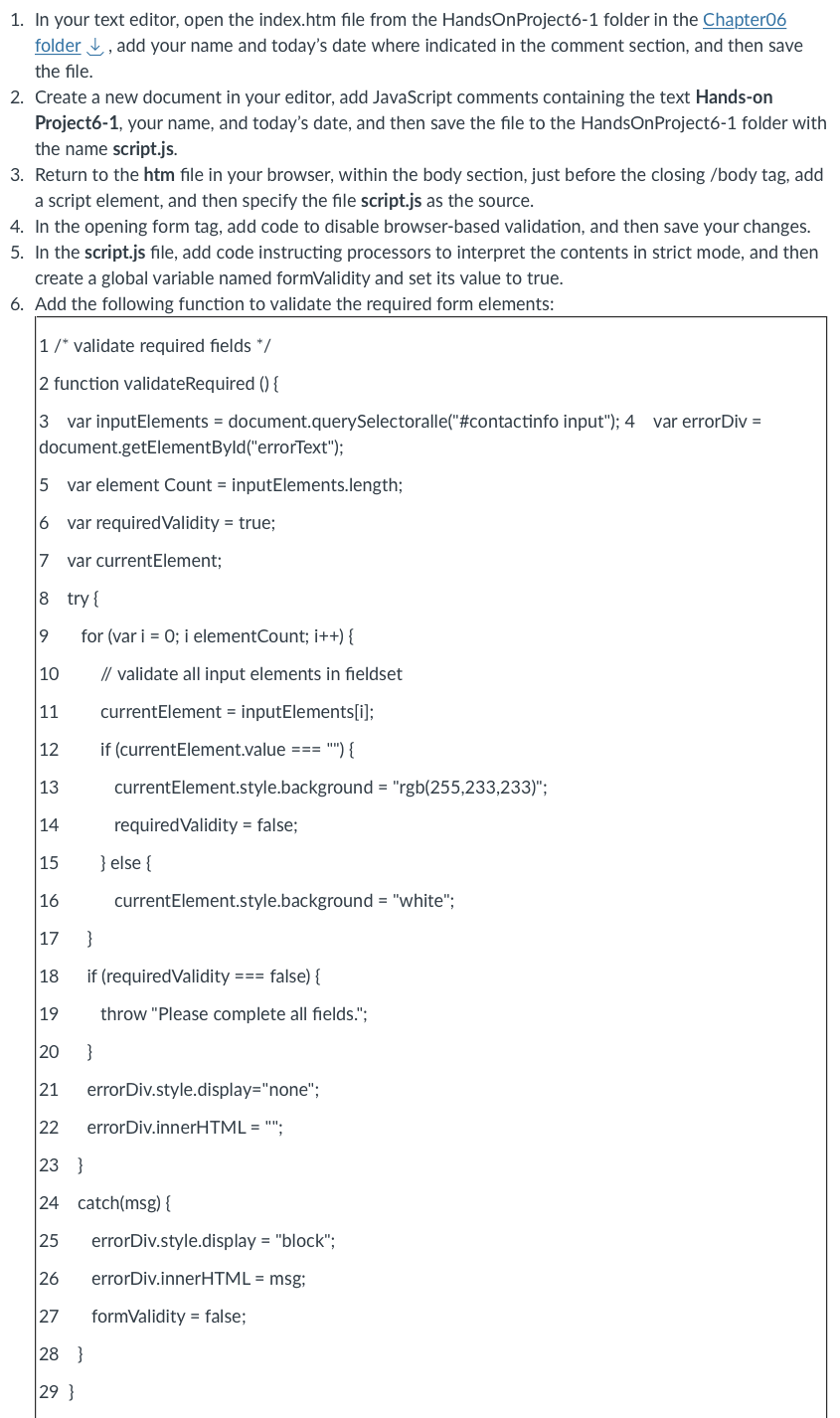
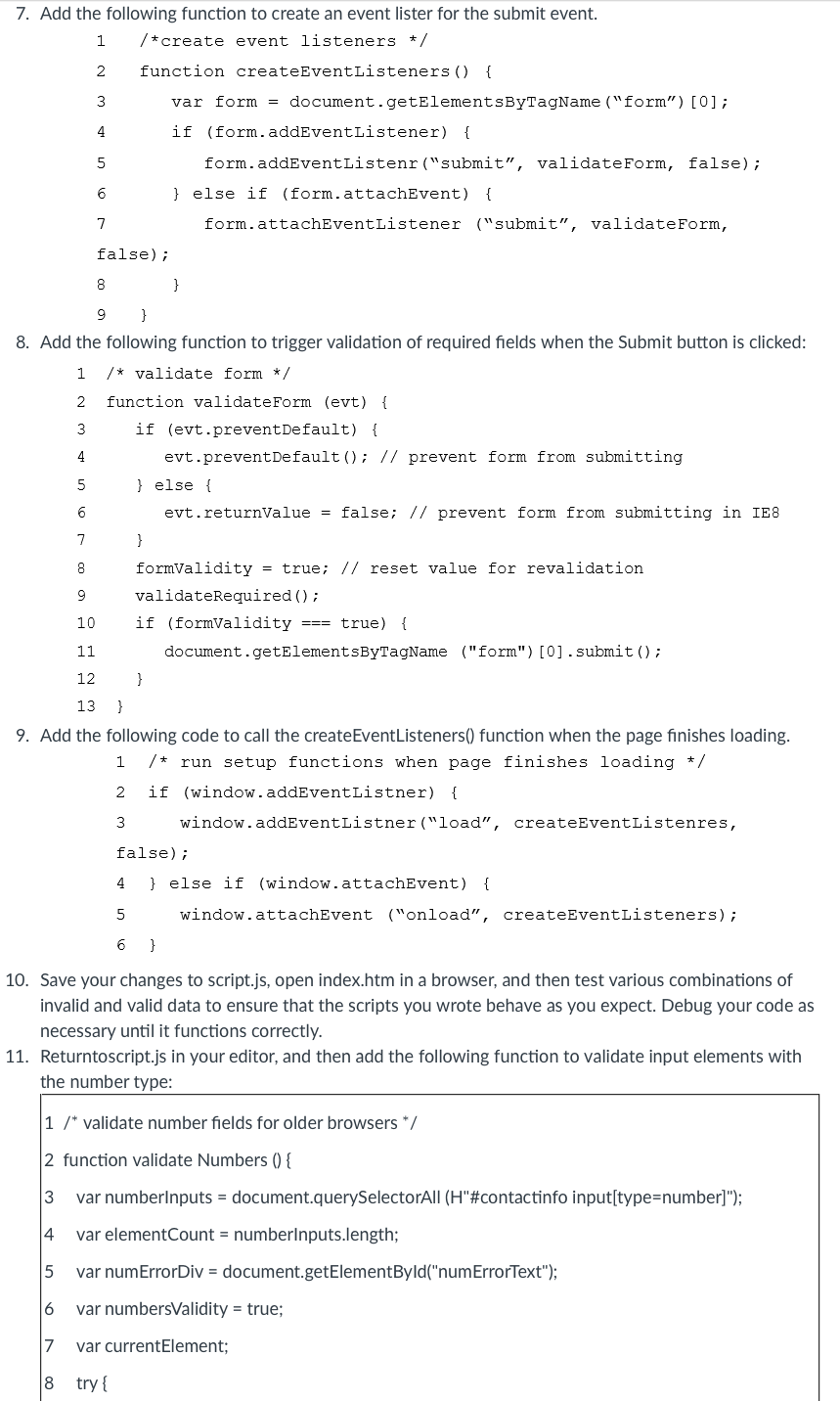
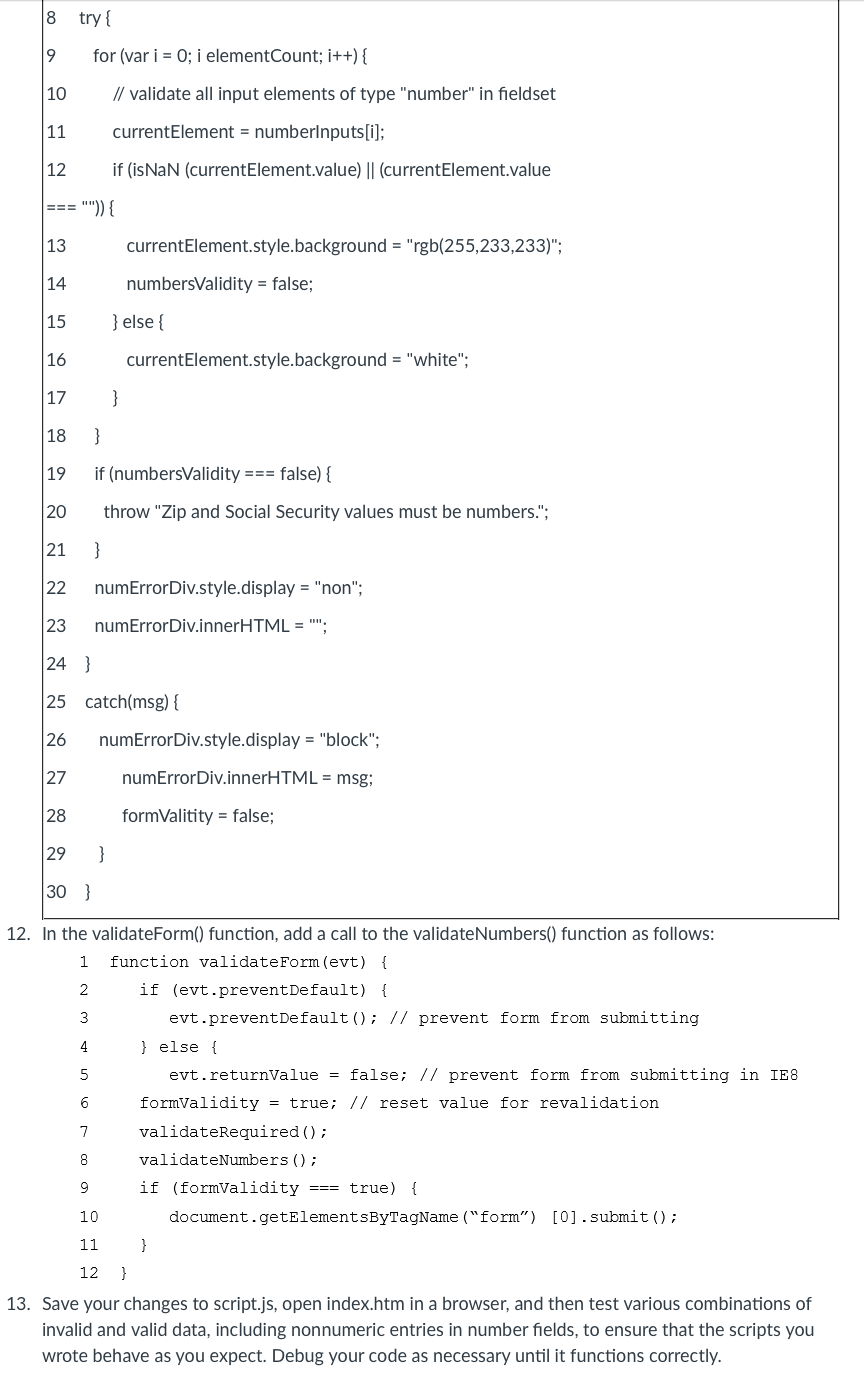
1. In your text editor, open the index.htm file from the HandsOnProject6-1 folder in the Chapter06 folder , add your name and today's date where indicated in the comment section, and then save the file. 2. Create a new document in your editor, add JavaScript comments containing the text Hands-on Project6-1, your name, and today's date, and then save the file to the HandsOnProject6-1 folder with the name script.js. 3. Return to the htm file in your browser, within the body section, just before the closing /body tag, add a script element, and then specify the file script.js as the source. 4. In the opening form tag, add code to disable browser-based validation, and then save your changes. 5. In the script.js file, add code instructing processors to interpret the contents in strict mode, and then create a global variable named formValidity and set its value to true. 6. Add the following function to validate the required form elements: 7. Add the following function to create an event lister for the submit event. 8. Add the following function to trigger validation of required fields when the Submit button is clicked: 9. Add the following code to call the createEventListeners() function when the page finishes loading. 1 /* run setup functions when page finishes loading */ 2 if (window.addEventListner) \{ 3 window.addEventListner("load", createEventListenres, false); 4 \} else if (window.attachEvent) \{ 5 window.attachEvent ("onload", createEventListeners); 6 \} 10. Save your changes to script.js, open index.htm in a browser, and then test various combinations of invalid and valid data to ensure that the scripts you wrote behave as you expect. Debug your code as necessary until it functions correctly. 11. Returntoscript.js in your editor, and then add the following function to validate input elements with the number type: 1/ validate number fields for older browsers % 2 function validate Numbers () \{ 3 var numberInputs = document.querySelectorAll (H"\#contactinfo input[type=number]"); 4 var elementCount = numberInputs.length; 5 var numErrorDiv = document.getElementByld("numErrorText"); 6 var numbersValidity = true; 7 var currentElement; 8try{ 12. In the validateForm() function, add a call to the validateNumbers() function as follows: 13. Save your changes to script.js, open index.htm in a browser, and then test various combinations of invalid and valid data, including nonnumeric entries in number fields, to ensure that the scripts you wrote behave as you expect. Debug your code as necessary until it functions correctly
Step by Step Solution
There are 3 Steps involved in it

Get step-by-step solutions from verified subject matter experts
 Study Help