







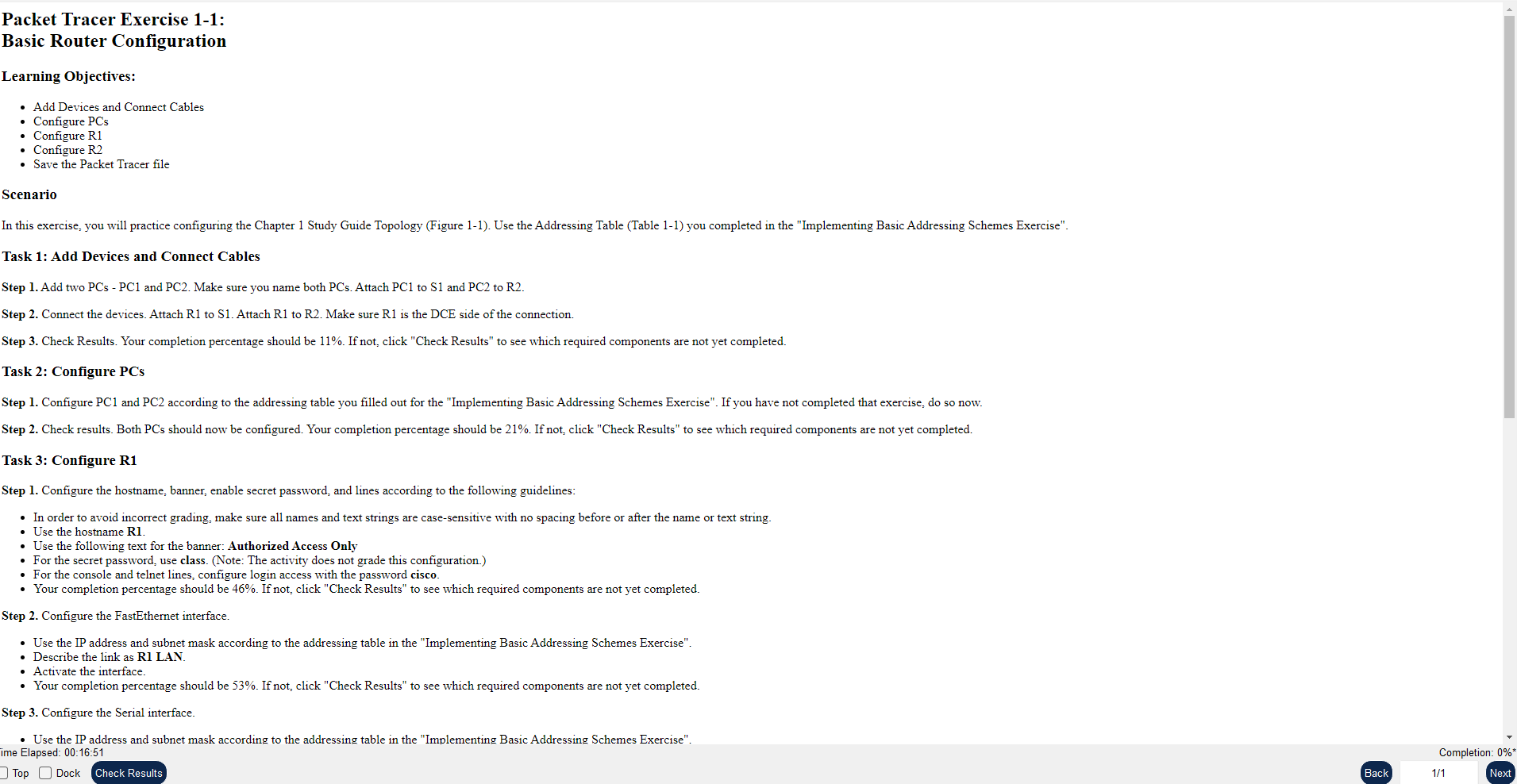
Question: Packet Tracer Exercise 1 - 1 : Basic Router Configuration Learning Objectives: - Add Devices and Connect Cables - Configure PCs - Configure R 1
Packet Tracer Exercise : Basic Router Configuration
Learning Objectives:
Add Devices and Connect Cables
Configure PCs
Configure R
Configure R
Save the Packet Tracer file
Scenario
In this exercise, you will practice configuring the Chapter Study Guide Topology Figure Use the Addressing Table Table you completed in the "Implementing Basic Addressing Schemes Exercise".
Task : Add Devices and Connect Cables
Step Add two PCs PC and PC Make sure you name both PCs Attach PC to S and PC to R
Step Connect the devices. Attach R to S Attach R to R Make sure R is the DCE side of the connection.
Step Check Results. Your completion percentage should be If not, click "Check Results" to see which required components are not yet completed.
Task : Configure PCs
Step Configure PC and PC according to the addressing table you filled out for the "Implementing Basic Addressing Schemes Exercise". If you have not completed that exercise, do so now.
Step Check results. Both PCs should now be configured. Your completion percentage should be If not, click "Check Results" to see which required components are not yet completed.
Task : Configure R
Step Configure the hostname, banner, enable secret password, and lines according to the following guidelines:
In order to avoid incorrect grading, make sure all names and text strings are casesensitive with no spacing before or after the name or text string.
Use the hostname Rl
Use the following text for the banner: Authorized Access Only
For the secret password, use class. Note: The activity does not grade this configuration.
For the console and telnet lines, configure login access with the password cisco.
Your completion percentage should be If not, click "Check Results" to see which required components are not yet completed.
Step Configure the FastEthernet interface.
Use the IP address and subnet mask according to the addressing table in the "Implementing Basic Addressing Schemes Exercise".
Describe the link as RI LAN.
Activate the interface.
Your completion percentage should be If not, click "Check Results" to see which required components are not yet completed.
Step Configure the Serial interface.
Use the IP address and subnet mask according to the addressing table in the "Implementing Basic Addressing Schemes Exercise".
ime Elapsed: ::
Top Dock
Your completion percentage should be If not, click "Check Results" to see which required components are not yet completed.
Step Configure the FastEthernet interface.
Use the IP address and subnet mask according to the addressing table in the "Implementing Basic Addressing Schemes Exercise".
Describe the link as RI LAN.
Activate the interface.
Your completion percentage should be If not, click "Check Results" to see which required components are not yet completed.
Step Configure the Serial interface.
Use the IP address and subnet mask according to the addressing table in the "Implementing Basic Addressing Schemes Exercise".
Describe the link as Link to R
R provides clocking at bps
Activate the interface.
R is now configured. Your completion percentage should be If not, click "Check Results" to see which required components are not yet completed.
Step Save the configuration for R
Task : Configure R
Step Configure the hostname, banner, enable secret password, and lines according to the following guidelines:
In order to avoid incorrect grading, make sure all names and text strings are casesensitive with no spacing before or after the name or text string.
Use the hostname R
Use the following text for the banner: Authorized Access Only
For the secret password, use class. Note: The activity does not grade this configuration.
For the console and telnet lines, configure login access with the password cisco.
Your completion percentage should be If not, click "Check Results" to see which required components are not yet completed.
Step Configure the FastEthernet interface.
Use the IP address and subnet mask according to the addressing table in the "Implementing Basic Addressing Schemes Exercise".
Describe the link as R LAN.
Activate the interface.
Your completion percentage should be If not, click "Check Results" to see which required components are not yet completed.
Step Configure the Serial interface.
Use the IP address and subnet mask according to the addressing table in the "Implementing Basic Addressing Schemes Exercise".
Describe the link as Link to R
R provides clocking at bps
Activate the interface.
Step Save the configuration for R
Task : Save the Packet Tracer file
Save your Packet Tracer file as LSGend.pka". You will use this file to complete some of the remaining exercises in this chapter.
Step by Step Solution
There are 3 Steps involved in it
1 Expert Approved Answer
Step: 1 Unlock

Question Has Been Solved by an Expert!
Get step-by-step solutions from verified subject matter experts
Step: 2 Unlock
Step: 3 Unlock
 Study Help