







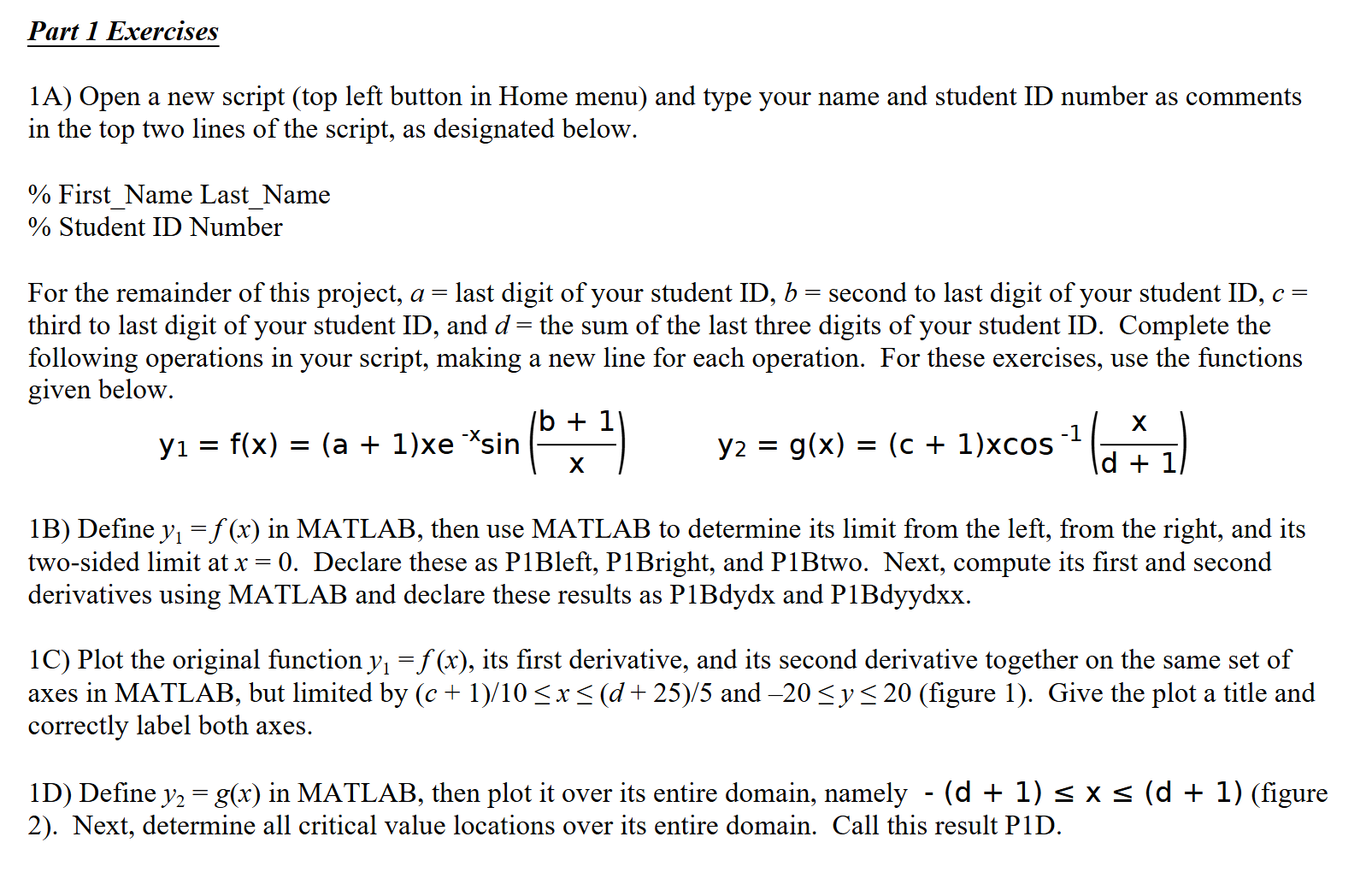
Question: Part 1 Exercises ( MATLAB ) 1 A ) Open a new script ( top left button in Home menu ) and type your name
Part Exercises MATLAB
A Open a new script top left button in Home menu and type your name and student ID number as comments
in the top two lines of the script, as designated below.
FirstName LastName
Student ID Number
For the remainder of this project, last digit of your student ID second to last digit of your student ID
third to last digit of your student ID and the sum of the last three digits of your student ID Complete the
following operations in your script, making a new line for each operation. For these exercises, use the functions
given below.
B Define in MATLAB, then use MATLAB to determine its limit from the left, from the right, and its
twosided limit at Declare these as PBleft, PBright, and PBtwo. Next, compute its first and second
derivatives using MATLAB and declare these results as PBdydx and PBdyydxx
C Plot the original function its first derivative, and its second derivative together on the same set of
axes in MATLAB, but limited by and figure Give the plot a title and
correctly label both axes.
D Define in MATLAB, then plot it over its entire domain, namely figure
Next, determine all critical value locations over its entire domain. Call this result PD
E The Mean Value Theorem MVT states that for a continuous function defined over a closed interval I that
is differentiable over the interval I except for maybe its endpoints then there is at least one point such that the
tangent line at is parallel to the secant line formal equation given below Use subs and solve together to find
an that satisfies the MVT for over the domain Call this result PE
Once you have these operations written in proper MATLAB syntax, go to your Editor menu and click Run. If
there are values in your Command Window for all operations without error messages, then your code has
successfully run! If you have error messages, read them carefully and try to resolve them, then click Run again.
Step by Step Solution
There are 3 Steps involved in it
1 Expert Approved Answer
Step: 1 Unlock

Question Has Been Solved by an Expert!
Get step-by-step solutions from verified subject matter experts
Step: 2 Unlock
Step: 3 Unlock
 Study Help