







Question: Part 2 - Adding Tasks feature At the end of this specific task, students should be able to: , Create and work with Loops ,
Part Adding Tasks feature
At the end of this specific task, students should be able to:
Create and work with Loops
Handle and manipulate strings
Learning Units and
You can now add the following functionality to your application:
The users should only be able to add tasks to the application if they have logged in successfully. The applications must display the following welcome message: "Welcome to EasyKanban".
The user should then be able to choose one of the following features from a numeric menuJOptionPane:
a Option Add tasks
b Option Show report this feature is still in development and should display the
following message: "Coming Soon".
c Option Quit
The application should run until the users selects quit to exit.
Users should define how many tasks they wish to enter when the application starts, the application should allow the user to enter only the set number of tasks.
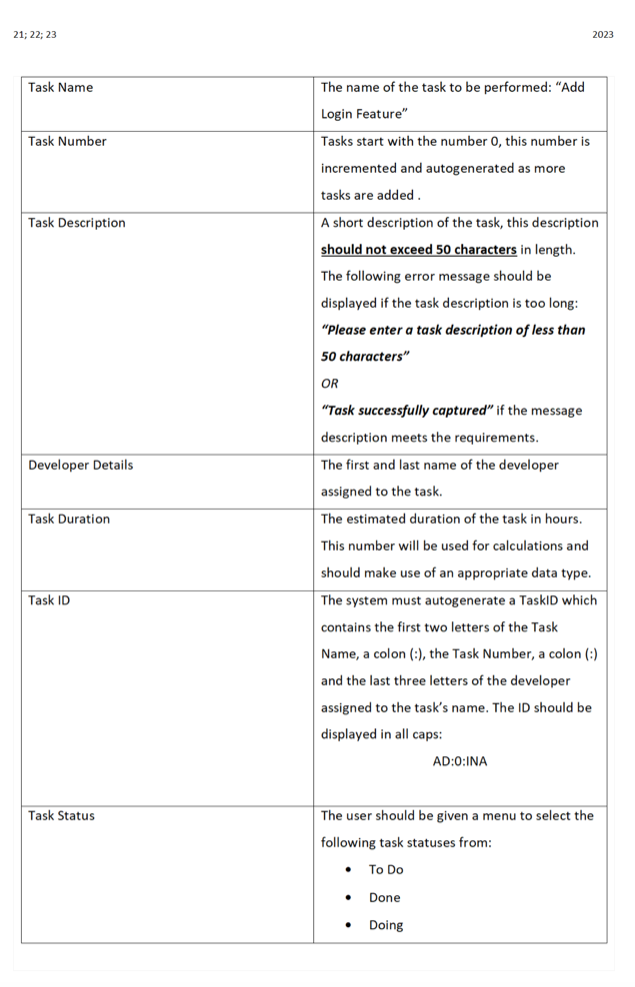
Each task should contain the following information: The full details of each task should be displayed on the screen using JOptionPane after it has been entered and should show all the information requested in the table above in the following order: Task Status, Developer Details, Task Number, Task Name, Task Description, Task ID and Duration;
The total number of hours across all tasks should be accumulated and displayed once all the tasks has been entered.
Step by Step Solution
There are 3 Steps involved in it
1 Expert Approved Answer
Step: 1 Unlock

To implement the Adding Tasks feature with the specified requirements you can create a simple Java p... View full answer
Question Has Been Solved by an Expert!
Get step-by-step solutions from verified subject matter experts
Step: 2 Unlock
Step: 3 Unlock
 Study Help