







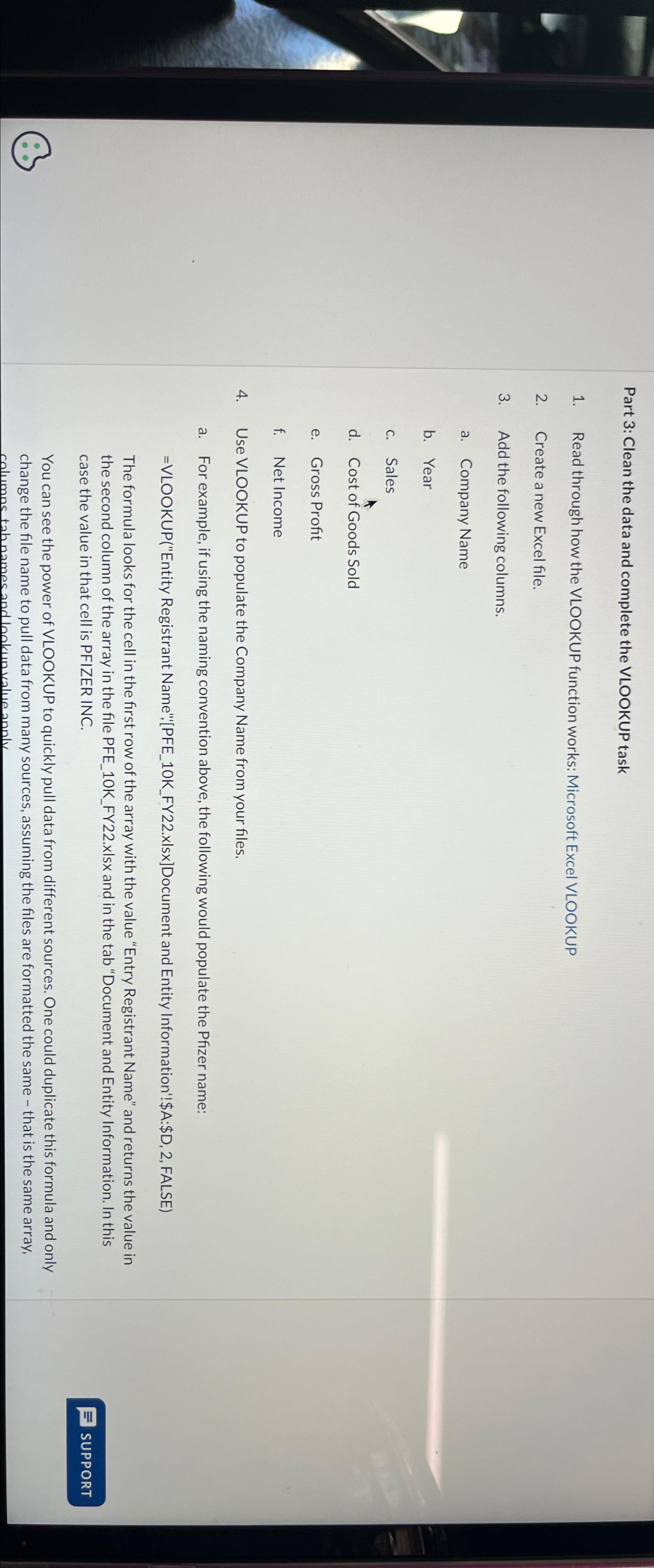
Question: Part 3 : Clean the data and complete the VLOOKUP task Read through how the VLOOKUP function works: Microsoft Excel VLOOKUP Create a new Excel
Part : Clean the data and complete the VLOOKUP task
Read through how the VLOOKUP function works: Microsoft Excel VLOOKUP
Create a new Excel file.
Add the following columns.
a Company Name
b Year
c Sales
d Cost of Goods Sold
e Gross Profit
f Net Income
Use VLOOKUP to populate the Company Name from your files.
a For example, if using the naming convention above, the following would populate the Pfizer name:
VLOOKUPEntity Registrant Name"PFEKFYxIsxDocument and Entity Information'!$A:$D FALSE
The formula looks for the cell in the first row of the array with the value "Entry Registrant Name" and returns the value in the second column of the array in the file PFEKFYxIsx and in the tab "Document and Entity Information. In this case the value in that cell is PFIZER INC.
You can see the power of VLOOKUP to quickly pull data from different sources. One could duplicate this formula and only change the file name to pull data from many sources, assuming the files are formatted the same that is the same array,
Step by Step Solution
There are 3 Steps involved in it
1 Expert Approved Answer
Step: 1 Unlock

Question Has Been Solved by an Expert!
Get step-by-step solutions from verified subject matter experts
Step: 2 Unlock
Step: 3 Unlock
 Study Help