







Question: PART 3 : EXPLORATORY TRANSACTION DATA ANALYSIS The RevenueAnalysis worksheet contains space for you to perform simple statistical analysis on the revenue generated from park
PART : EXPLORATORY TRANSACTION DATA ANALYSIS
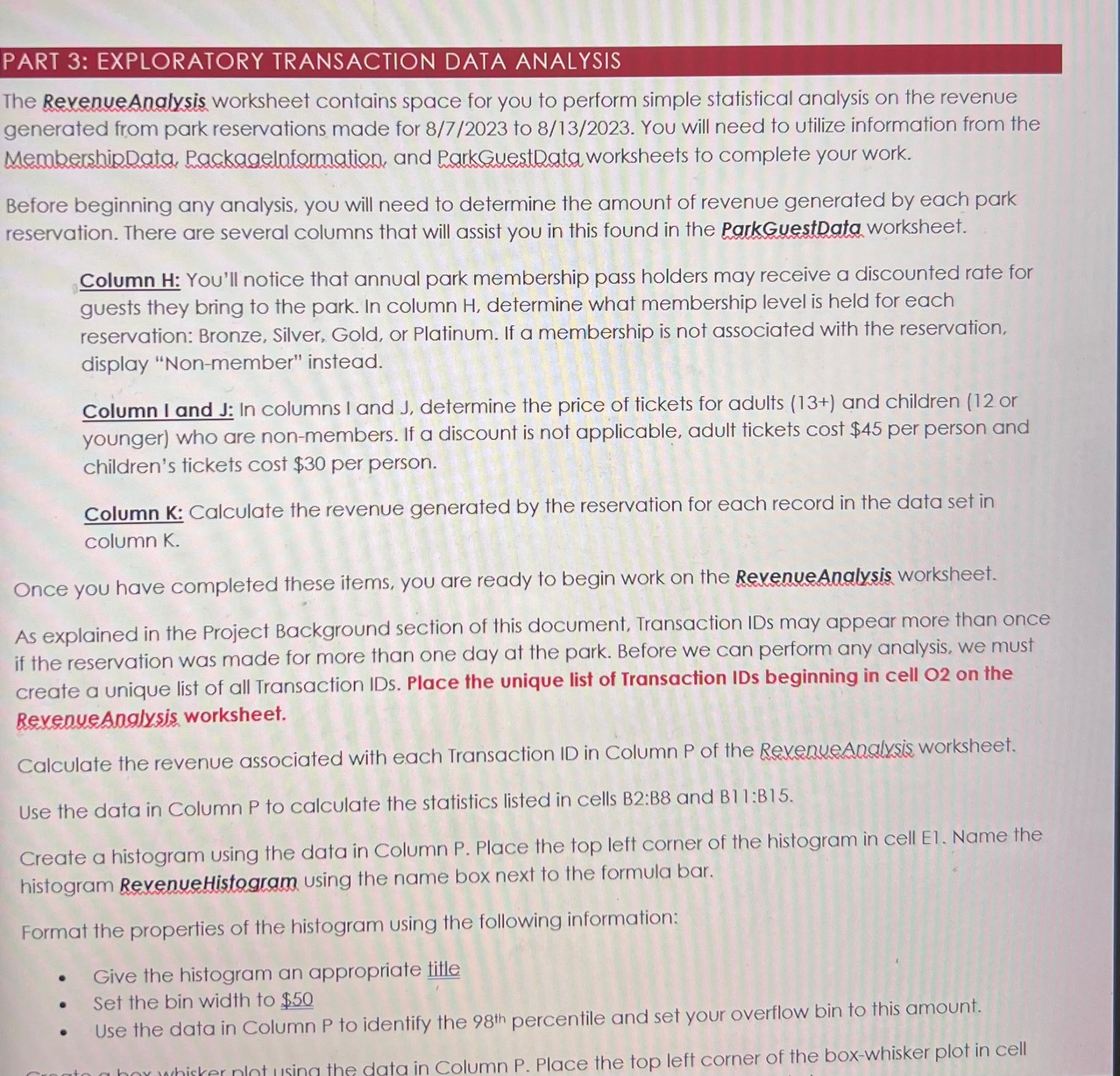
The RevenueAnalysis worksheet contains space for you to perform simple statistical analysis on the revenue generated from park reservations made for to You will need to utilize information from the MembershipData, Packagelnformation, and ParkGuestData worksheets to complete your work.
Before beginning any analysis, you will need to determine the amount of revenue generated by each park reservation. There are several columns that will assist you in this found in the ParkGuestData worksheet.
Column H: You'll notice that annual park membership pass holders may receive a discounted rate for guests they bring to the park. In column determine what membership level is held for each reservation: Bronze, Silver, Gold, or Platinum. If a membership is not associated with the reservation, display "Nonmember" instead.
Column I and J: In columns I and J determine the price of tickets for adults and children or younger who are nonmembers. If a discount is not applicable, adult tickets cost $ per person and children's tickets cost $ per person.
Column K: Calculate the revenue generated by the reservation for each record in the data set in column K
Once you have completed these items, you are ready to begin work on the RevenueAnalysis worksheet.
As explained in the Project Background section of this document, Transaction IDs may appear more than once if the reservation was made for more than one day at the park. Before we can perform any analysis, we must create a unique list of all Transaction IDs. Place the unique list of Transaction IDs beginning in cell on the RexenueAnglysis worksheet.
Calculate the revenue associated with each Transaction ID in Column P of the RevenueAnalysis worksheet.
Use the data in Column P to calculate the statistics listed in cells B:B and B:B
Create a histogram using the data in Column P Place the top left corner of the histogram in cell E Name the histogram RevenueHistogram using the name box next to the formula bar.
Format the properties of the histogram using the following information:
Give the histogram an appropriate title
Set the bin width to $
Use the data in Column to identify the percentile and set your overflow bin to this amount.
Step by Step Solution
There are 3 Steps involved in it
1 Expert Approved Answer
Step: 1 Unlock

Question Has Been Solved by an Expert!
Get step-by-step solutions from verified subject matter experts
Step: 2 Unlock
Step: 3 Unlock
 Study Help