







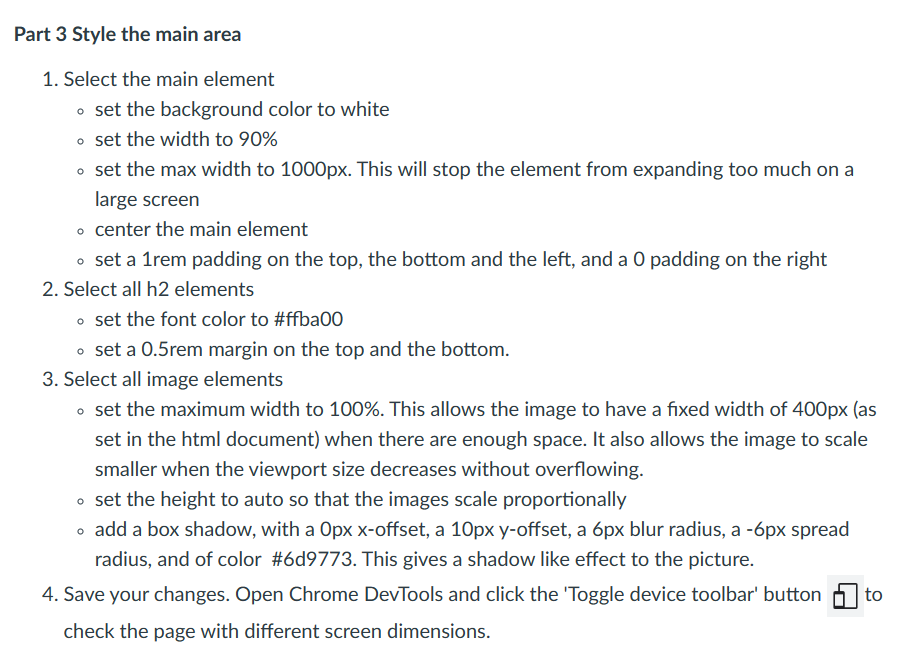
Question: Part 3 Style the main area Select the main element set the background color to white set the width to 9 0 % set the
Part Style the main area
Select the main element
set the background color to white
set the width to
set the max width to This will stop the element from expanding too much on a
large screen
center the main element
set a rem padding on the top, the bottom and the left, and a padding on the right
Select all h elements
o set the font color to #ffba
set a rem margin on the top and the bottom.
Select all image elements
set the maximum width to This allows the image to have a fixed width of px as
set in the html document when there are enough space. It also allows the image to scale
smaller when the viewport size decreases without overflowing.
set the height to auto so that the images scale proportionally
add a box shadow, with a px xoffset, a px yoffset, a px blur radius, a px spread
radius, and of color #d This gives a shadow like effect to the picture.
Save your changes. Open Chrome DevTools and click the 'Toggle device toolbar' button to
check the page with different screen dimensions.
Step by Step Solution
There are 3 Steps involved in it
1 Expert Approved Answer
Step: 1 Unlock

Question Has Been Solved by an Expert!
Get step-by-step solutions from verified subject matter experts
Step: 2 Unlock
Step: 3 Unlock
 Study Help