







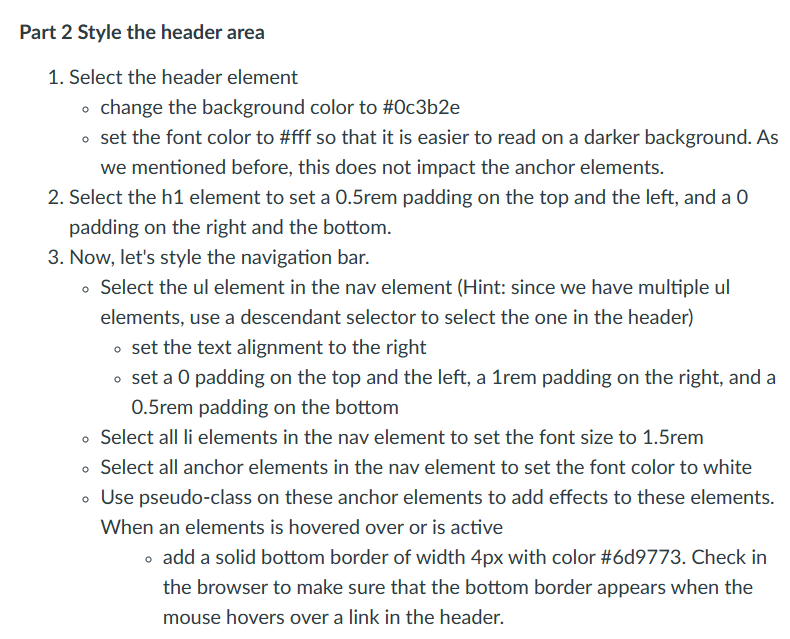
Question: Part 2 Style the header area Select the header element change the background color to # 0 c 3 b 2 e set the font
Part Style the header area
Select the header element
change the background color to #cbe
set the font color to #fff so that it is easier to read on a darker background. As
we mentioned before, this does not impact the anchor elements.
Select the h element to set a rem padding on the top and the left, and a
padding on the right and the bottom.
Now, let's style the navigation bar.
Select the ul element in the nav element Hint: since we have multiple ul
elements, use a descendant selector to select the one in the header
o set the text alignment to the right
set a padding on the top and the left, a rem padding on the right, and a
rem padding on the bottom
Select all li elements in the nav element to set the font size to rem
Select all anchor elements in the nav element to set the font color to white
Use pseudoclass on these anchor elements to add effects to these elements.
When an elements is hovered over or is active
add a solid bottom border of width px with color #d Check in
the browser to make sure that the bottom border appears when the
mouse hovers over a link in the header.
Step by Step Solution
There are 3 Steps involved in it
1 Expert Approved Answer
Step: 1 Unlock

Question Has Been Solved by an Expert!
Get step-by-step solutions from verified subject matter experts
Step: 2 Unlock
Step: 3 Unlock
 Study Help