







Question: Paste BIU Insert Delete Format Merge & Center $ % 9400 V Conditional Format as Cell Formatting Table Styles Sort & Find & Filter Select
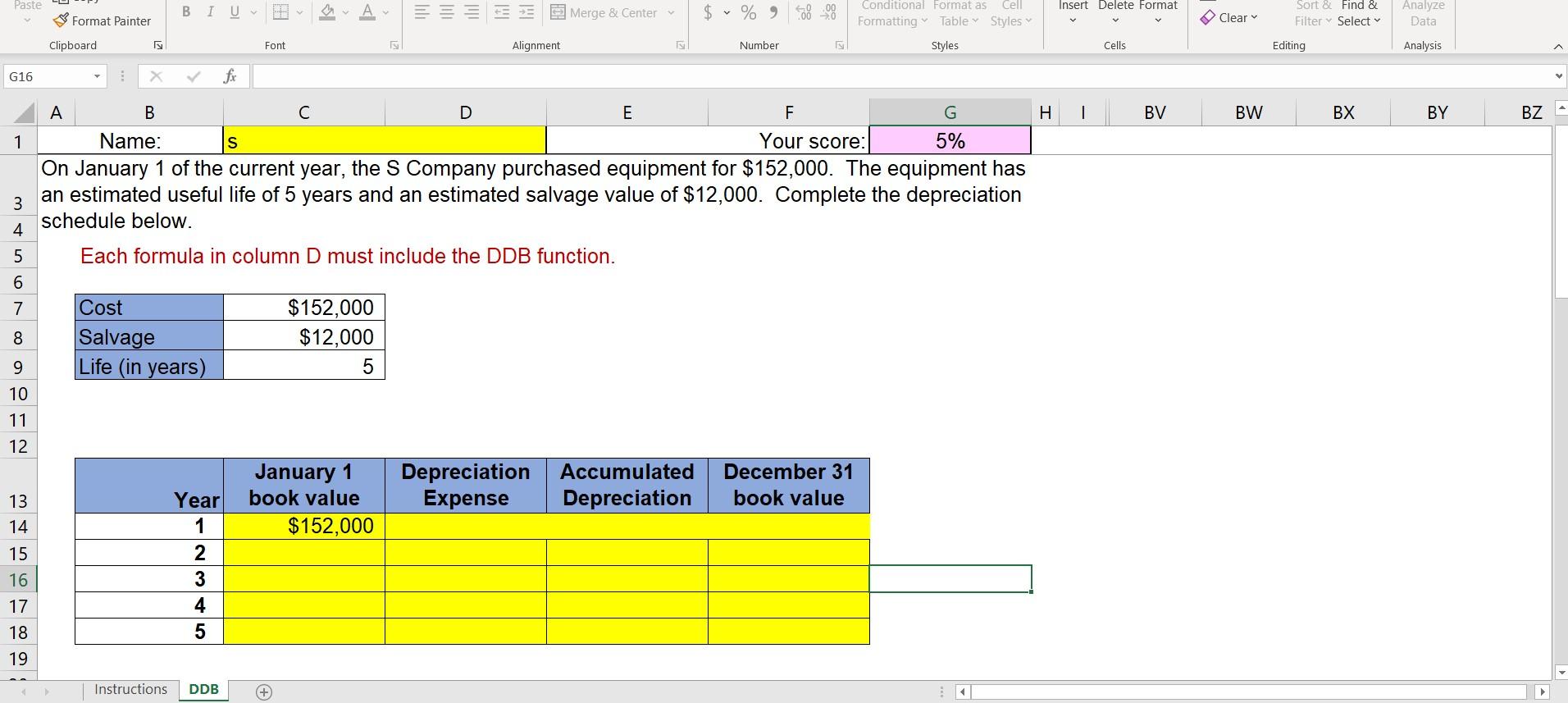
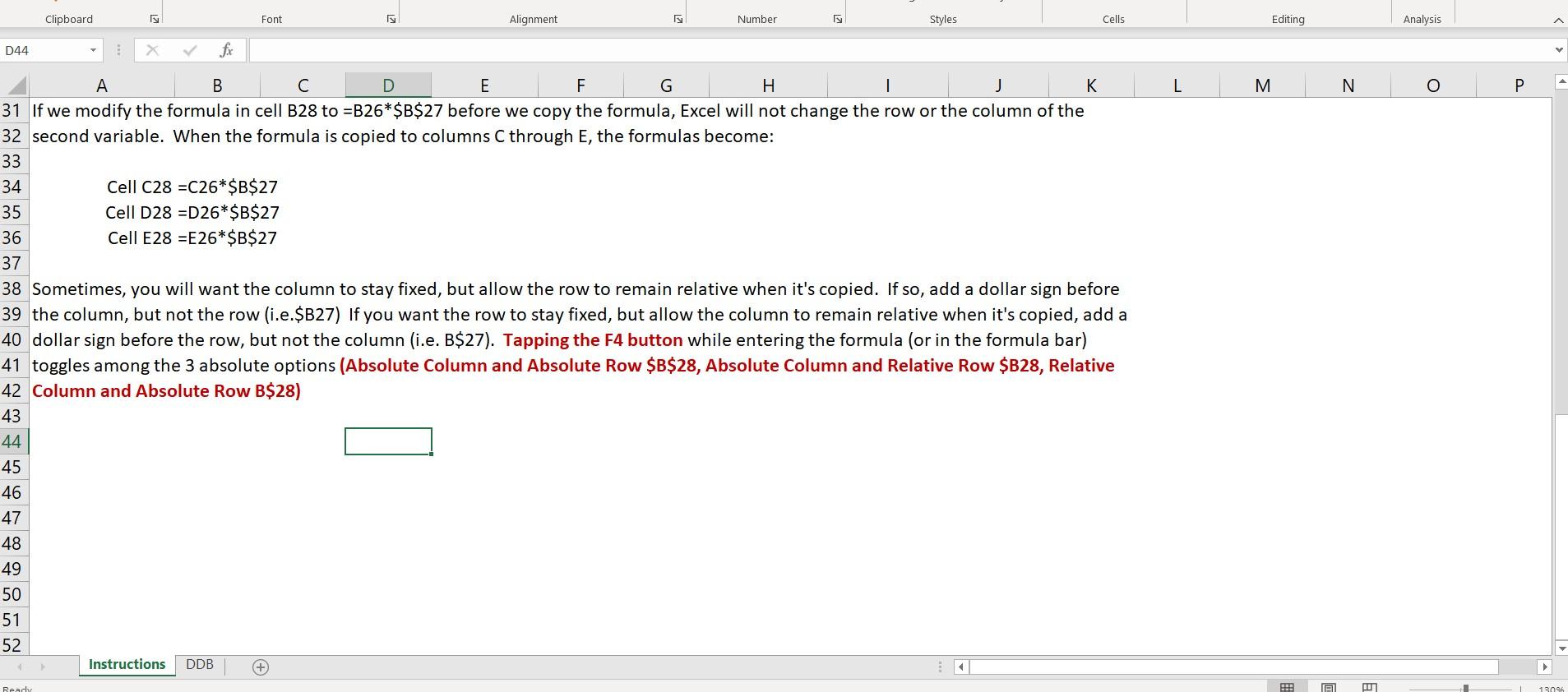
Paste BIU Insert Delete Format Merge & Center $ % 9400 V Conditional Format as Cell Formatting Table Styles Sort & Find & Filter Select Format Painter Clear Analyze Data Clipboard Font Alignment IS Number Styles Cells Editing Analysis G16 X fx y H 1 BV BW BX BY BZ 1 S A B C D E F G Name: Your score: 5% On January 1 of the current year, the S Company purchased equipment for $152,000. The equipment has an estimated useful life of 5 years and an estimated salvage value of $12,000. Complete the depreciation schedule below. 3 4 Each formula in column D must include the DDB function. 5 6 7 8 Cost Salvage Life (in years) $152,000 $12,000 5 9 10 11 12 January 1 book value $152,000 Depreciation Expense Accumulated Depreciation December 31 book value 13 14 15 16 17 18 19 Year 1 2 3 4 5 Instructions DDB + Clipboard Font Alignment Number Styles Cells Editing Analysis D44 fx D L M N O A B E F G H J K 31 If we modify the formula in cell B28 to =B26*$B$27 before we copy the formula, Excel will not change the row or the column of the 32 second variable. When the formula is copied to columns C through E, the formulas become: 33 34 Cell C28 =C26*$B$27 35 Cell D28 =D26*$B$27 36 Cell E28 =E26*$B$27 37 38 Sometimes, you will want the column to stay fixed, but allow the row to remain relative when it's copied. If so, add a dollar sign before 39 the column, but not the row (i.e.$B27) If you want the row to stay fixed, but allow the column to remain relative when it's copied, add a 40 dollar sign before the row, but not the column (i.e. B$27). Tapping the F4 button while entering the formula (or in the formula bar) 41 toggles among the 3 absolute options (Absolute Column and Absolute Row $B$28, Absolute Column and Relative Row $B28, Relative 42 Column and Absolute Row B$28) 43 44 45 46 47 48 49 50 51 52 Instructions DDB + + Ready RE A
Step by Step Solution
There are 3 Steps involved in it

Get step-by-step solutions from verified subject matter experts
 Study Help