







Question: Please Answer questions 1 & 2 INTRODUCTION TO CAPE PACK Program flow For this laboratory example, we will be putting a frosty adult beverage bottle
Please Answer questions 1 & 2
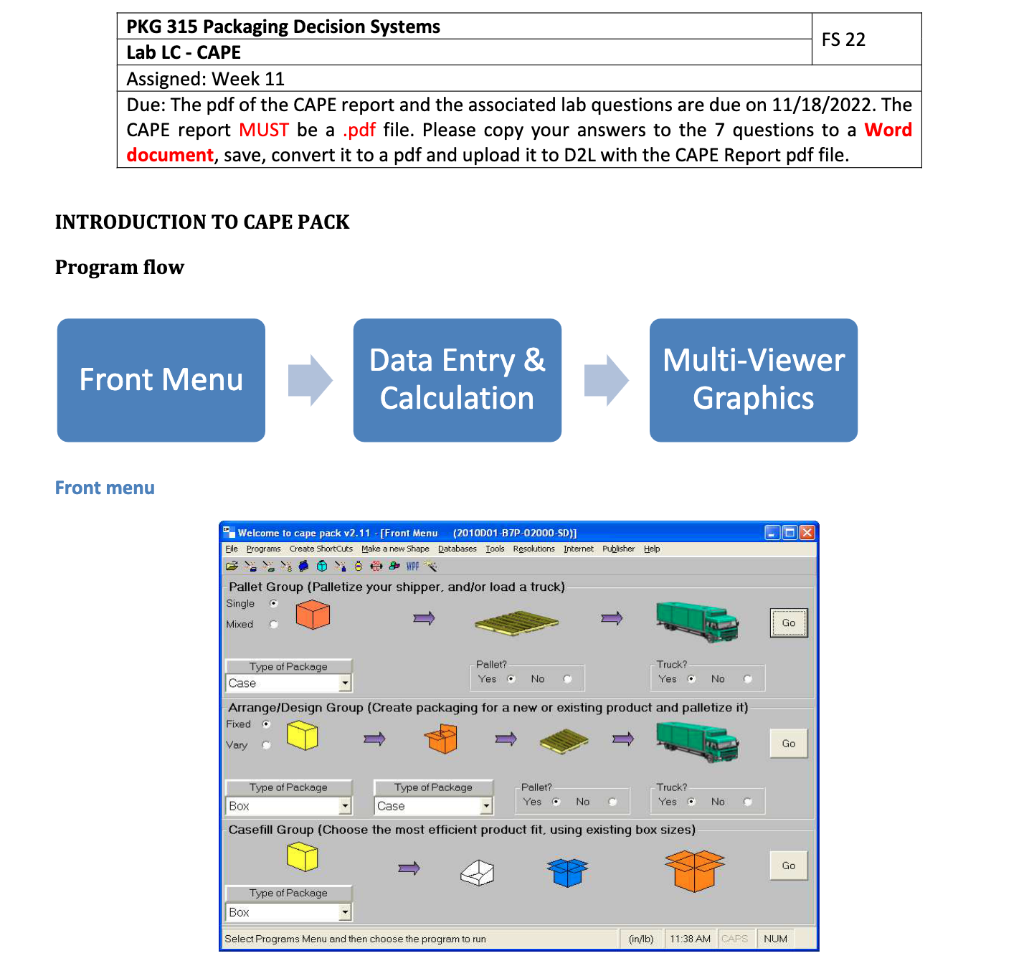
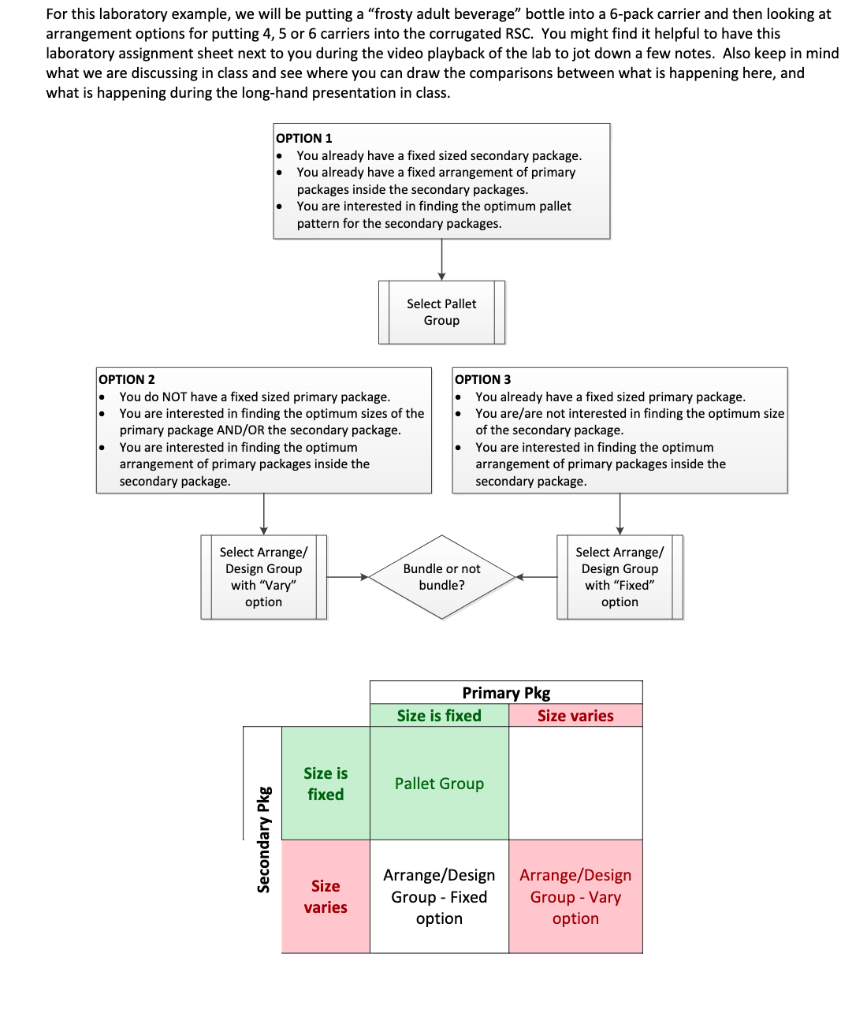
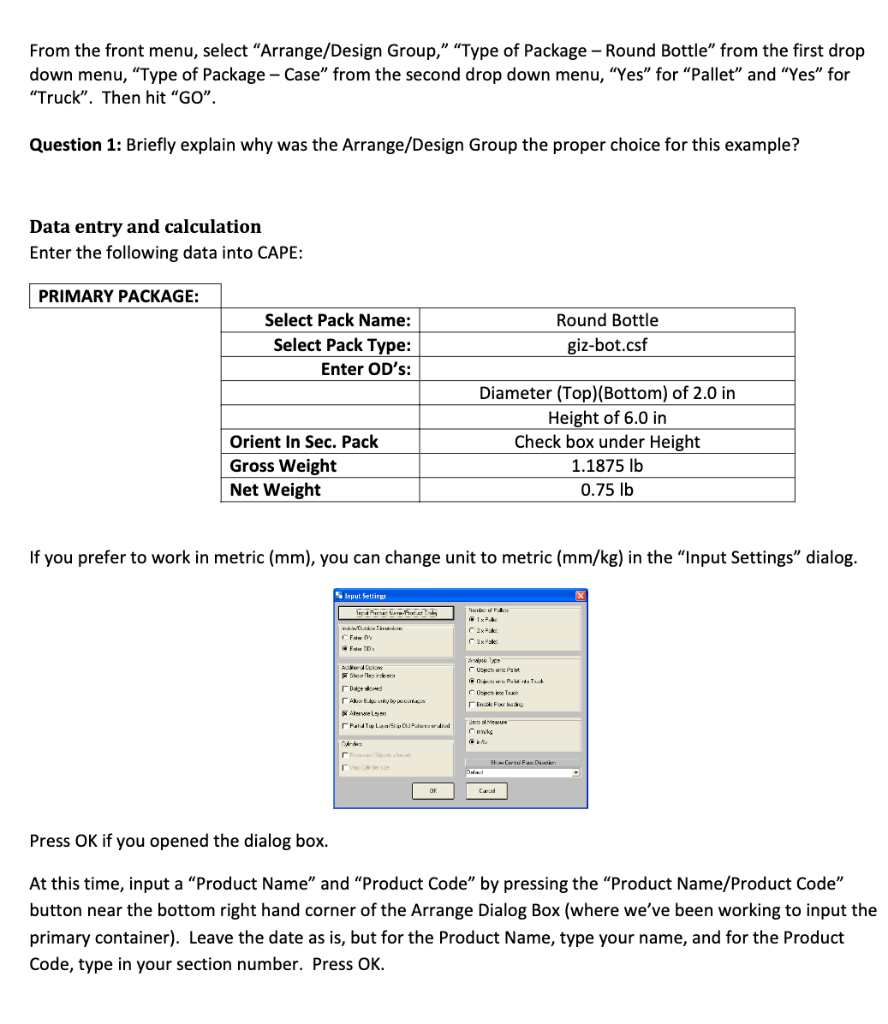
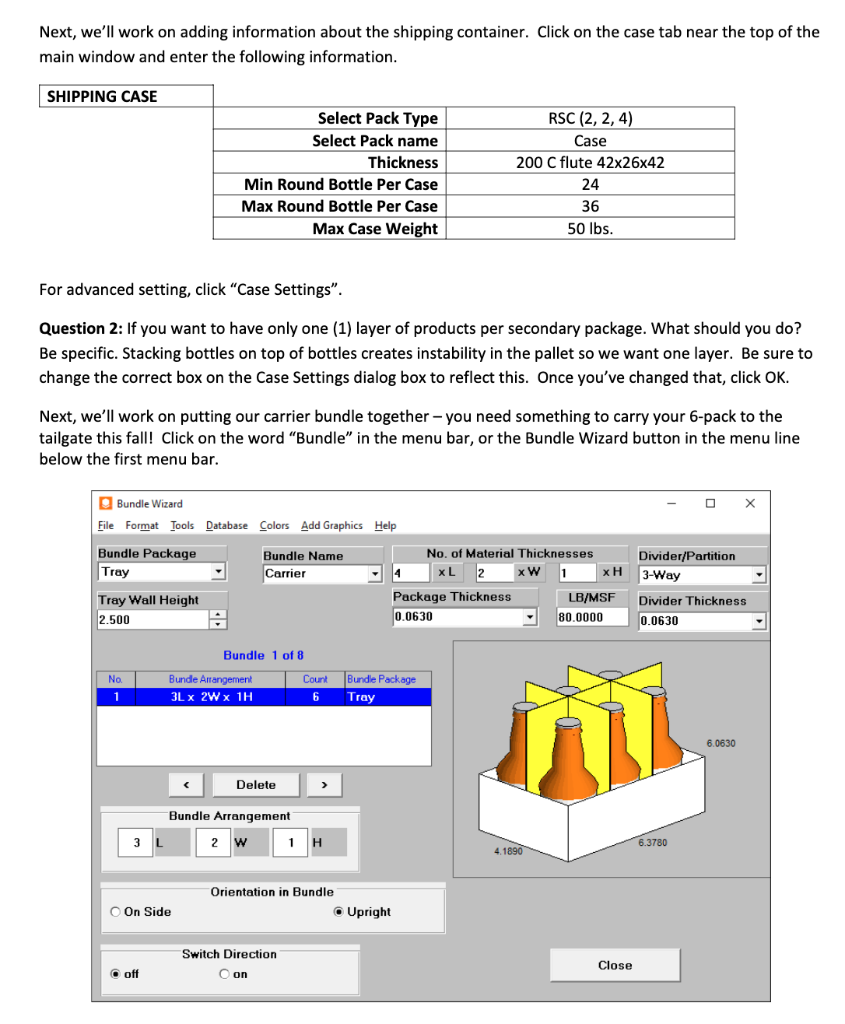
INTRODUCTION TO CAPE PACK Program flow For this laboratory example, we will be putting a "frosty adult beverage" bottle into a 6-pack carrier and then looking at d From the front menu, select "Arrange/Design Group," "Type of Package - Round Bottle" from the first drop down menu, "Type of Package - Case" from the second drop down menu, "Yes" for "Pallet" and "Yes" for "Truck". Then hit "GO". Question 1: Briefly explain why was the Arrange/Design Group the proper choice for this example? Data entry and calculation Enter the following data into CAPE: PRIMARY PACKAGE: If you prefer to work in metric (mm), you can change unit to metric (mm/kg) in the "Input Settings" dialog. Press OK if you opened the dialog box. At this time, input a "Product Name" and "Product Code" by pressing the "Product Name/Product Code" button near the bottom right hand corner of the Arrange Dialog Box (where we've been working to input the primary container). Leave the date as is, but for the Product Name, type your name, and for the Product Code, type in your section number. Press OK. Next, we'll work on adding information about the shipping container. Click on the case tab near the top of the main window and enter the following information. For advanced setting, click "Case Settings". Question 2: If you want to have only one (1) layer of products per secondary package. What should you do? Be specific. Stacking bottles on top of bottles creates instability in the pallet so we want one layer. Be sure to change the correct box on the Case Settings dialog box to reflect this. Once you've changed that, click OK. Next, we'll work on putting our carrier bundle together - you need something to carry your 6-pack to the tailgate this fall! Click on the word "Bundle" in the menu bar, or the Bundle Wizard button in the menu line below the first menu bar
Step by Step Solution
There are 3 Steps involved in it

Get step-by-step solutions from verified subject matter experts
 Study Help