







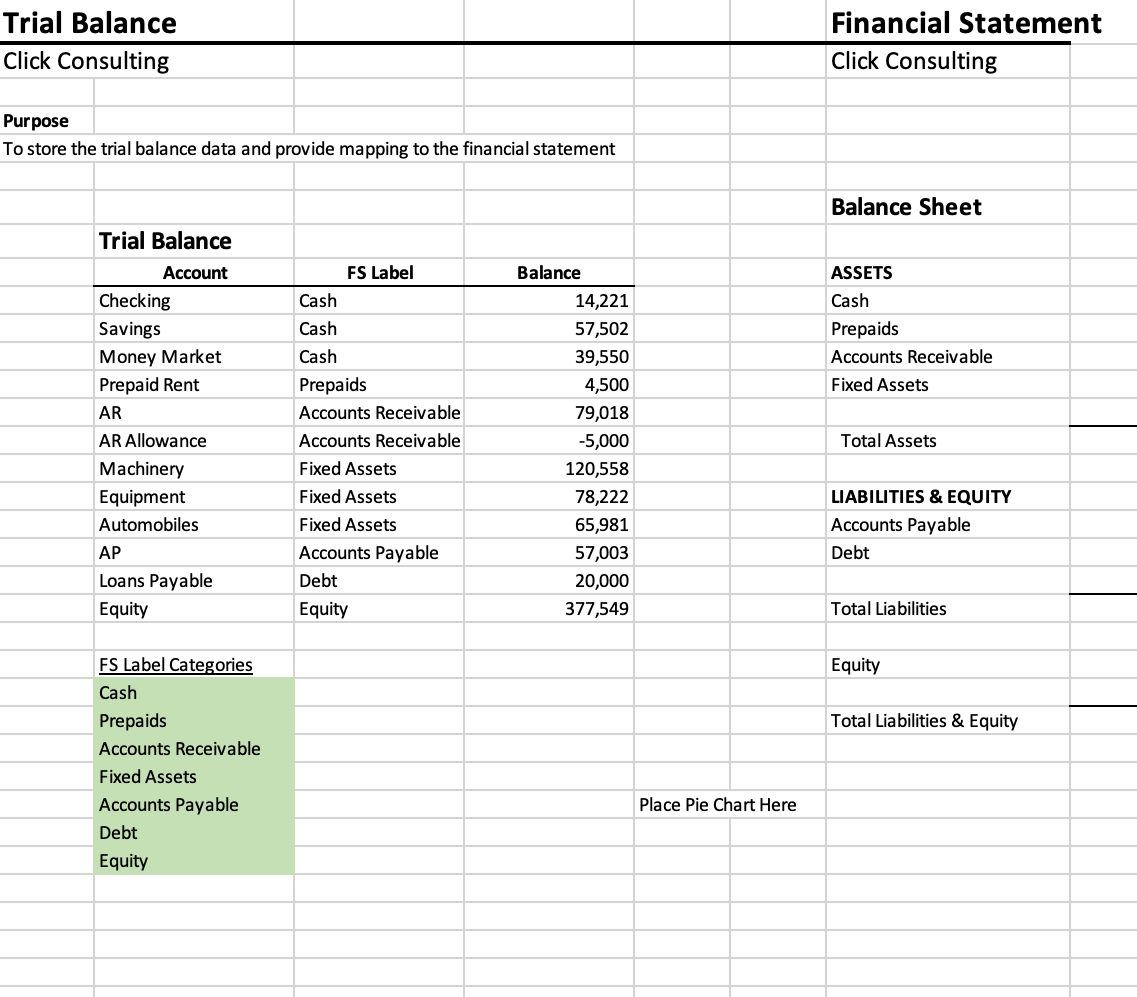
Question: Please explain your solution Trial Balance Financial Statement Click Consulting Click Consulting Purpose To store the trial balance data and provide mapping to the financial
Please explain your solution
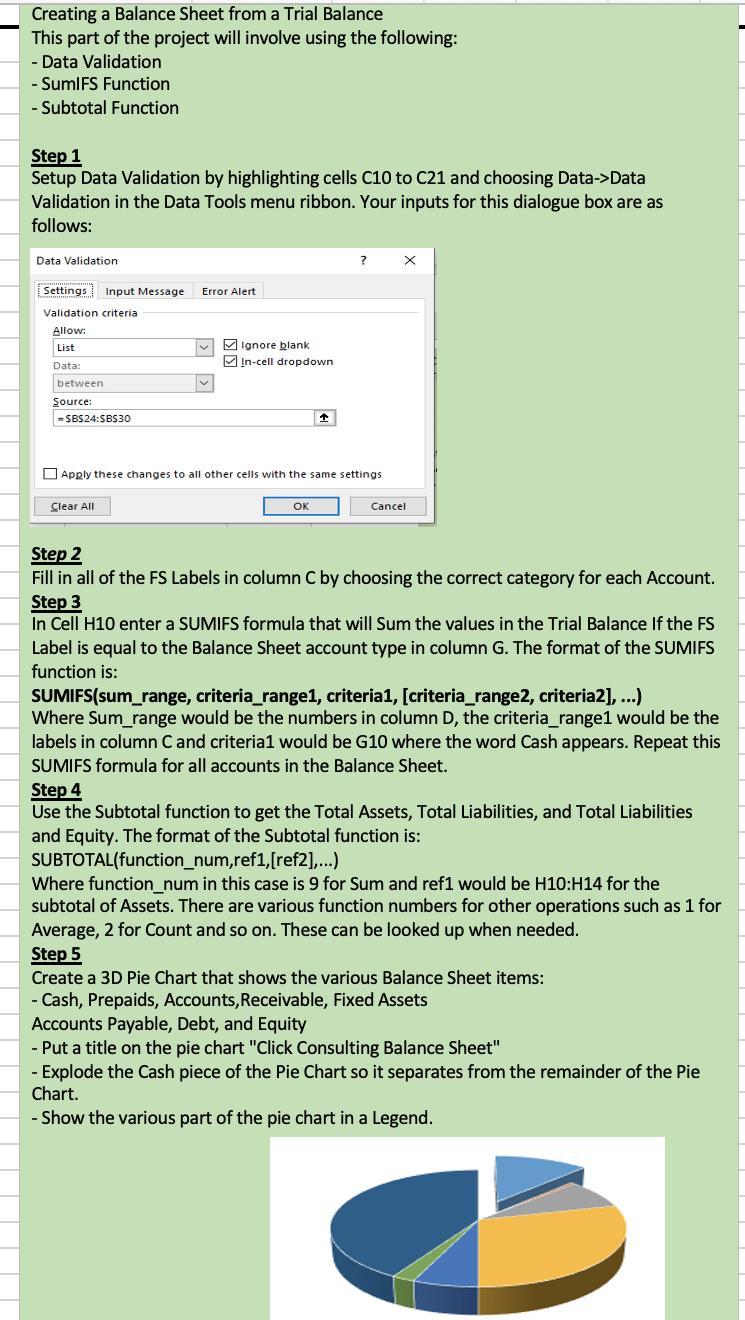
Trial Balance Financial Statement Click Consulting Click Consulting Purpose To store the trial balance data and provide mapping to the financial statement Balance Sheet Trial Balance Creating a Balance Sheet from a Trial Balance This part of the project will involve using the following: - Data Validation - SumIFS Function - Subtotal Function Step 1 Setup Data Validation by highlighting cells C10 to C21 and choosing Data->Data Validation in the Data Tools menu ribbon. Your inputs for this dialogue box are as follows: Step 2 Fill in all of the FS Labels in column C by choosing the correct category for each Account. Step 3 In Cell H10 enter a SUMIFS formula that will Sum the values in the Trial Balance If the FS Label is equal to the Balance Sheet account type in column G. The format of the SUMIFS function is: SUMIFS(sum_range, criteria_range1, criteria1, [criteria_range2, criteria2], ...) Where Sum_range would be the numbers in column D, the criteria_range1 would be the labels in column C and criteria1 would be G10 where the word Cash appears. Repeat this SUMIFS formula for all accounts in the Balance Sheet. Step 4 Use the Subtotal function to get the Total Assets, Total Liabilities, and Total Liabilities and Equity. The format of the Subtotal function is: SUBTOTAL(function_num,ref1,[ref2],...) Where function_num in this case is 9 for Sum and ref1 would be H10:H14 for the subtotal of Assets. There are various function numbers for other operations such as 1 for Average, 2 for Count and so on. These can be looked up when needed. Step 5 Create a 3D Pie Chart that shows the various Balance Sheet items: - Cash, Prepaids, Accounts, Receivable, Fixed Assets Accounts Payable, Debt, and Equity - Put a title on the pie chart "Click Consulting Balance Sheet" - Explode the Cash piece of the Pie Chart so it separates from the remainder of the Pie Chart. - Show the various part of the pie chart in a Legend. Trial Balance Financial Statement Click Consulting Click Consulting Purpose To store the trial balance data and provide mapping to the financial statement Balance Sheet Trial Balance Creating a Balance Sheet from a Trial Balance This part of the project will involve using the following: - Data Validation - SumIFS Function - Subtotal Function Step 1 Setup Data Validation by highlighting cells C10 to C21 and choosing Data->Data Validation in the Data Tools menu ribbon. Your inputs for this dialogue box are as follows: Step 2 Fill in all of the FS Labels in column C by choosing the correct category for each Account. Step 3 In Cell H10 enter a SUMIFS formula that will Sum the values in the Trial Balance If the FS Label is equal to the Balance Sheet account type in column G. The format of the SUMIFS function is: SUMIFS(sum_range, criteria_range1, criteria1, [criteria_range2, criteria2], ...) Where Sum_range would be the numbers in column D, the criteria_range1 would be the labels in column C and criteria1 would be G10 where the word Cash appears. Repeat this SUMIFS formula for all accounts in the Balance Sheet. Step 4 Use the Subtotal function to get the Total Assets, Total Liabilities, and Total Liabilities and Equity. The format of the Subtotal function is: SUBTOTAL(function_num,ref1,[ref2],...) Where function_num in this case is 9 for Sum and ref1 would be H10:H14 for the subtotal of Assets. There are various function numbers for other operations such as 1 for Average, 2 for Count and so on. These can be looked up when needed. Step 5 Create a 3D Pie Chart that shows the various Balance Sheet items: - Cash, Prepaids, Accounts, Receivable, Fixed Assets Accounts Payable, Debt, and Equity - Put a title on the pie chart "Click Consulting Balance Sheet" - Explode the Cash piece of the Pie Chart so it separates from the remainder of the Pie Chart. - Show the various part of the pie chart in a Legend
Step by Step Solution
There are 3 Steps involved in it

Get step-by-step solutions from verified subject matter experts
 Study Help