







Question: please help acesss 10. Use Query Design to create a query to find customers who made purchases but have no 8 ResortHotelRoom. Include LastName, FirstName,
please help acesss
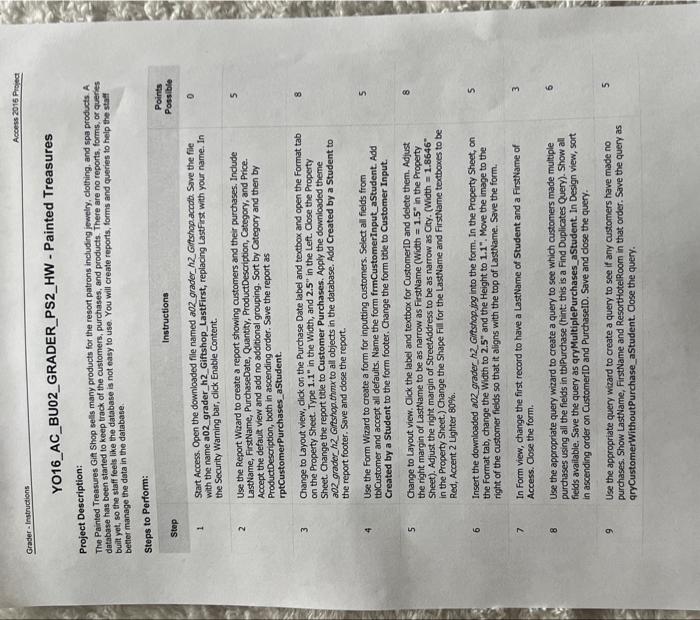
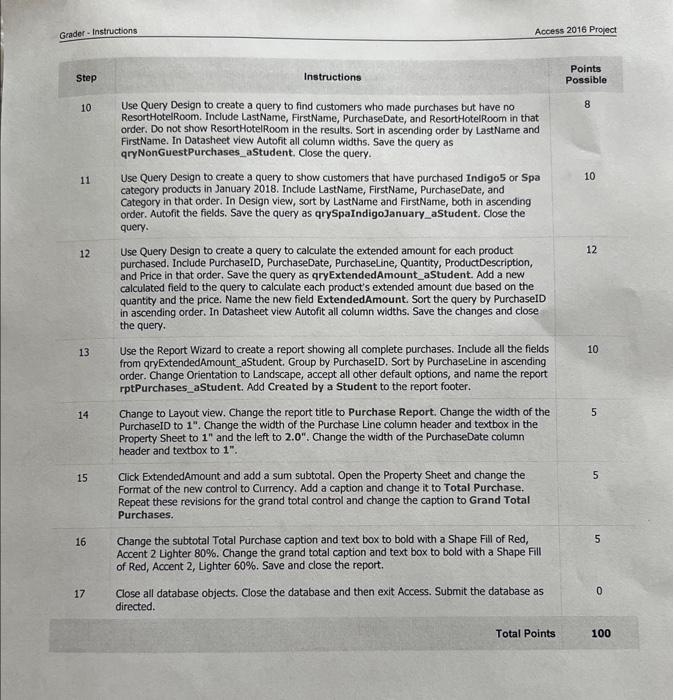
10. Use Query Design to create a query to find customers who made purchases but have no 8 ResortHotelRoom. Include LastName, FirstName, PurchaseDate, and ResorthotelRoom in that order. Do not show ResortHotelRoom in the results. Sort in ascending order by LastName and FirstName. In Datasheet view Autofit all column widths. Save the query as qryNonGuestPurchases_astudent. Close the query. 11 Use Query Design to create a query to show customers that have purchased Indigo5 or Spa 10 category products in January 2018. Include LastName, FirstName, PurchaseDate, and Category in that order. In Design view, sort by LastName and FirstName, both in ascending order. Autofit the fields. Save the query as qrySpaIndigoJanuary_aStudent. Close the query. 12. Use Query Design to create a query to calculate the extended amount for each product 12 purchased. Include PurchaseID, PurchaseDate, Purchaseline, Quantity, ProductDescription, and Price in that order. Save the query as qry ExtendedAmount_aStudent. Add a new calculated field to the query to calculate each product's extended amount due based on the quantity and the price. Name the new field ExtendedAmount. Sort the query by PurchaseID in ascending order. In Datasheet view Autofit all column widths. Save the changes and close the query. 13 Use the Report Wizard to create a report showing all complete purchases. Include all the fields 10 from qryExtendedAmount_aStudent. Group by PurchaselD. Sort by PurchaseLine in ascending order. Change Orientation to Landscape, accept all other default options, and name the report rptPurchases_aStudent. Add Created by a Student to the report footer. 14 Change to Layout view. Change the report title to Purchase Report. Change the width of the PurchaseID to 1. Change the width of the Purchase Line column header and textbox in the Property Sheet to 1 and the left to 2.0. Change the width of the PurchaseDate column header and textbox to 1. 15 Click ExtendedAmount and add a sum subtotal. Open the Property Sheet and change the Format of the new control to Currency. Add a caption and change it to Total Purchase. Repeat these revisions for the grand total control and change the caption to Grand Total Purchases. 16 Change the subtotal Total Purchase caption and text box to bold with a Shape Fill of Red, Accent 2 Lighter 80%. Change the grand total caption and text box to bold with a Shape Fill of Red, Accent 2, Lighter 60%. Save and close the report. 17 Close all database objects. Close the database and then exit Access. Submit the database as 0 directed. 10. Use Query Design to create a query to find customers who made purchases but have no 8 ResortHotelRoom. Include LastName, FirstName, PurchaseDate, and ResorthotelRoom in that order. Do not show ResortHotelRoom in the results. Sort in ascending order by LastName and FirstName. In Datasheet view Autofit all column widths. Save the query as qryNonGuestPurchases_astudent. Close the query. 11 Use Query Design to create a query to show customers that have purchased Indigo5 or Spa 10 category products in January 2018. Include LastName, FirstName, PurchaseDate, and Category in that order. In Design view, sort by LastName and FirstName, both in ascending order. Autofit the fields. Save the query as qrySpaIndigoJanuary_aStudent. Close the query. 12. Use Query Design to create a query to calculate the extended amount for each product 12 purchased. Include PurchaseID, PurchaseDate, Purchaseline, Quantity, ProductDescription, and Price in that order. Save the query as qry ExtendedAmount_aStudent. Add a new calculated field to the query to calculate each product's extended amount due based on the quantity and the price. Name the new field ExtendedAmount. Sort the query by PurchaseID in ascending order. In Datasheet view Autofit all column widths. Save the changes and close the query. 13 Use the Report Wizard to create a report showing all complete purchases. Include all the fields 10 from qryExtendedAmount_aStudent. Group by PurchaselD. Sort by PurchaseLine in ascending order. Change Orientation to Landscape, accept all other default options, and name the report rptPurchases_aStudent. Add Created by a Student to the report footer. 14 Change to Layout view. Change the report title to Purchase Report. Change the width of the PurchaseID to 1. Change the width of the Purchase Line column header and textbox in the Property Sheet to 1 and the left to 2.0. Change the width of the PurchaseDate column header and textbox to 1. 15 Click ExtendedAmount and add a sum subtotal. Open the Property Sheet and change the Format of the new control to Currency. Add a caption and change it to Total Purchase. Repeat these revisions for the grand total control and change the caption to Grand Total Purchases. 16 Change the subtotal Total Purchase caption and text box to bold with a Shape Fill of Red, Accent 2 Lighter 80%. Change the grand total caption and text box to bold with a Shape Fill of Red, Accent 2, Lighter 60%. Save and close the report. 17 Close all database objects. Close the database and then exit Access. Submit the database as 0 directed
Step by Step Solution
There are 3 Steps involved in it

Get step-by-step solutions from verified subject matter experts
 Study Help