







Question: please help!! and be very specific! please be specific like telling me what cells to click and so on this is due tomorrow and im
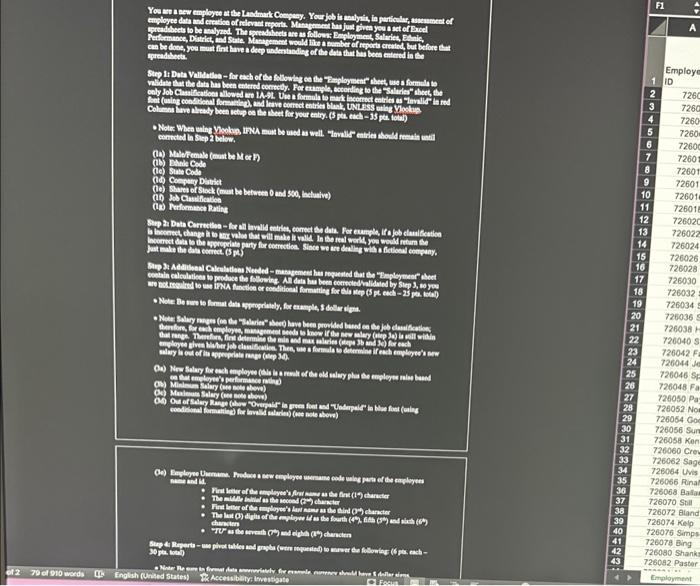
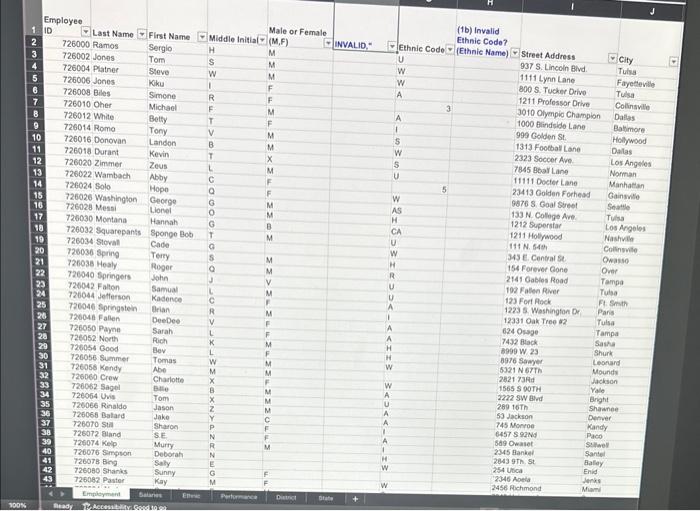
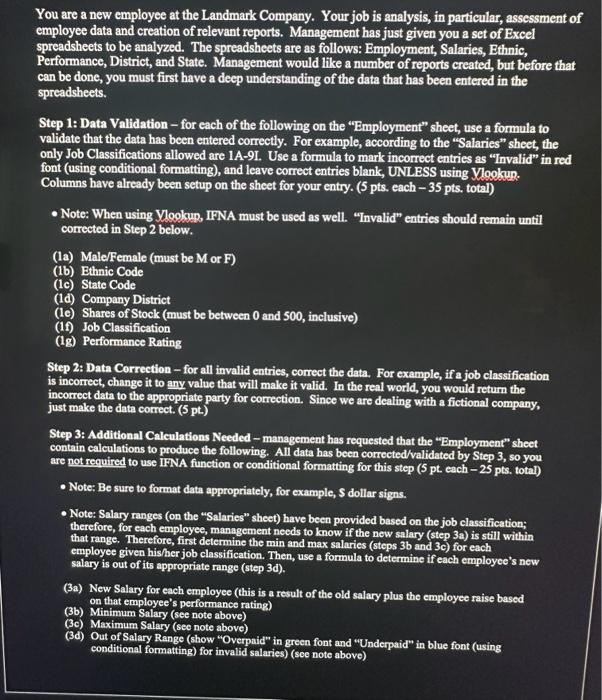
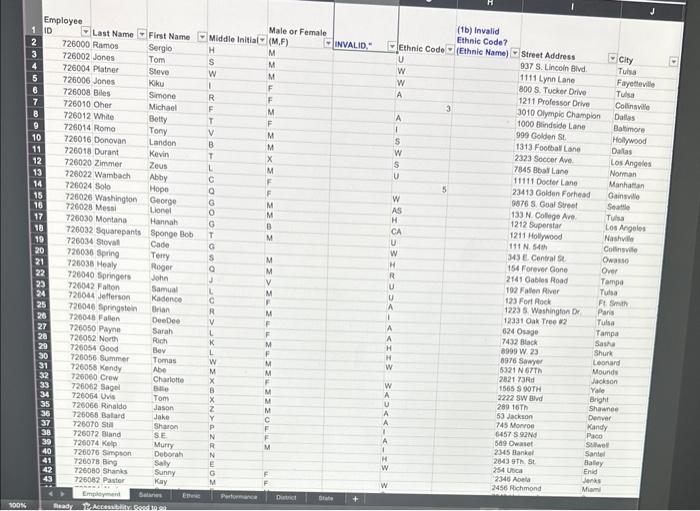
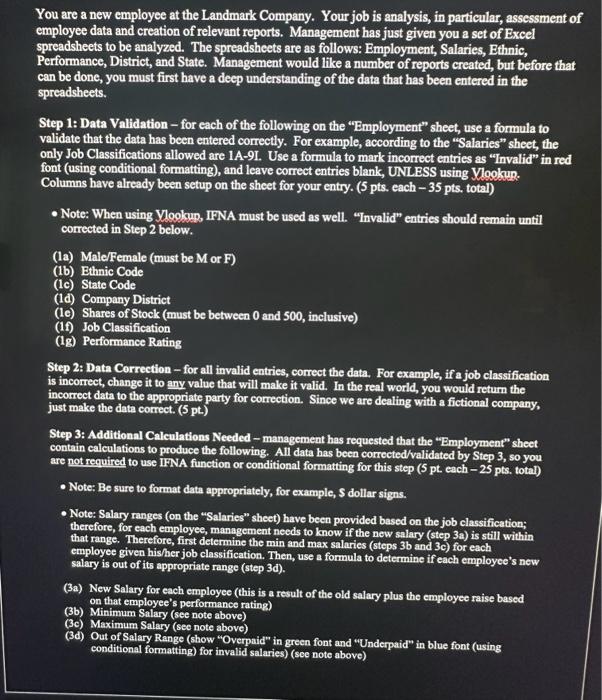
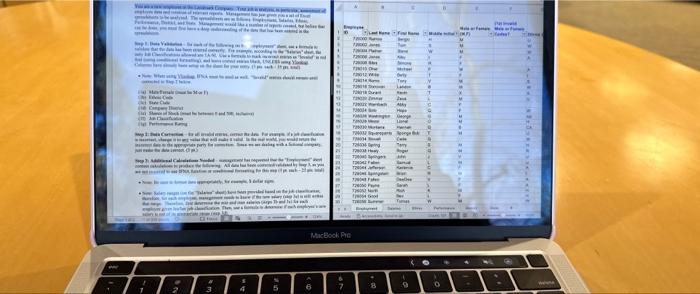
freadinet. cunctid la Sice 2 below, (te) Briale Coth (te) Stine Cosic (he) semeren of Diatict (tD Nrionsese Ratling You are a new employee at the Landmark Company. Your job is analysis, in particular, assessment of employee data and creation of relevant reports. Management has just given you a set of Excel spreadsheets to be analyzed. The spreadsheets are as follows: Employment, Salaries, Ethnic, Performance, District, and State. Management would like a number of reports created, but before that can be done, you must first have a deep understanding of the data that has been entered in the spreadsheets. Step 1: Data Validation - for each of the following on the "Employment" sheet, use a formula to validate that the data has been entered correctly. For example, according to the "Salaries" sheet, the only Job Classifications allowed are 1A-9I. Use a formula to mark incorrect entries as "Invalid" in red font (using conditional formatting), and leave correct entries blank, UNLESS using Ylookse. Columns have already been setup on the sheet for your entry. ( 5 pts. each 35 pts. total) - Note: When using Ylookup, IFNA must be used as well. "Invalid" entries should remain until corrected in Step 2 below. (la) Male/Female (must be M or F) (1b) Ethnic Code (1c) State Code (1d) Company District (le) Shares of Stock (must be between 0 and 500 , inclusive) (1f) Job Classification (1g) Performance Rating Step 2: Data Correction - for all invalid entries, correct the data. For example, if a job classification is incorrect, change it to any value that will make it valid. In the real world, you would return the incorrect data to the appropriate party for correction. Since we are dealing with a fictional company, just make the data correct. ( 5pt.) Step 3: Additional Calculations Needed - management has requested that the "Employment" sheet contain calculations to produce the following. All data has been corrected/validated by Step 3, so you are not required to use IFNA function or conditional formatting for this step ( 5pt. each 25pts. total) - Note: Be sure to format data appropriately, for example, $ dollar signs. - Note: Salary ranges (on the "Salaries" sheet) have been provided based on the job classification; therefore, for each employee, management needs to know if the new salary (step 3a ) is still within that range. Therefore, first determine the min and max salaries (steps 3b and 3c ) for each employee given his/her job classification. Then, use a formula to determine if each employee's new salary is out of its appropriate range (step 3d). (3a) New Salary for each employee (this is a result of the old salary plus the employee raise based on that employee's performance rating) (3b) Minimum Salary (see note above) (3c) Maximum Salary (see note above) (3d) Out of Salary Range (show "Overpaid" in green font and "Underpaid" in blue font (using conditional formatting) for invalid salaries) (sce note above) You are a new employee at the Landmark Company. Your job is analysis, in particular, assessment of employee data and creation of relevant reports. Management has just given you a set of Excel spreadsheets to be analyzed. The spreadsheets are as follows: Employment, Salaries, Ethnic, Performance, District, and State. Management would like a number of reports created, but before that can be done, you must first have a deep understanding of the data that has been entered in the spreadsheets. Step 1: Data Validation - for each of the following on the "Employment" sheet, use a formula to validate that the data has been entered correctly. For example, according to the "Salaries" sheet, the only Job Classifications allowed are 1A-9I. Use a formula to mark incorrect entries as "Invalid" in red font (using conditional formatting), and leave correct entries blank, UNLESS using Ylookse. Columns have already been setup on the sheet for your entry. ( 5 pts. each 35 pts. total) - Note: When using Ylookup, IFNA must be used as well. "Invalid" entries should remain until corrected in Step 2 below. (la) Male/Female (must be M or F) (1b) Ethnic Code (1c) State Code (1d) Company District (le) Shares of Stock (must be between 0 and 500 , inclusive) (1f) Job Classification (1g) Performance Rating Step 2: Data Correction - for all invalid entries, correct the data. For example, if a job classification is incorrect, change it to any value that will make it valid. In the real world, you would return the incorrect data to the appropriate party for correction. Since we are dealing with a fictional company, just make the data correct. ( 5pt.) Step 3: Additional Calculations Needed - management has requested that the "Employment" sheet contain calculations to produce the following. All data has been corrected/validated by Step 3, so you are not required to use IFNA function or conditional formatting for this step ( 5pt. each 25pts. total) - Note: Be sure to format data appropriately, for example, $ dollar signs. - Note: Salary ranges (on the "Salaries" sheet) have been provided based on the job classification; therefore, for each employee, management needs to know if the new salary (step 3a ) is still within that range. Therefore, first determine the min and max salaries (steps 3b and 3c ) for each employee given his/her job classification. Then, use a formula to determine if each employee's new salary is out of its appropriate range (step 3d). (3a) New Salary for each employee (this is a result of the old salary plus the employee raise based on that employee's performance rating) (3b) Minimum Salary (see note above) (3c) Maximum Salary (see note above) (3d) Out of Salary Range (show "Overpaid" in green font and "Underpaid" in blue font (using conditional formatting) for invalid salaries) (sce note above) freadinet. cunctid la Sice 2 below, (te) Briale Coth (te) Stine Cosic (he) semeren of Diatict (tD Nrionsese Ratling You are a new employee at the Landmark Company. Your job is analysis, in particular, assessment of employee data and creation of relevant reports. Management has just given you a set of Excel spreadsheets to be analyzed. The spreadsheets are as follows: Employment, Salaries, Ethnic, Performance, District, and State. Management would like a number of reports created, but before that can be done, you must first have a deep understanding of the data that has been entered in the spreadsheets. Step 1: Data Validation - for each of the following on the "Employment" sheet, use a formula to validate that the data has been entered correctly. For example, according to the "Salaries" sheet, the only Job Classifications allowed are 1A-9I. Use a formula to mark incorrect entries as "Invalid" in red font (using conditional formatting), and leave correct entries blank, UNLESS using Ylookse. Columns have already been setup on the sheet for your entry. ( 5 pts. each 35 pts. total) - Note: When using Ylookup, IFNA must be used as well. "Invalid" entries should remain until corrected in Step 2 below. (la) Male/Female (must be M or F) (1b) Ethnic Code (1c) State Code (1d) Company District (le) Shares of Stock (must be between 0 and 500 , inclusive) (1f) Job Classification (1g) Performance Rating Step 2: Data Correction - for all invalid entries, correct the data. For example, if a job classification is incorrect, change it to any value that will make it valid. In the real world, you would return the incorrect data to the appropriate party for correction. Since we are dealing with a fictional company, just make the data correct. ( 5pt.) Step 3: Additional Calculations Needed - management has requested that the "Employment" sheet contain calculations to produce the following. All data has been corrected/validated by Step 3, so you are not required to use IFNA function or conditional formatting for this step ( 5pt. each 25pts. total) - Note: Be sure to format data appropriately, for example, $ dollar signs. - Note: Salary ranges (on the "Salaries" sheet) have been provided based on the job classification; therefore, for each employee, management needs to know if the new salary (step 3a ) is still within that range. Therefore, first determine the min and max salaries (steps 3b and 3c ) for each employee given his/her job classification. Then, use a formula to determine if each employee's new salary is out of its appropriate range (step 3d). (3a) New Salary for each employee (this is a result of the old salary plus the employee raise based on that employee's performance rating) (3b) Minimum Salary (see note above) (3c) Maximum Salary (see note above) (3d) Out of Salary Range (show "Overpaid" in green font and "Underpaid" in blue font (using conditional formatting) for invalid salaries) (sce note above) You are a new employee at the Landmark Company. Your job is analysis, in particular, assessment of employee data and creation of relevant reports. Management has just given you a set of Excel spreadsheets to be analyzed. The spreadsheets are as follows: Employment, Salaries, Ethnic, Performance, District, and State. Management would like a number of reports created, but before that can be done, you must first have a deep understanding of the data that has been entered in the spreadsheets. Step 1: Data Validation - for each of the following on the "Employment" sheet, use a formula to validate that the data has been entered correctly. For example, according to the "Salaries" sheet, the only Job Classifications allowed are 1A-9I. Use a formula to mark incorrect entries as "Invalid" in red font (using conditional formatting), and leave correct entries blank, UNLESS using Ylookse. Columns have already been setup on the sheet for your entry. ( 5 pts. each 35 pts. total) - Note: When using Ylookup, IFNA must be used as well. "Invalid" entries should remain until corrected in Step 2 below. (la) Male/Female (must be M or F) (1b) Ethnic Code (1c) State Code (1d) Company District (le) Shares of Stock (must be between 0 and 500 , inclusive) (1f) Job Classification (1g) Performance Rating Step 2: Data Correction - for all invalid entries, correct the data. For example, if a job classification is incorrect, change it to any value that will make it valid. In the real world, you would return the incorrect data to the appropriate party for correction. Since we are dealing with a fictional company, just make the data correct. ( 5pt.) Step 3: Additional Calculations Needed - management has requested that the "Employment" sheet contain calculations to produce the following. All data has been corrected/validated by Step 3, so you are not required to use IFNA function or conditional formatting for this step ( 5pt. each 25pts. total) - Note: Be sure to format data appropriately, for example, $ dollar signs. - Note: Salary ranges (on the "Salaries" sheet) have been provided based on the job classification; therefore, for each employee, management needs to know if the new salary (step 3a ) is still within that range. Therefore, first determine the min and max salaries (steps 3b and 3c ) for each employee given his/her job classification. Then, use a formula to determine if each employee's new salary is out of its appropriate range (step 3d). (3a) New Salary for each employee (this is a result of the old salary plus the employee raise based on that employee's performance rating) (3b) Minimum Salary (see note above) (3c) Maximum Salary (see note above) (3d) Out of Salary Range (show "Overpaid" in green font and "Underpaid" in blue font (using conditional formatting) for invalid salaries) (sce note above)
Step by Step Solution
There are 3 Steps involved in it

Get step-by-step solutions from verified subject matter experts
 Study Help