



Question: Please help me fill the highlight columns **All Answers need to be written in a formula format** Example: =H16 Administrative salames, equpment deprecranom, anu Enter
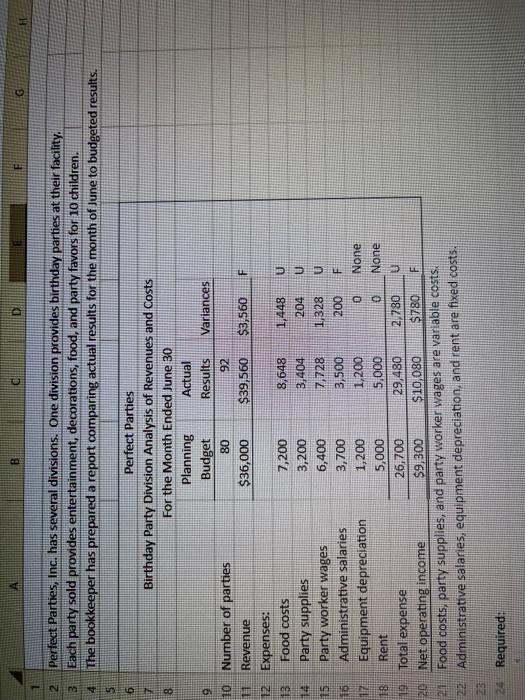
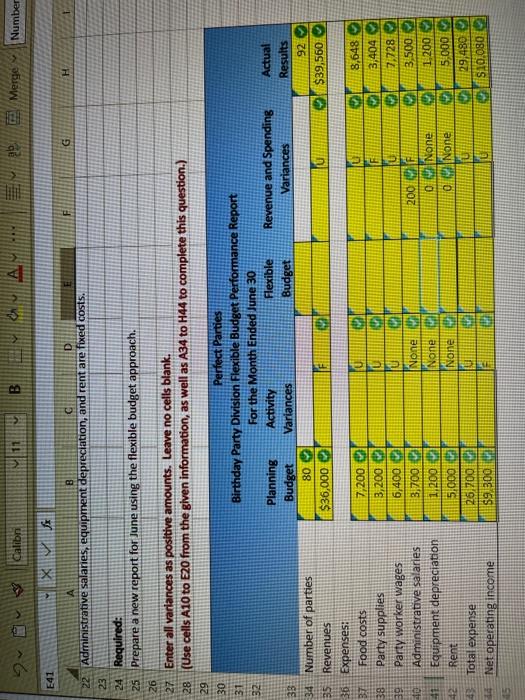
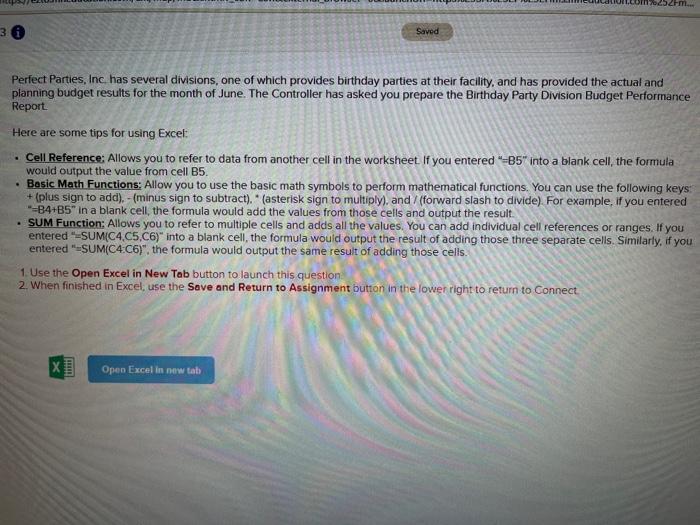
Administrative salames, equpment deprecranom, anu Enter all variances as positive amounts. Leave no cells blank. (Use cells A10 to 220 from the given information, as well as A 34 to H44 to complete this question.) Perfect Parties Birthday Party Division Flexible Budget Performance Report For the Month Ended June 30 Perfect Parties, Inc, has several divisions, one of which provides birthday parties at their facility, and has provided the actual and planning budget results for the month of June. The Controller has asked you prepare the Birthday Party Division Budget Performance Report Here are some tips for using Excel: - Cell Reference: Allows you to refer to data from another cell in the worksheet. If you entered "=B5" into a blank cell, the formula would output the value from cell B5. - Basic Math Functions: Allow you to use the basic math symbols to perform mathematical functions. You can use the following keys: + (plus sign to add), - (minus sign to subtract). " (asterisk sign to multiply), and/ (forward slash to divide). For example, if you entered =B4+B5 " in a blank cell, the formula would add the values from those cells and output the result. - SUM Function; Allows you to refer to multiple cells and adds all the values. You can add individual cell references or ranges. If you entered "-SUM(C4,C5,C6)" into a blank cell, the formula would output the result of adding those three separate cells. Similarly, if you entered "mSUM(C4:C6)", the formula would output the same result of adding those cells. 1. Use the Open Excel in New Tab button to launch this question 2. When finished in Excel; use the Sove and Return to Assignment button in the lower right to return to Connect. Administrative salames, equpment deprecranom, anu Enter all variances as positive amounts. Leave no cells blank. (Use cells A10 to 220 from the given information, as well as A 34 to H44 to complete this question.) Perfect Parties Birthday Party Division Flexible Budget Performance Report For the Month Ended June 30 Perfect Parties, Inc, has several divisions, one of which provides birthday parties at their facility, and has provided the actual and planning budget results for the month of June. The Controller has asked you prepare the Birthday Party Division Budget Performance Report Here are some tips for using Excel: - Cell Reference: Allows you to refer to data from another cell in the worksheet. If you entered "=B5" into a blank cell, the formula would output the value from cell B5. - Basic Math Functions: Allow you to use the basic math symbols to perform mathematical functions. You can use the following keys: + (plus sign to add), - (minus sign to subtract). " (asterisk sign to multiply), and/ (forward slash to divide). For example, if you entered =B4+B5 " in a blank cell, the formula would add the values from those cells and output the result. - SUM Function; Allows you to refer to multiple cells and adds all the values. You can add individual cell references or ranges. If you entered "-SUM(C4,C5,C6)" into a blank cell, the formula would output the result of adding those three separate cells. Similarly, if you entered "mSUM(C4:C6)", the formula would output the same result of adding those cells. 1. Use the Open Excel in New Tab button to launch this question 2. When finished in Excel; use the Sove and Return to Assignment button in the lower right to return to Connect
Step by Step Solution
There are 3 Steps involved in it

Get step-by-step solutions from verified subject matter experts