







Question: Please help me with this assignment. If you do need further information, please do not hesitate to message/comment on the post your email to help
Please help me with this assignment. If you do need further information, please do not hesitate to message/comment on the post your email to help me on this assignment. Thank you.
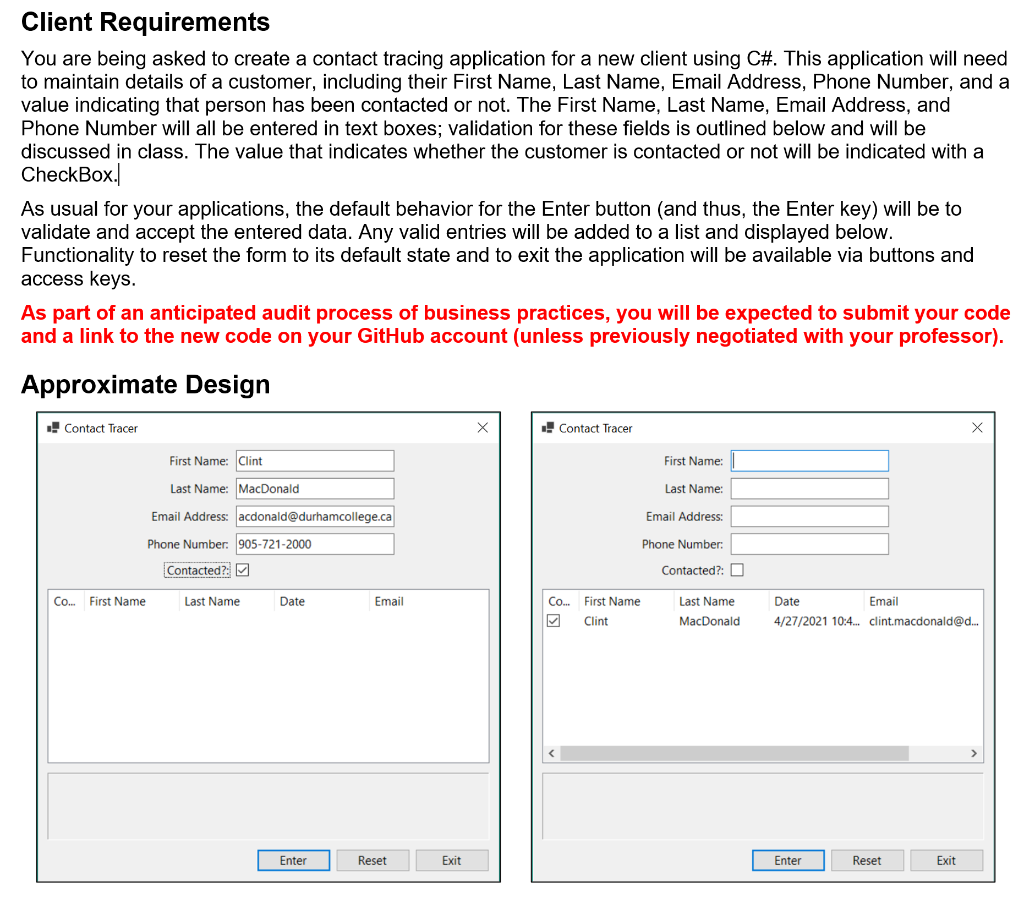
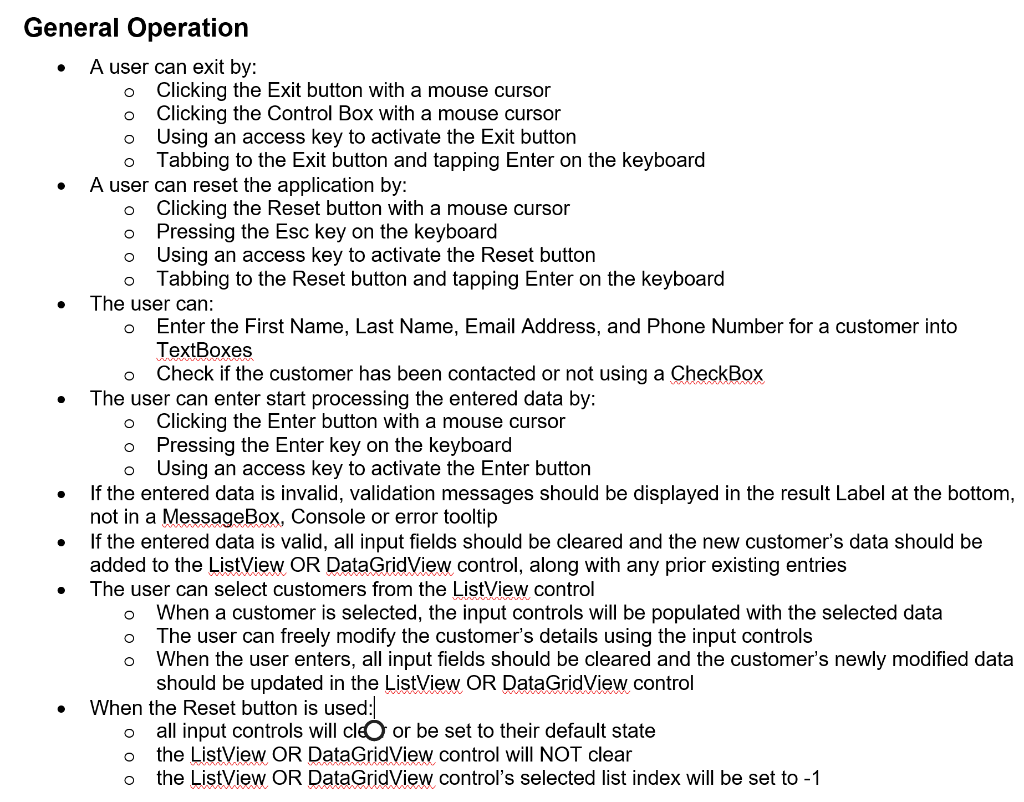
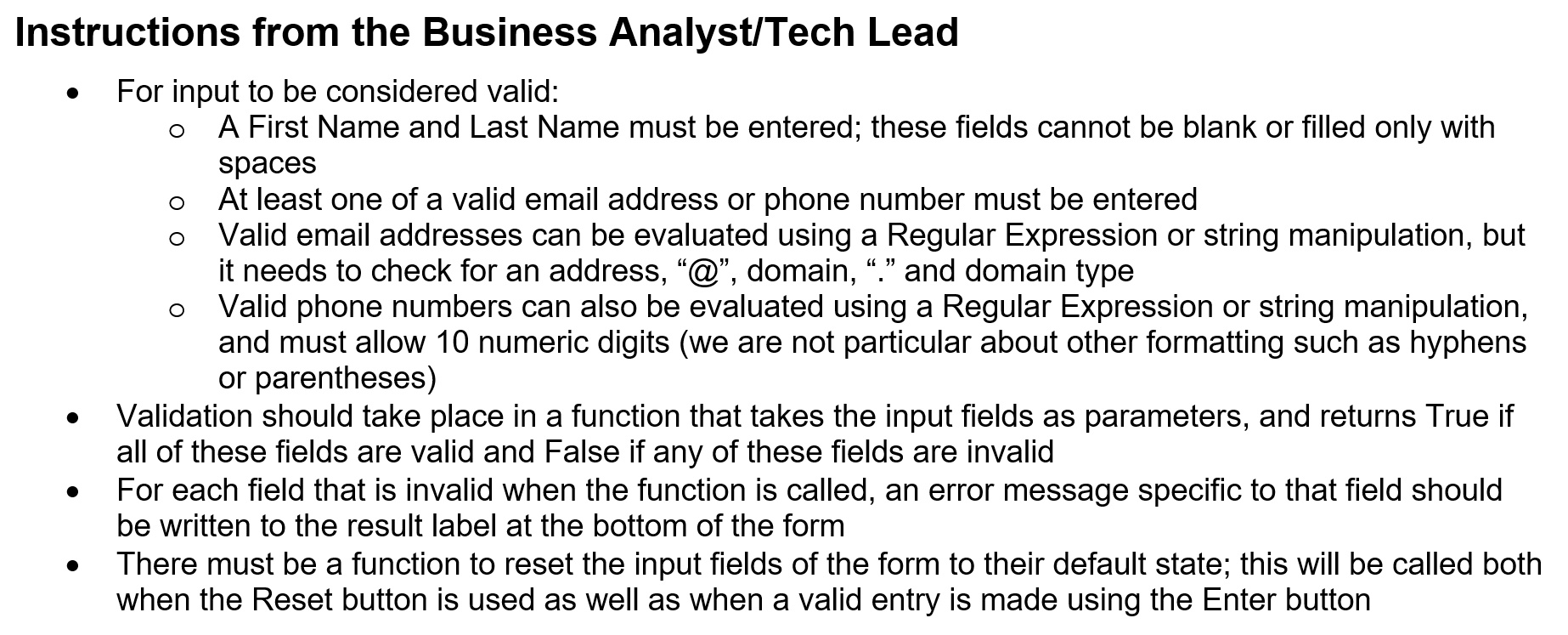
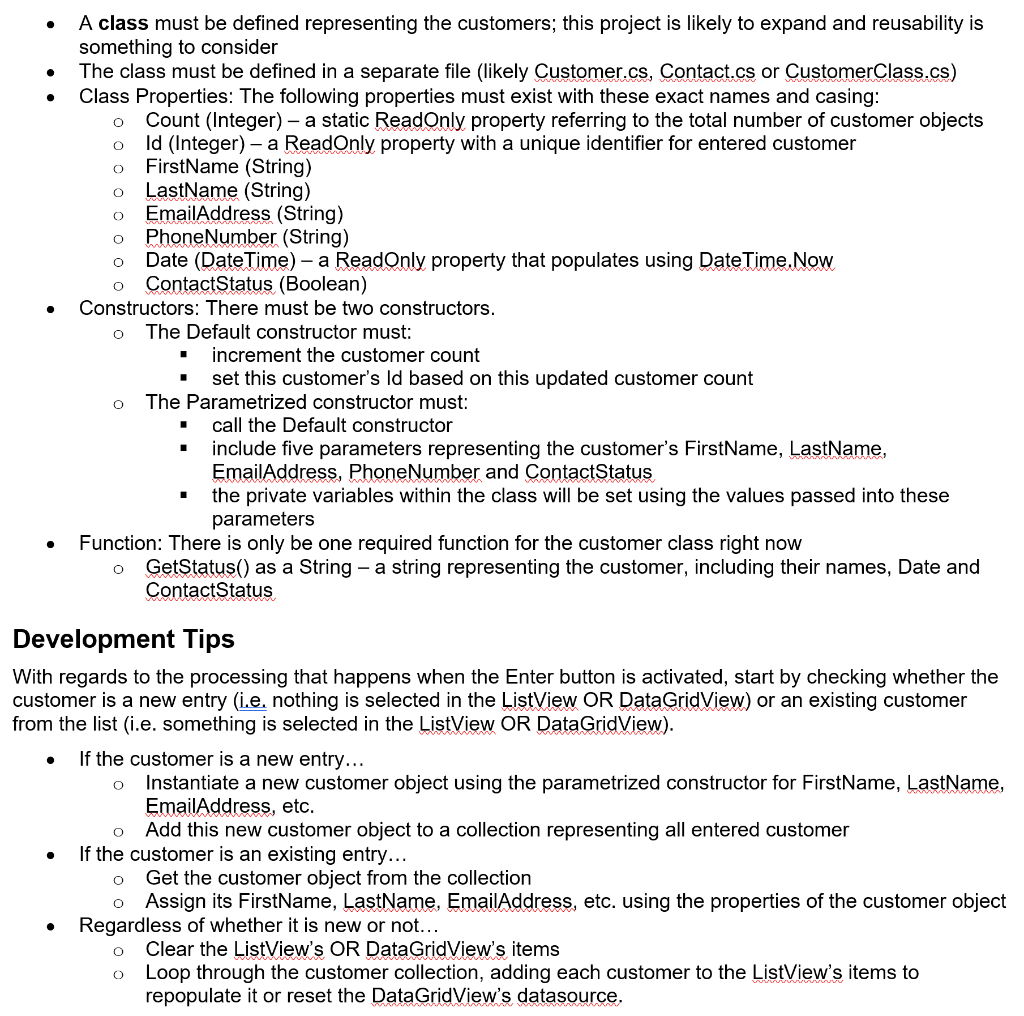
Client Requirements You are being asked to create a contact tracing application for a new client using C#. This application will need to maintain details of a customer, including their First Name, Last Name, Email Address, Phone Number, and a value indicating that person has been contacted or not. The First Name, Last Name, Email Address, and Phone Number will all be entered in text boxes; validation for these fields is outlined below and will be discussed in class. The value that indicates whether the customer is contacted or not will be indicated with a CheckBox. As usual for your applications, the default behavior for the Enter button (and thus, the Enter key) will be to validate and accept the entered data. Any valid entries will be added to a list and displayed below. Functionality to reset the form to its default state and to exit the application will be available via buttons and access keys. As part of an anticipated audit process of business practices, you will be expected to submit your code and a link to the new code on your GitHub account (unless previously negotiated with your professor). Approximate Design .! Contact Tracer ! Contact Tracer First Name: Clint First Name: Last Name: MacDonald Last Name: Email Address: acdonald@durhamcollege.ca Email Address: Phone Number: 905-721-2000 Phone Number: Contacted: Contacted?: D Co... First Name Last Name Date Email Co... First Name Clint Last Name MacDonald Date Email 4/27/2021 10:4... clint.macdonald@d... Enter Reset Exit Enter Reset Exit . O O O o . o O o General Operation A user can exit by: Clicking the Exit button with a mouse cursor Clicking the Control Box with a mouse cursor Using an access key to activate the Exit button Tabbing to the Exit button and tapping Enter on the keyboard A user can reset the application by: o Clicking the Reset button with a mouse cursor o Pressing the Esc key on the keyboard o Using an access key to activate the Reset button Tabbing to the Reset button and tapping Enter on the keyboard The user can: Enter the First Name, Last Name, Email Address, and Phone Number for a customer into TextBoxes Check if the customer has been contacted or not using a CheckBox The user can enter start processing the entered data by: Clicking the Enter button with a mouse cursor Pressing the Enter key on the keyboard o Using an access key to activate the Enter button If the entered data is invalid, validation messages should be displayed in the result Label at the bottom, not in a MessageBox, Console or error tooltip If the entered data is valid, all input fields should be cleared and the new customer's data should be added to the ListView OR DataGridView control, along with any prior existing entries The user can select customers from the ListView control When a customer is selected, the input controls will be populated with the selected data The user can freely modify the customer's details using the input controls When the user enters, all input fields should be cleared and the customer's newly modified data should be updated in the ListView OR DataGridView control When the Reset button is used: all input controls will cle or be set to their default state the ListView OR DataGridView control will NOT clear the ListView OR DataGridView control's selected list index will be set to - 1 O . . o o O . O O O Instructions from the Business Analyst/Tech Lead For input to be considered valid: A First Name and Last Name must be entered; these fields cannot be blank or filled only with spaces At least one of a valid email address or phone number must be entered Valid email addresses can be evaluated using a Regular Expression or string manipulation, but it needs to check for an address, @, domain,." and domain type Valid phone numbers can also be evaluated using a Regular Expression or string manipulation, and must allow 10 numeric digits (we are not particular about other formatting such as hyphens or parentheses) Validation should take place in a function that takes the input fields as parameters, and returns True if all of these fields are valid and False if any of these fields are invalid For each field that is invalid when the function is called, an error message specific to that field should be written to the result label at the bottom of the form There must be a function to reset the input fields of the form to their default state; this will be called both when the Reset button is used as well as when a valid entry is made using the Enter button O . O O 0 0 O 0 O O . A class must be defined representing the customers; this project is likely to expand and reusability is something to consider The class must be defined in a separate file (likely Customer.cs, Contact.cs or CustomerClass.cs) Class Properties: The following properties must exist with these exact names and casing: Count (Integer) - a static ReadOnly property referring to the total number of customer objects Id (Integer) - a ReadOnly property with a unique identifier for entered customer FirstName (String) LastName (String) EmailAddress (String) Phone Number (String) Date (Date Time) - a ReadOnly property that populates using DateTime.Now ContactStatus (Boolean) Constructors: There must be two constructors. The Default constructor must: increment the customer count set this customer's Id based on this updated customer count The Parametrized constructor must: call the Default constructor include five parameters representing the customer's FirstName, LastName, Email Address, Phone Number and ContactStatus the private variables within the class will be set using the values passed into these parameters Function: There is only be one required function for the customer class right now GetStatus() as a String - a string representing the customer, including their names, Date and Contact Status . 0 1 O C O Development Tips With regards to the processing that happens when the Enter button is activated, start by checking whether the customer is a new entry (ie, nothing is selected in the ListView OR DataGridView) or an existing customer from the list (i.e. something is selected in the ListView OR DataGridView). If the customer is a new entry... Instantiate a new customer object using the parametrized constructor for FirstName, LastName, EmailAddress, etc. Add this new customer object to a collection representing all entered customer If the customer is an existing entry... Get the customer object from the collection Assign its FirstName, LastName, EmailAddress, etc. using the properties of the customer object Regardless of whether it is new or not... Clear the ListView's OR DataGridView's items Loop through the customer collection, adding each customer to the ListView's items to repopulate it or reset the DataGridView's datasource. O O O . O O Client Requirements You are being asked to create a contact tracing application for a new client using C#. This application will need to maintain details of a customer, including their First Name, Last Name, Email Address, Phone Number, and a value indicating that person has been contacted or not. The First Name, Last Name, Email Address, and Phone Number will all be entered in text boxes; validation for these fields is outlined below and will be discussed in class. The value that indicates whether the customer is contacted or not will be indicated with a CheckBox. As usual for your applications, the default behavior for the Enter button (and thus, the Enter key) will be to validate and accept the entered data. Any valid entries will be added to a list and displayed below. Functionality to reset the form to its default state and to exit the application will be available via buttons and access keys. As part of an anticipated audit process of business practices, you will be expected to submit your code and a link to the new code on your GitHub account (unless previously negotiated with your professor). Approximate Design .! Contact Tracer ! Contact Tracer First Name: Clint First Name: Last Name: MacDonald Last Name: Email Address: acdonald@durhamcollege.ca Email Address: Phone Number: 905-721-2000 Phone Number: Contacted: Contacted?: D Co... First Name Last Name Date Email Co... First Name Clint Last Name MacDonald Date Email 4/27/2021 10:4... clint.macdonald@d... Enter Reset Exit Enter Reset Exit . O O O o . o O o General Operation A user can exit by: Clicking the Exit button with a mouse cursor Clicking the Control Box with a mouse cursor Using an access key to activate the Exit button Tabbing to the Exit button and tapping Enter on the keyboard A user can reset the application by: o Clicking the Reset button with a mouse cursor o Pressing the Esc key on the keyboard o Using an access key to activate the Reset button Tabbing to the Reset button and tapping Enter on the keyboard The user can: Enter the First Name, Last Name, Email Address, and Phone Number for a customer into TextBoxes Check if the customer has been contacted or not using a CheckBox The user can enter start processing the entered data by: Clicking the Enter button with a mouse cursor Pressing the Enter key on the keyboard o Using an access key to activate the Enter button If the entered data is invalid, validation messages should be displayed in the result Label at the bottom, not in a MessageBox, Console or error tooltip If the entered data is valid, all input fields should be cleared and the new customer's data should be added to the ListView OR DataGridView control, along with any prior existing entries The user can select customers from the ListView control When a customer is selected, the input controls will be populated with the selected data The user can freely modify the customer's details using the input controls When the user enters, all input fields should be cleared and the customer's newly modified data should be updated in the ListView OR DataGridView control When the Reset button is used: all input controls will cle or be set to their default state the ListView OR DataGridView control will NOT clear the ListView OR DataGridView control's selected list index will be set to - 1 O . . o o O . O O O Instructions from the Business Analyst/Tech Lead For input to be considered valid: A First Name and Last Name must be entered; these fields cannot be blank or filled only with spaces At least one of a valid email address or phone number must be entered Valid email addresses can be evaluated using a Regular Expression or string manipulation, but it needs to check for an address, @, domain,." and domain type Valid phone numbers can also be evaluated using a Regular Expression or string manipulation, and must allow 10 numeric digits (we are not particular about other formatting such as hyphens or parentheses) Validation should take place in a function that takes the input fields as parameters, and returns True if all of these fields are valid and False if any of these fields are invalid For each field that is invalid when the function is called, an error message specific to that field should be written to the result label at the bottom of the form There must be a function to reset the input fields of the form to their default state; this will be called both when the Reset button is used as well as when a valid entry is made using the Enter button O . O O 0 0 O 0 O O . A class must be defined representing the customers; this project is likely to expand and reusability is something to consider The class must be defined in a separate file (likely Customer.cs, Contact.cs or CustomerClass.cs) Class Properties: The following properties must exist with these exact names and casing: Count (Integer) - a static ReadOnly property referring to the total number of customer objects Id (Integer) - a ReadOnly property with a unique identifier for entered customer FirstName (String) LastName (String) EmailAddress (String) Phone Number (String) Date (Date Time) - a ReadOnly property that populates using DateTime.Now ContactStatus (Boolean) Constructors: There must be two constructors. The Default constructor must: increment the customer count set this customer's Id based on this updated customer count The Parametrized constructor must: call the Default constructor include five parameters representing the customer's FirstName, LastName, Email Address, Phone Number and ContactStatus the private variables within the class will be set using the values passed into these parameters Function: There is only be one required function for the customer class right now GetStatus() as a String - a string representing the customer, including their names, Date and Contact Status . 0 1 O C O Development Tips With regards to the processing that happens when the Enter button is activated, start by checking whether the customer is a new entry (ie, nothing is selected in the ListView OR DataGridView) or an existing customer from the list (i.e. something is selected in the ListView OR DataGridView). If the customer is a new entry... Instantiate a new customer object using the parametrized constructor for FirstName, LastName, EmailAddress, etc. Add this new customer object to a collection representing all entered customer If the customer is an existing entry... Get the customer object from the collection Assign its FirstName, LastName, EmailAddress, etc. using the properties of the customer object Regardless of whether it is new or not... Clear the ListView's OR DataGridView's items Loop through the customer collection, adding each customer to the ListView's items to repopulate it or reset the DataGridView's datasource. O O O . O O
Step by Step Solution
There are 3 Steps involved in it

Get step-by-step solutions from verified subject matter experts
 Study Help