







Question: Please help with the correct program and output from the below figure. Thank you BURGER SPECIALS Create a Windows Form mock-up for the requirements document
Please help with the correct program and output from the below figure. Thank you BURGER SPECIALS Create a Windows Form mock-up for the requirements document in Figure 2-62 and the Use Case Definition shown in Figure 2-63. The Windows Form object and the other objects in the user interface are shown in Figure 2-64.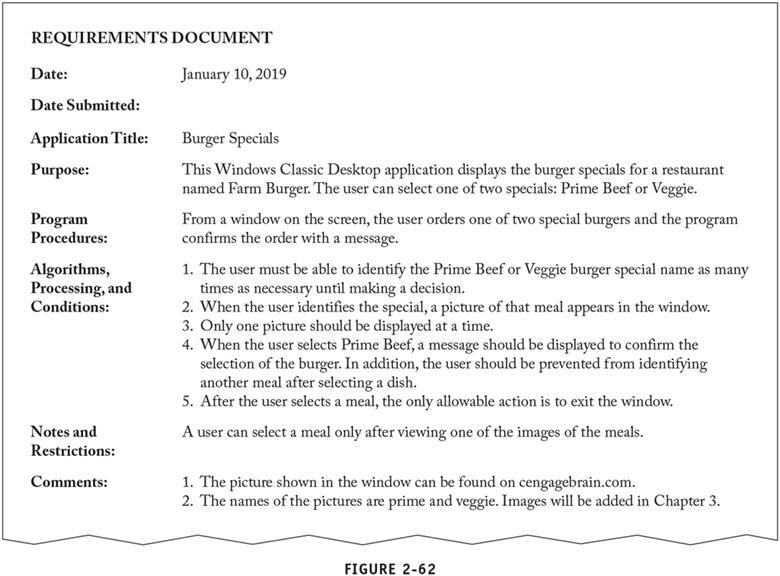
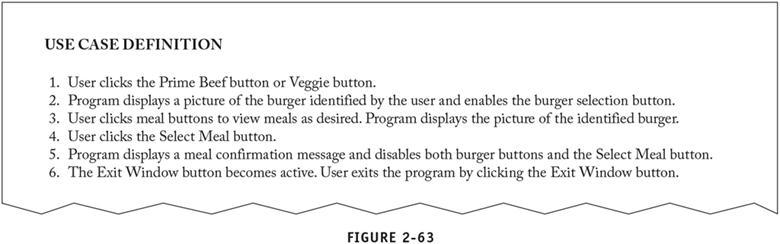
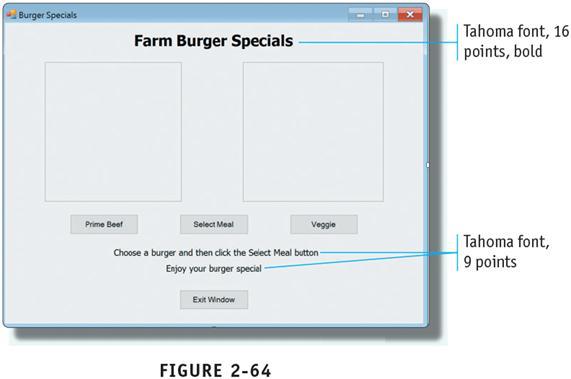
REQUIREMENTS DOCUMENT Date: January 10, 2019 Date Submitted: Application Title: Purpose: Program Procedures: Algorithms, Processing, and Conditions: Burger Specials This Windows Classic Desktop application displays the burger specials for a restaurant named Farm Burger. The user can select one of two specials: Prime Beef or Veggie. From a window on the screen, the user orders one of two special burgers and the program confirms the order with a message. 1. The user must be able to identify the Prime Beef or Veggie burger special name as many times as necessary until making a decision. 2. When the user identifies the special, a picture of that meal appears in the window. 3. Only one picture should be displayed at a time. 4. When the user selects Prime Beef, a message should be displayed to confirm the selection of the burger. In addition, the user should be prevented from identifying another meal after selecting a dish. 5. After the user selects a meal, the only allowable action is to exit the window. A user can select a meal only after viewing one of the images of the meals. Notes and Restrictions: Comments: 1. The picture shown in the window can be found on cengagebrain.com. 2. The names of the pictures are prime and veggie. Images will be added in Chapter 3. FIGURE 2-62 USE CASE DEFINITION 1. User clicks the Prime Beef button or Veggie button. 2. Program displays a picture of the burger identified by the user and enables the burger selection button. 3. User clicks meal buttons to view meals as desired. Program displays the picture of the identified burger. 4. User clicks the Select Meal button. 5. Program displays a meal confirmation message and disables both burger buttons and the Select Meal button. 6. The Exit Window button becomes active. User exits the program by clicking the Exit Window button. FIGURE 2-63 Burger Specials X Farm Burger Specials Tahoma font, 16 points, bold Prime Beef Select Meal Veggle Choose a burger and then click the Select Meal button Enjoy your burger special Tahoma font, 9 points Edt Window FIGURE 2-64
Step by Step Solution
There are 3 Steps involved in it

Get step-by-step solutions from verified subject matter experts
 Study Help