



Question: please i need your help with number 14 and 15 only. e hotel has started faciltating fitness classes for hotel guests. Guests can register for
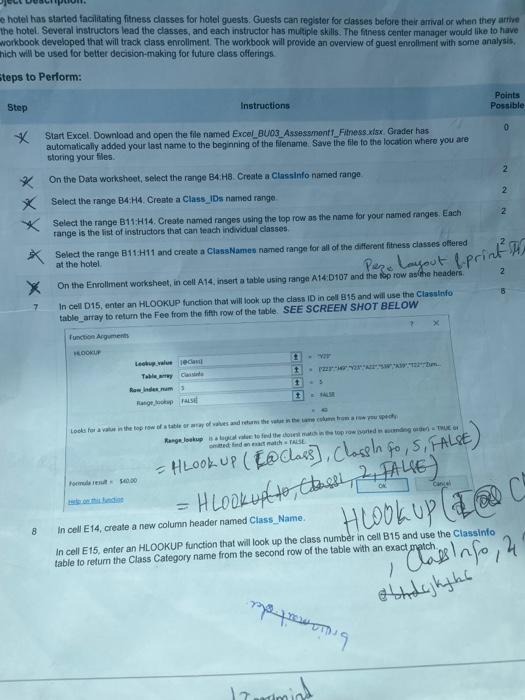
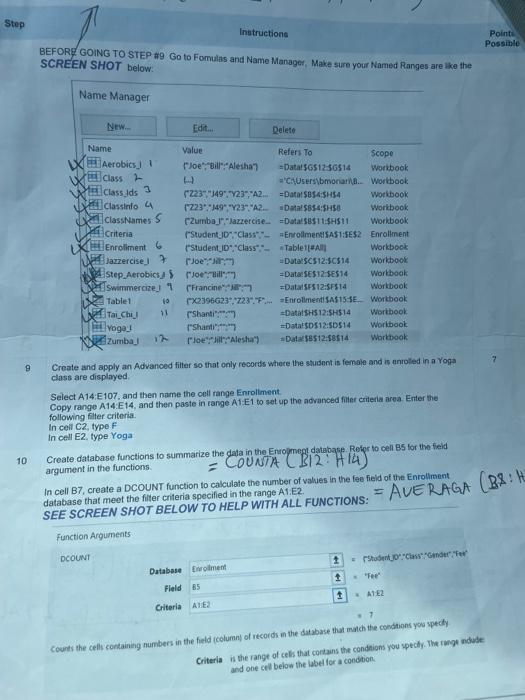
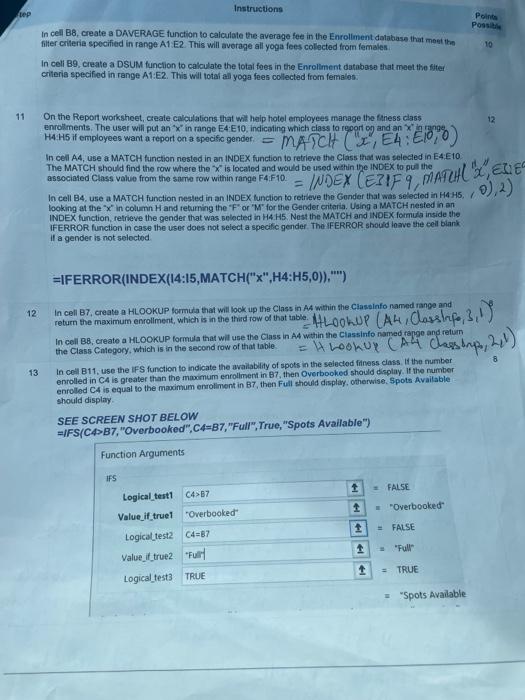
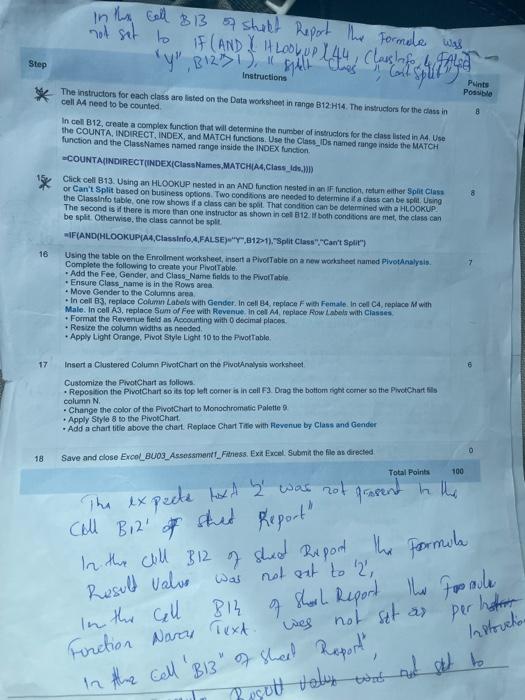
e hotel has started faciltating fitness classes for hotel guests. Guests can register for classes belore their arrival or whan they armie the hotel Several instructors lead the classes, and each instructor has muliple skills. The finess center manager would like to have workbook developed that will track class enrollment. The workbook will provide an overview of guest enrollment with some analysis. hich will be used for better decision-making for future class offerings tens to Periorm: = HLookup (E@Class), Clossln fo, s, FALSE) rorisititill = 50680 8 In cell E14, croate a new column header named Ciass Name. table to redum the Class Category name from the second row of the table whe Whe BEFOR\& GOING TO STEP \#9 Go to Fomulas and Name Manager, Make sure your Named Ranges are ike the SCREEN SHOT below: 9. Create and apply an Advanced filter so that only records whece the studnont is fermale and is antoled in a Yoga class are dispilnyed. Select A14: E107, and then name the cell range Enroliment. Copy range A14:E14, and then paste in range A1: E1 to set up the advanced filier critenia area. Enter the following filter critoria. in ceil C2, type F in cell E2. type Yoga Create database furctions to summarize the data in the Enrop riegh databace. Refer to cell BS tor the field argument in the functions: In cell B7, create a DCOUNT function to calculate the number of values in the fee fieid of the Enrolliment database that meet the filter criteria specified in the range A.1.2. SEE SCREEN SHOT BELOW TO HELP WITH ALL FUNCTIONS: Function Acquments: Counts the cells containing numbers in the field (column) of rtcords in the database that match the condtions yos specly Criteria is the range of cels that corlains the condaions you pecily. The rungt ndede: and one cell below the label for a condtion. tep Instructions Poines In cell B8, create a DAVERAGE function to calculate the average fee in the Enrollment database that meet the filter criteria specified in range A1: E2. This will average all yoga fees colected from females. In cell B9, create a DSUM funclion to calculate the total foes in the Enroliment databose that meet the fiter crtteria specified in range A1:E2. This will total all yoga fees collected from fernslos. 11 On the Report worksheet, create calculations that wit help hotol employees manage the faness class enrollments. The user will pot an " x " in range E4:E10, indicating which ciass to regort on and an x in pange, In cell A4, use a MATCH function nested in an INDEX function to retrieve the Class that was selecled in E4:E10. The MATCH should find the row where the x ' is localed and would be used within the INDEX to puil the associated Class value from the same row within range F4.F10. In cell B4, use a MATCH function nested in an INDEX function to cetrieve the Gender that was selected in H4 H5, , 0),2) looking at the " x ' in column H and reburning the " F " or " M" for the Gender criteria. Using a MATCH nested in an INDEX function, retrieve the gender that was selocted in H4.H5. Nost the MATCH and NOEX formica inside the IFERROR function in case the user does not select a specilc gender. The IFERROR shoud loave the cell blank: If a gender is not seloctod =IFERROR(INDEX(14:15,MATCH("x", H4:H5,0)),"'") 12. In cell B7, create a HLoOKUP formuda that will look up the Class in At whin the Classinfo named range and 13 In cell B11, use the IFS function to indicate the availablity of spots in the selectod finess class. If the number enrolled in C4 is greater than the maximum enrolment in B7, then Oyerbooked should cisplay. If the number enroled CA is equal to the maximum ensoliment in B7, then Full should display, should display. SEE SCREEN SHOT BELOW =IFS/CA>B7, "Overbooked",C4=B7,"Full", True, "Spots Available") Step E. The instructors for each class aro lsted on the Data warksheet in range B12.H14. The instuctors for the cass in the COUNTA, INOIRECT, INDEX, and MATCH functions, Use the Clan__IDs named eunge insids the MATCH function and the ClassNames named range inside the INDEX function. -COUNTAINDIRECT (WNDEX(ClassiNames,MATCH(A4,Class_ldo:.3) Click celt B13. Using an HLOOKUP nested in an AND function nested in on iF funcion, retuen either 5 plit Clasa 8 or Can't Split based on business options. Two condfions are neoded to determine i a chass can be split. Ubing the Classinfo table, one row shows if a class can be spil. That condton can be delerinined with a HLOOKUP. The second is if there is more than one instructor as shown in cel 612 . H both condtions are met, the class can be splt. Othervise, the class cannot be splt. Male. In cell A3, replace Sum of Fee with Revenue. in cel A4, replace Row Labels with Classes. - Format the Revenue ficld as Acoounting with 0 decimal places. - Resize the column wiaths as needed. - Apply Light Orange, Phot Style Light 10 to the Puottabla. 17 Insert a Ckastered Column PlvotChart on the PivotAnalysig woeksheet. Customize the ProtChart as follows. - Reposition the PhotChart so its top left corner is in cell F3. Drag the bottom right comer so the PructChart bils coluenin N. - Change the color of the PivotChart to Monochromatic Paletie 9 - Apply Style 8 to the PivotChart. - Add a chart tifie above the chart. Replace Chat Tite with Fewenue by Class and Gender 18. Save and close ExcoL_Bu03___sessament__Finess. Exn Excel. Submh the file as directed: 7 Punts 8
Step by Step Solution
There are 3 Steps involved in it

Get step-by-step solutions from verified subject matter experts