







Question: please i need help on those question please Never mind, that's all i have. Project Description: The hotel has started faciltating fitness dasses for hotel
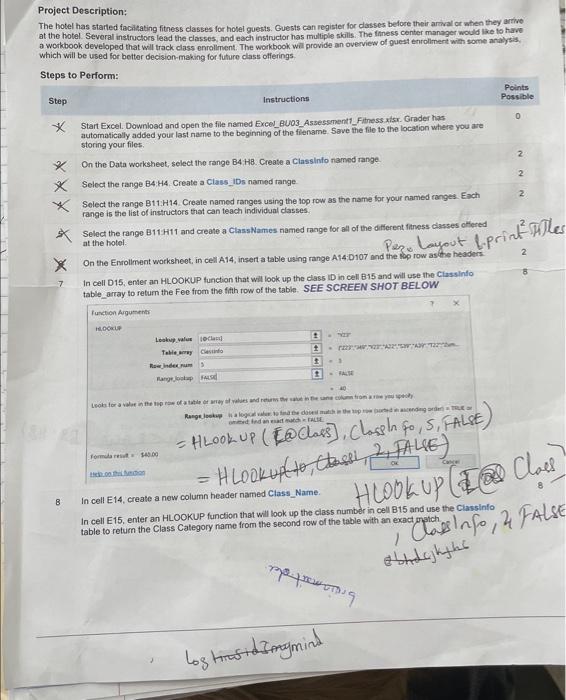
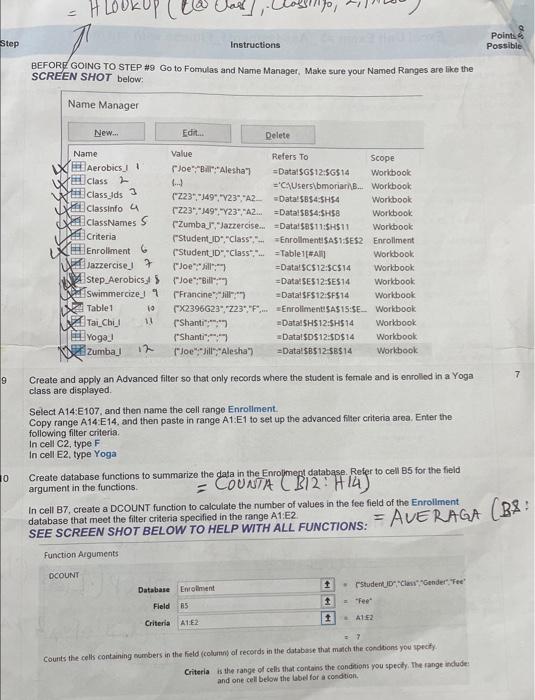
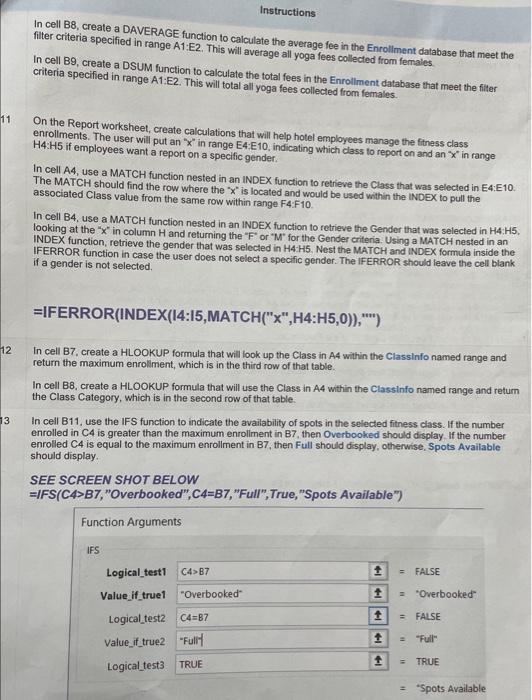
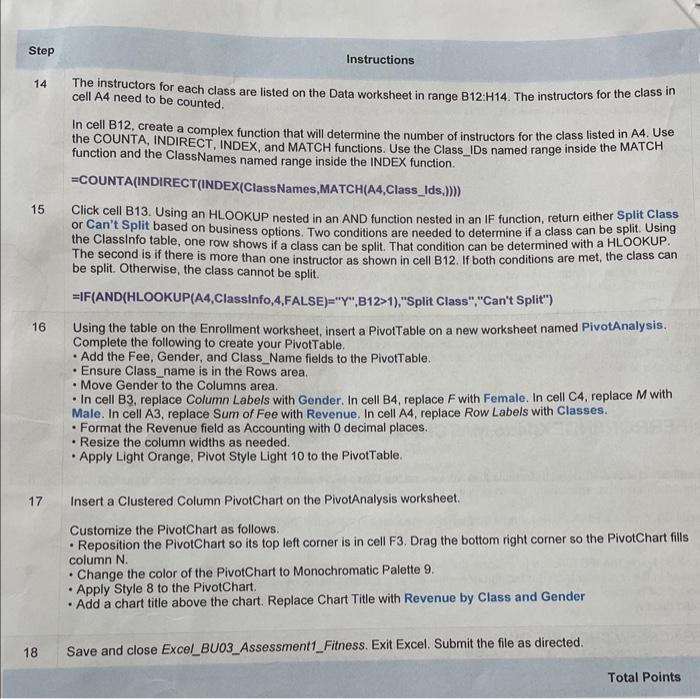
Project Description: The hotel has started faciltating fitness dasses for hotel guests. Guests can register for dasses before their arwal or when they artive at the hotel. Several instructors lead the classes, and each instructor has multiple skills. The finess center manager would like to have a workbook developed that will track class enrollment. The workbook wili provide an overview of guest enrollmert with some anaysis. which will be used for better decision-making for future class offerings Steps to Perform: Step Instructions Points Possible X Start Excel. Downioad and open the file named Excel_BU03____ssessment1_Fitness xist. Grader has automatically added your last name to the beginning of the fiename. Save the file to the location where you are storing your files. On the Data worksheet, select the range B4 HB. Create a Classinfo named range. Select the range B4:H4. Create a Class iDs named range. Select the range B11.H14. Create named ranges using the 109 row as the name for your named ranges. Each 2 range is the list of instructors that can teach individual classes. if Select the range B11H11 and create a Classkames named range for all of the different faness classes cthered at the hotel. On the Enrollment worksheet, in cell A14, insert a table using range A14:Dio7 and the Hoo row as ithe hesters. 7 In cell D15, enter an HLOOKUP function that wil look up the class ID in cell B15 and will use mhe Classinflo 8 table_array to retum the Fee from the fith row of the table. SEE SCREEN SHOT BELOW furatign Augumenti teteseif up ([@class], Claspln fo, 5, FAlsE) = HLookUP (E@Class), (loss ,1,5, AlLE) Foumela reset a 14509 liabion ofilyereng 8 In cell E14, create a new column header named Class_Name. In cell E15, enter an HLOOKUP function that will look up the class number in cell B15 and use the Classinfo table to retum the Class Category name from the second row of the table with an exact match os In 0 , it Af BEFORD GOING TO STEP \#9 Go to Fomulas and Name Manager, Make sure your Named Ranges are like the SCREEN SHOT below: Create and apply an Advanced filter so that only records where the student is female and is enrolled in a Yoga class are displayed. Select A14:E107, and then name the cell range Enroliment. Copy range A14:E14, and then paste in range A1:E1 to set up the advanced filter criteria area. Enter the following filter criteria. In cell C2, type F In cell E2, type Yoga Create database functions to summarize the data in the Enrofimegt database. Refer to cell B5 for the field. argument in the functions. = COUNTA (B12: H14) In cell B7, create a DCOUNT function to calculate the number of values in the fee field of the Enrollment. database that meet the filter criteria specified in the range A1:E2. SEE SCREEN SHOT BELOW TO HELP WITH ALL FUNCTIONS: AVERAGA (B) Function Arguments DCOUNT Counts the cells containing cembers in the field (columbs al records in the databsse that manch the condtions you yectfy. Criteria is the range of cefis that conkans the condibens you specty. The range indude: and one cell below the bbelf for a condtion. Instructions In cell B8, create a DAVERAGE function to calculate the average fee in the Enrollment database that meet the filter criteria specified in range A1:E2. This will average all yoga fees collected from females. In cell B9, create a DSUM function to calculate the total fees in the Enrollment database that meet the filter criteria specified in range A1: E2. This will total all yoga fees collecled from females. 1 On the Report worksheet, create calculations that will help hotel employees manage the finess class enrollments. The user will put an " x " in range E4: E10, indicating which class to report on and an " x " in range H4:H5 if employees want a report on a specific gender. In cell A4, use a MATCH function nested in an INDEX function to retrieve the Class that was selected in E4:E10. The MATCH should find the row where the " x " is located and would be used within the INDEX to pull the associated Class value from the same row within range F4:F10. In cell B4, use a MATCH function nested in an INDEX function to retrieve the Gender that was selected in H4H5, looking at the " x " in column H and returning the " F ' or " M" for the Gender criteria. Using a MATCH nested in an INDEX function, retrieve the gender that was selected in H4H5. Nest the MATCH and INDEX formula inside the if a gender is not selected. =IFERROR(INDEX(14:15,MATCH(" 'x", H4:H5,0)),"') 2 In cell B7, create a HLOOKUP formula that will look up the Class in A4 within the Classinfo named range and return the maximum enrollment, which is in the third row of that table. In cell B8, create a HLOOKUP formula that will use the Class in A4 within the Classinfo named range and retum the Class Category, which is in the second row of that table. In cell B11, use the IFS function to indicate the availability of spots in the selected fitness class. If the number enrolled in C4 is greater than the maximum enrollment in B7, then Overbooked should display. If the number enrolled C4 is equal to the maximum enrollment in B7, then Full should display, otherwise. Spots Available should display. SEE SCREEN SHOT BELOW =IFS(C4>B7, "Overbooked", C4=B7, "Full",True," "Spots Available") In cell B12, create a complex function that will determine the number of instructors for the class listed in A4. Use the COUNTA, INDIRECT, INDEX, and MATCH functions. Use the Class_IDs named range inside the MATCH function and the ClassNames named range inside the INDEX function. =COUNTA(INDIRECT(INDEX(ClassNames,MATCH(A4,Class_Ids, )))) 15 Click cell B13. Using an HLOOKUP nested in an AND function nested in an IF function, return either Split Class or Can't Split based on business options. Two conditions are needed to determine if a class can be split. Using the Classinfo table, one row shows if a class can be split. That condition can be determined with a HLOOKUP. The second is if there is more than one instructor as shown in cell B12. If both conditions are met, the class can be split. Otherwise, the class cannot be split. =IF(AND(HLOOKUP(A4,Classinfo,4,FALSE)="Y",B12>1),"SplitClass","CantSplit") 16 Using the table on the Enrollment worksheet, insert a PivotTable on a new worksheet named PivotAnalysis. Complete the following to create your PivotTable. - Add the Fee, Gender, and Class_Name fields to the PivotTable. - Ensure Class_name is in the Rows area. - Move Gender to the Columns area. - In cell B3, replace Column Labels with Gender. In cell B4, replace F with Female. In cell C4, replace M with Male. In cell A3, replace Sum of Fee with Revenue. In cell A4, replace Row Labels with Classes. - Format the Revenue field as Accounting with 0 decimal places. - Resize the column widths as needed. - Apply Light Orange, Pivot Style Light 10 to the PivotTable. 17 Insert a Clustered Column PivotChart on the PivotAnalysis worksheet. Customize the PivotChart as follows. - Reposition the PivotChart so its top left corner is in cell F3. Drag the bottom right corner so the PivotChart fills column N. - Change the color of the PivotChart to Monochromatic Palette 9. - Apply Style 8 to the PivotChart. - Add a chart title above the chart. Replace Chart Title with Revenue by Class and Gender Project Description: The hotel has started faciltating fitness dasses for hotel guests. Guests can register for dasses before their arwal or when they artive at the hotel. Several instructors lead the classes, and each instructor has multiple skills. The finess center manager would like to have a workbook developed that will track class enrollment. The workbook wili provide an overview of guest enrollmert with some anaysis. which will be used for better decision-making for future class offerings Steps to Perform: Step Instructions Points Possible X Start Excel. Downioad and open the file named Excel_BU03____ssessment1_Fitness xist. Grader has automatically added your last name to the beginning of the fiename. Save the file to the location where you are storing your files. On the Data worksheet, select the range B4 HB. Create a Classinfo named range. Select the range B4:H4. Create a Class iDs named range. Select the range B11.H14. Create named ranges using the 109 row as the name for your named ranges. Each 2 range is the list of instructors that can teach individual classes. if Select the range B11H11 and create a Classkames named range for all of the different faness classes cthered at the hotel. On the Enrollment worksheet, in cell A14, insert a table using range A14:Dio7 and the Hoo row as ithe hesters. 7 In cell D15, enter an HLOOKUP function that wil look up the class ID in cell B15 and will use mhe Classinflo 8 table_array to retum the Fee from the fith row of the table. SEE SCREEN SHOT BELOW furatign Augumenti teteseif up ([@class], Claspln fo, 5, FAlsE) = HLookUP (E@Class), (loss ,1,5, AlLE) Foumela reset a 14509 liabion ofilyereng 8 In cell E14, create a new column header named Class_Name. In cell E15, enter an HLOOKUP function that will look up the class number in cell B15 and use the Classinfo table to retum the Class Category name from the second row of the table with an exact match os In 0 , it Af BEFORD GOING TO STEP \#9 Go to Fomulas and Name Manager, Make sure your Named Ranges are like the SCREEN SHOT below: Create and apply an Advanced filter so that only records where the student is female and is enrolled in a Yoga class are displayed. Select A14:E107, and then name the cell range Enroliment. Copy range A14:E14, and then paste in range A1:E1 to set up the advanced filter criteria area. Enter the following filter criteria. In cell C2, type F In cell E2, type Yoga Create database functions to summarize the data in the Enrofimegt database. Refer to cell B5 for the field. argument in the functions. = COUNTA (B12: H14) In cell B7, create a DCOUNT function to calculate the number of values in the fee field of the Enrollment. database that meet the filter criteria specified in the range A1:E2. SEE SCREEN SHOT BELOW TO HELP WITH ALL FUNCTIONS: AVERAGA (B) Function Arguments DCOUNT Counts the cells containing cembers in the field (columbs al records in the databsse that manch the condtions you yectfy. Criteria is the range of cefis that conkans the condibens you specty. The range indude: and one cell below the bbelf for a condtion. Instructions In cell B8, create a DAVERAGE function to calculate the average fee in the Enrollment database that meet the filter criteria specified in range A1:E2. This will average all yoga fees collected from females. In cell B9, create a DSUM function to calculate the total fees in the Enrollment database that meet the filter criteria specified in range A1: E2. This will total all yoga fees collecled from females. 1 On the Report worksheet, create calculations that will help hotel employees manage the finess class enrollments. The user will put an " x " in range E4: E10, indicating which class to report on and an " x " in range H4:H5 if employees want a report on a specific gender. In cell A4, use a MATCH function nested in an INDEX function to retrieve the Class that was selected in E4:E10. The MATCH should find the row where the " x " is located and would be used within the INDEX to pull the associated Class value from the same row within range F4:F10. In cell B4, use a MATCH function nested in an INDEX function to retrieve the Gender that was selected in H4H5, looking at the " x " in column H and returning the " F ' or " M" for the Gender criteria. Using a MATCH nested in an INDEX function, retrieve the gender that was selected in H4H5. Nest the MATCH and INDEX formula inside the if a gender is not selected. =IFERROR(INDEX(14:15,MATCH(" 'x", H4:H5,0)),"') 2 In cell B7, create a HLOOKUP formula that will look up the Class in A4 within the Classinfo named range and return the maximum enrollment, which is in the third row of that table. In cell B8, create a HLOOKUP formula that will use the Class in A4 within the Classinfo named range and retum the Class Category, which is in the second row of that table. In cell B11, use the IFS function to indicate the availability of spots in the selected fitness class. If the number enrolled in C4 is greater than the maximum enrollment in B7, then Overbooked should display. If the number enrolled C4 is equal to the maximum enrollment in B7, then Full should display, otherwise. Spots Available should display. SEE SCREEN SHOT BELOW =IFS(C4>B7, "Overbooked", C4=B7, "Full",True," "Spots Available") In cell B12, create a complex function that will determine the number of instructors for the class listed in A4. Use the COUNTA, INDIRECT, INDEX, and MATCH functions. Use the Class_IDs named range inside the MATCH function and the ClassNames named range inside the INDEX function. =COUNTA(INDIRECT(INDEX(ClassNames,MATCH(A4,Class_Ids, )))) 15 Click cell B13. Using an HLOOKUP nested in an AND function nested in an IF function, return either Split Class or Can't Split based on business options. Two conditions are needed to determine if a class can be split. Using the Classinfo table, one row shows if a class can be split. That condition can be determined with a HLOOKUP. The second is if there is more than one instructor as shown in cell B12. If both conditions are met, the class can be split. Otherwise, the class cannot be split. =IF(AND(HLOOKUP(A4,Classinfo,4,FALSE)="Y",B12>1),"SplitClass","CantSplit") 16 Using the table on the Enrollment worksheet, insert a PivotTable on a new worksheet named PivotAnalysis. Complete the following to create your PivotTable. - Add the Fee, Gender, and Class_Name fields to the PivotTable. - Ensure Class_name is in the Rows area. - Move Gender to the Columns area. - In cell B3, replace Column Labels with Gender. In cell B4, replace F with Female. In cell C4, replace M with Male. In cell A3, replace Sum of Fee with Revenue. In cell A4, replace Row Labels with Classes. - Format the Revenue field as Accounting with 0 decimal places. - Resize the column widths as needed. - Apply Light Orange, Pivot Style Light 10 to the PivotTable. 17 Insert a Clustered Column PivotChart on the PivotAnalysis worksheet. Customize the PivotChart as follows. - Reposition the PivotChart so its top left corner is in cell F3. Drag the bottom right corner so the PivotChart fills column N. - Change the color of the PivotChart to Monochromatic Palette 9. - Apply Style 8 to the PivotChart. - Add a chart title above the chart. Replace Chart Title with Revenue by Class and Gender
Step by Step Solution
There are 3 Steps involved in it

Get step-by-step solutions from verified subject matter experts
 Study Help