







Question: PLEASE Include Formulas for each box with the same numbers as the question. Thank you in advance! Sullivan Ranch Corporation has purchased a new tractor
PLEASE Include Formulas for each box with the same numbers as the question. Thank you in advance!
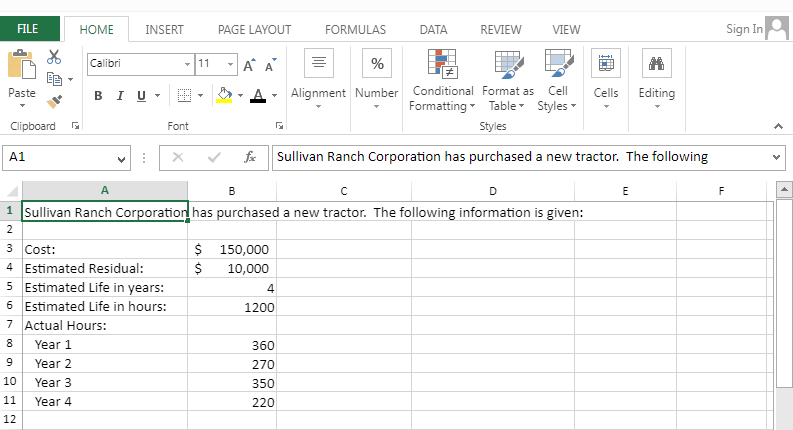
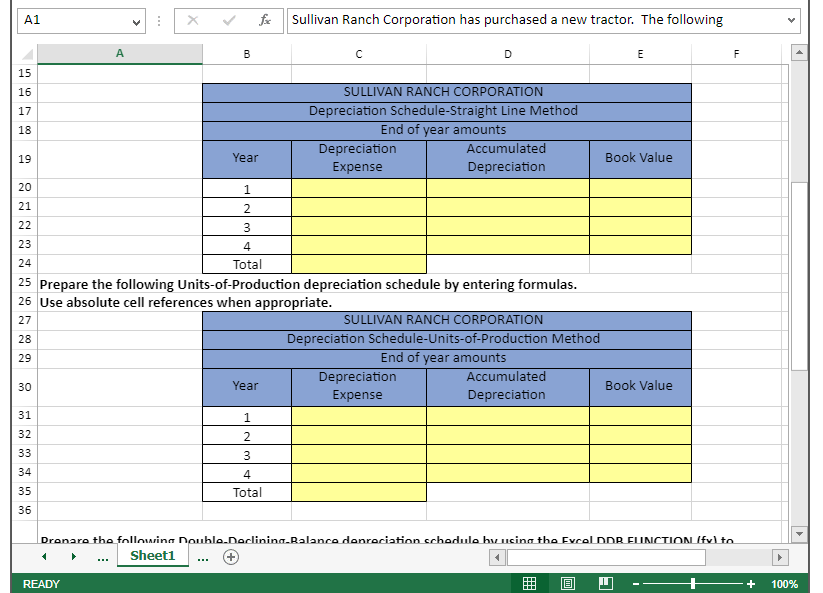
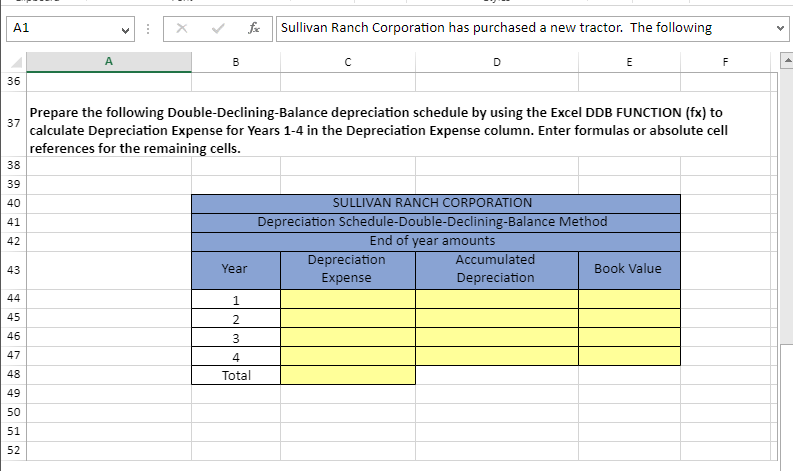
Sullivan Ranch Corporation has purchased a new tractor and has provided you with the information related to the purchase. The Controller has asked you to calculate the depreciation for the new piece of equipment using different methods: Straight-Line depreciation, Units-of-Production depreciation, and Double-Declining-Balance depreciation. Use the information included in the Excel Simulation and the Excel functions described below to complete the task. Cell Reference: Allows you to refer to data from another cell in the worksheet. From the Excel Simulation below, if in a blank cell, "=B8" was entered, the formula would output the result from cell B8, or 360 in this example. Absolute Reference: Allows you to maintain the original cell reference when a formula is copied to another cell. The cell reference is "locked" by putting a dollar sign ($) before the column and row references. By default a cell reference is relative, so when you copy a formula to another cell the values update based on a relative reference. For example, if you copy the formula "=B8+B9" from cell C1 to cell C2, the formula in cell C2 will relatively update to be "=B9+B10" since the copied formula moved down one cell, the formula cell references also moved down one cell. Conversely, by adding the absolute cell reference "locks to the equation, the formula will not change when copied to any other cell. For example, "=$B$8+$B$9" written in cell C1 is copied to cell C2, the formula in cell C2 will remain "=$B$8+$B$9". You can also use a mixed cell reference by only "locking the column or row only ($B8 or B$8) which locks that specific column or row and the other reference becomes a relative reference and "moves with the formula as its copied to another cell. For example, if you copy the formula "=B$8+B9" from cell C1 to cell C2, the formula in cell C2 will update to be "=B$8+B10" since the copied formula moved down one cell, the formula cell relative references also moved down one cell, but the absolute "locked" reference remained the same. Basic Math functions: Allows you to use the basic math symbols to perform mathematical functions. You can use the following keys: + (plus sign to add), - (minus sign to subtract), * (asterisk sign to multiply), and / (forward slash to divide). From the Excel Simulation below, if in a blank cell "=B10+B11" was entered, the formula would add the values from those cells and output the result, or 570 in this example. If using the other math symbols the result would output an appropriate answer for its function. SUM function: Allows you to refer to multiple cells and adds all the values. You can add individual cell references or ranges to utilize this function. From the Excel Simulation below, if in a blank cell"=SUM(B8, B9, B10)" was entered, the formula would output the result of adding those three separate cells, or 980 in this example. Similarly, if in a blank cell"=SUM(B8:B10)" was entered, the formula would output the same result of adding those cells, except they are expressed as a range in the formula, and the result would be 980 in this example. SLN function: Allows you to calculate the depreciation of an asset using the straight-line depreciation method. The syntax of the SLN function is "=SLN(cost, salvage, life)" and outputs the depreciation for one period. The cost argument is the initial cost of the asset. The salvage argument is the salvage value at the end of the life of the asset. The life argument is the number of periods over which the asset is being depreciated, also called the useful life. DDB function: Allows you to calculate the depreciation of an asset using the double-declining balance method. The syntax of the DDB function is "=DDB(cost, salvage,life, period,[factor)" and outputs the depreciation for one period. The function must include the first four arguments and has a fifth optional argument. The cost argument is the initial cost of the asset. The salvage argument is the salvage value at the end of the life of the asset. The life argument is the number of periods over which the asset is being depreciated, also called the useful life. The period argument is the period for which you want to calculate the depreciation and must use the same units as the life argument. The (factor] argument is the rate at which the balance declines, when omitted is assumed to be 2 (the double-declining balance method.) FILE HOME INSERT PAGE LAYOUT FORMULAS DATA REVIEW VIEW Sign In X Calibri 11 Paste BIU % Alignment Number Conditional Format as Cell Formatting Table Styles Styles Cells Editing Clipboard Font A1 fic Sullivan Ranch Corporation has purchased a new tractor. The following V A B D 11 E F F 1 Sullivan Ranch Corporation has purchased a new tractor. The following information is given: 2 3 Cost: $ 150,000 4 Estimated Residual: $ 10,000 5 Estimated Life in years: 4 6 Estimated Life in hours: 1200 7 Actual Hours: 8 Year 1 360 9 Year 2 270 10 Year 3 350 11 Year 4 220 12 A1 X X fic Sullivan Ranch Corporation has purchased a new tractor. The following A B C D E E F 15 16 SULLIVAN RANCH CORPORATION 17 Depreciation Schedule-Straight Line Method 18 End of year amounts Depreciation Accumulated 19 Year Book Value Expense Depreciation 20 1 21 2 22 3 23 4 24 Total 25 Prepare the following Units-of-Production depreciation schedule by entering formulas. 26 Use absolute cell references when appropriate. 27 SULLIVAN RANCH CORPORATION 28 Depreciation Schedule-Units-of-Production Method 29 End of year amounts Depreciation Accumulated Year Book Value Expense Depreciation 31 1 32 2 33 3 34 4 35 Total 36 30 Dronare the following Double Declining.Balance donreciation schedule by using the Excel DDR FUNCTION Ifvlto Sheet1 READY + 100% A1 foc Sullivan Ranch Corporation has purchased a new tractor. The following A B D E F 36 37 Prepare the following Double-Declining-Balance depreciation schedule by using the Excel DDB FUNCTION (fx) to calculate Depreciation Expense for Years 1-4 in the Depreciation Expense column. Enter formulas or absolute cell references for the remaining cells. 38 39 40 41 42 SULLIVAN RANCH CORPORATION Depreciation Schedule-Double-Declining-Balance Method End of year amounts Depreciation Accumulated Book Value Expense Depreciation 43 Year 1 44 45 2 3 46 47 48 4 Total 49 50 51 52 Sullivan Ranch Corporation has purchased a new tractor and has provided you with the information related to the purchase. The Controller has asked you to calculate the depreciation for the new piece of equipment using different methods: Straight-Line depreciation, Units-of-Production depreciation, and Double-Declining-Balance depreciation. Use the information included in the Excel Simulation and the Excel functions described below to complete the task. Cell Reference: Allows you to refer to data from another cell in the worksheet. From the Excel Simulation below, if in a blank cell, "=B8" was entered, the formula would output the result from cell B8, or 360 in this example. Absolute Reference: Allows you to maintain the original cell reference when a formula is copied to another cell. The cell reference is "locked" by putting a dollar sign ($) before the column and row references. By default a cell reference is relative, so when you copy a formula to another cell the values update based on a relative reference. For example, if you copy the formula "=B8+B9" from cell C1 to cell C2, the formula in cell C2 will relatively update to be "=B9+B10" since the copied formula moved down one cell, the formula cell references also moved down one cell. Conversely, by adding the absolute cell reference "locks to the equation, the formula will not change when copied to any other cell. For example, "=$B$8+$B$9" written in cell C1 is copied to cell C2, the formula in cell C2 will remain "=$B$8+$B$9". You can also use a mixed cell reference by only "locking the column or row only ($B8 or B$8) which locks that specific column or row and the other reference becomes a relative reference and "moves with the formula as its copied to another cell. For example, if you copy the formula "=B$8+B9" from cell C1 to cell C2, the formula in cell C2 will update to be "=B$8+B10" since the copied formula moved down one cell, the formula cell relative references also moved down one cell, but the absolute "locked" reference remained the same. Basic Math functions: Allows you to use the basic math symbols to perform mathematical functions. You can use the following keys: + (plus sign to add), - (minus sign to subtract), * (asterisk sign to multiply), and / (forward slash to divide). From the Excel Simulation below, if in a blank cell "=B10+B11" was entered, the formula would add the values from those cells and output the result, or 570 in this example. If using the other math symbols the result would output an appropriate answer for its function. SUM function: Allows you to refer to multiple cells and adds all the values. You can add individual cell references or ranges to utilize this function. From the Excel Simulation below, if in a blank cell"=SUM(B8, B9, B10)" was entered, the formula would output the result of adding those three separate cells, or 980 in this example. Similarly, if in a blank cell"=SUM(B8:B10)" was entered, the formula would output the same result of adding those cells, except they are expressed as a range in the formula, and the result would be 980 in this example. SLN function: Allows you to calculate the depreciation of an asset using the straight-line depreciation method. The syntax of the SLN function is "=SLN(cost, salvage, life)" and outputs the depreciation for one period. The cost argument is the initial cost of the asset. The salvage argument is the salvage value at the end of the life of the asset. The life argument is the number of periods over which the asset is being depreciated, also called the useful life. DDB function: Allows you to calculate the depreciation of an asset using the double-declining balance method. The syntax of the DDB function is "=DDB(cost, salvage,life, period,[factor)" and outputs the depreciation for one period. The function must include the first four arguments and has a fifth optional argument. The cost argument is the initial cost of the asset. The salvage argument is the salvage value at the end of the life of the asset. The life argument is the number of periods over which the asset is being depreciated, also called the useful life. The period argument is the period for which you want to calculate the depreciation and must use the same units as the life argument. The (factor] argument is the rate at which the balance declines, when omitted is assumed to be 2 (the double-declining balance method.) FILE HOME INSERT PAGE LAYOUT FORMULAS DATA REVIEW VIEW Sign In X Calibri 11 Paste BIU % Alignment Number Conditional Format as Cell Formatting Table Styles Styles Cells Editing Clipboard Font A1 fic Sullivan Ranch Corporation has purchased a new tractor. The following V A B D 11 E F F 1 Sullivan Ranch Corporation has purchased a new tractor. The following information is given: 2 3 Cost: $ 150,000 4 Estimated Residual: $ 10,000 5 Estimated Life in years: 4 6 Estimated Life in hours: 1200 7 Actual Hours: 8 Year 1 360 9 Year 2 270 10 Year 3 350 11 Year 4 220 12 A1 X X fic Sullivan Ranch Corporation has purchased a new tractor. The following A B C D E E F 15 16 SULLIVAN RANCH CORPORATION 17 Depreciation Schedule-Straight Line Method 18 End of year amounts Depreciation Accumulated 19 Year Book Value Expense Depreciation 20 1 21 2 22 3 23 4 24 Total 25 Prepare the following Units-of-Production depreciation schedule by entering formulas. 26 Use absolute cell references when appropriate. 27 SULLIVAN RANCH CORPORATION 28 Depreciation Schedule-Units-of-Production Method 29 End of year amounts Depreciation Accumulated Year Book Value Expense Depreciation 31 1 32 2 33 3 34 4 35 Total 36 30 Dronare the following Double Declining.Balance donreciation schedule by using the Excel DDR FUNCTION Ifvlto Sheet1 READY + 100% A1 foc Sullivan Ranch Corporation has purchased a new tractor. The following A B D E F 36 37 Prepare the following Double-Declining-Balance depreciation schedule by using the Excel DDB FUNCTION (fx) to calculate Depreciation Expense for Years 1-4 in the Depreciation Expense column. Enter formulas or absolute cell references for the remaining cells. 38 39 40 41 42 SULLIVAN RANCH CORPORATION Depreciation Schedule-Double-Declining-Balance Method End of year amounts Depreciation Accumulated Book Value Expense Depreciation 43 Year 1 44 45 2 3 46 47 48 4 Total 49 50 51 52
Step by Step Solution
There are 3 Steps involved in it

Get step-by-step solutions from verified subject matter experts
 Study Help