Question: Please post all files including HTML,CSS and javascript. I need it tomorrow. Thank you. This assignment will be used to test your knowledge of JavaScript,
Please post all files including HTML,CSS and javascript. I need it tomorrow. Thank you.
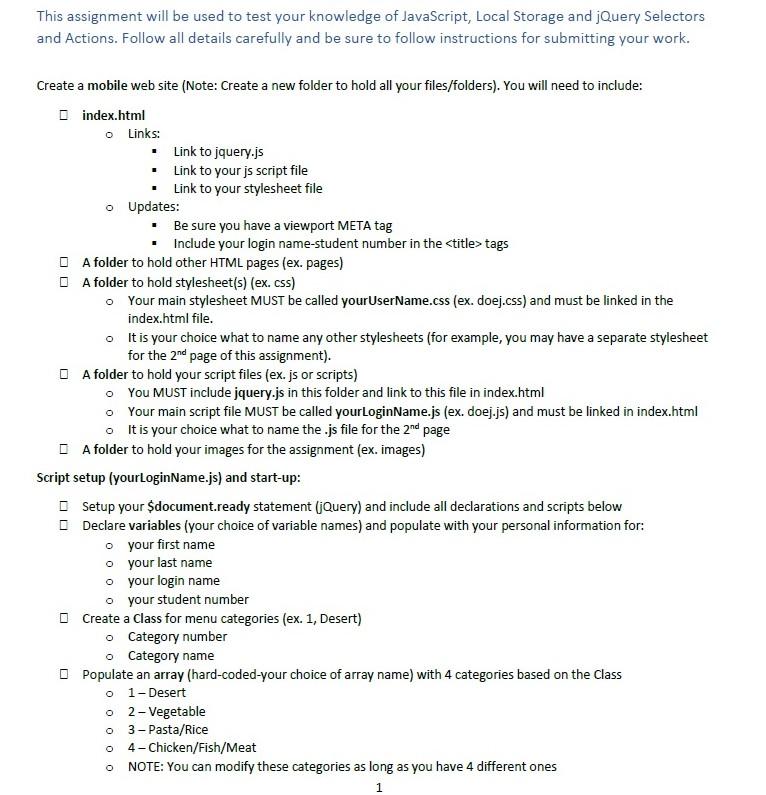
This assignment will be used to test your knowledge of JavaScript, Local Storage and jQuery Selectors and Actions. Follow all details carefully and be sure to follow instructions for submitting your work. Create a mobile web site (Note: Create a new folder to hold all your files/folders). You will need to include: index.html o Links: Link to jquery.js Link to your js Script file Link to your stylesheet file o Updates: Be sure you have a viewport META tag Include your login name-student number in the
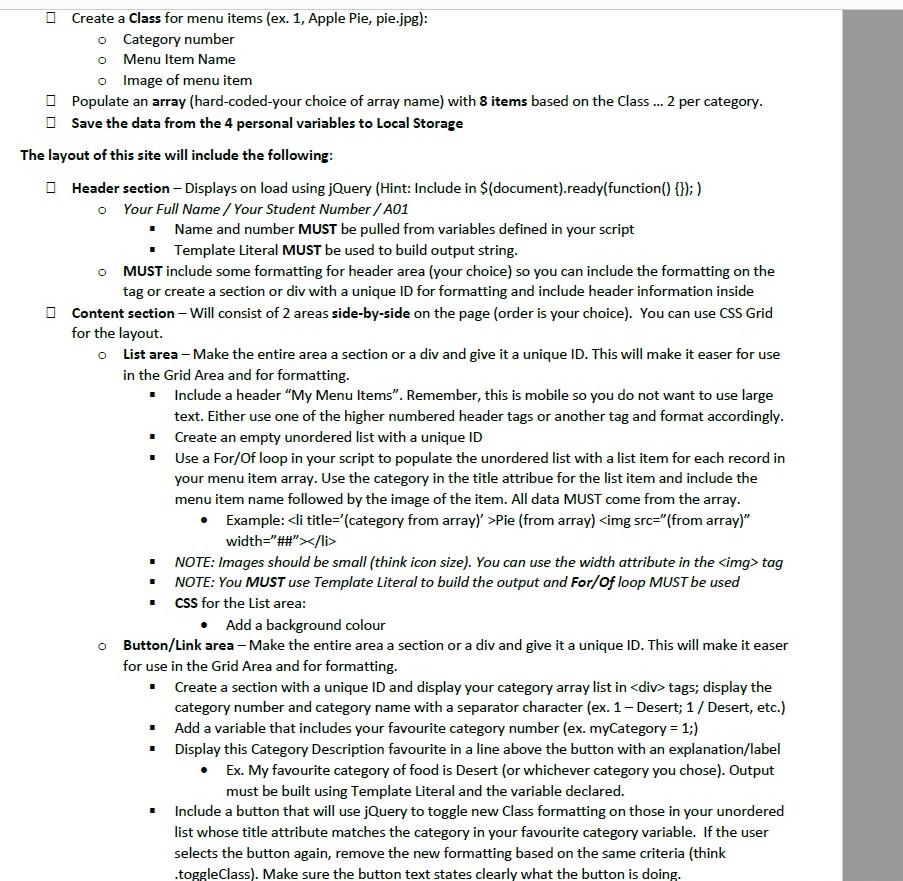
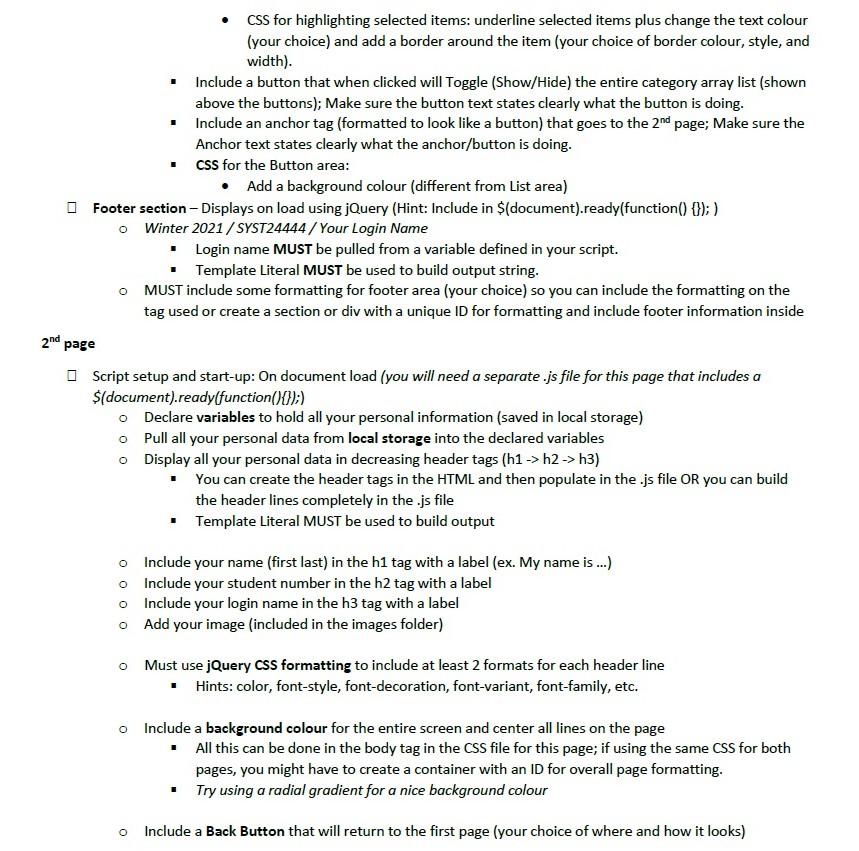
tags A folder to hold other HTML pages (ex. pages) A folder to hold stylesheet(s) (ex.css) Your main stylesheet MUST be called yourUserName.css (ex. doej.css) and must be linked in the index.html file. o It is your choice what to name any other stylesheets (for example, you may have a separate stylesheet for the 2nd page of this assignment). A folder to hold your script files (ex.js or scripts) o You MUST include jquery.js in this folder and link to this file in index.html o Your main script file MUST be called yourLoginName.js (ex. doej.js) and must be linked in index.html o It is your choice what to name the.js file for the 2nd page A folder to hold your images for the assignment (ex. images) Script setup yourLoginName.js) and start-up: Setup your $document.ready statement (jQuery) and include all declarations and scripts below Declare variables (your choice of variable names) and populate with your personal information for: o your first name o your last name o your login name o your student number Create a class for menu categories (ex. 1, Desert) o Category number o Category name Populate an array (hard-coded-your choice of array name) with 4 categories based on the Class o 1-Desert o 2 - Vegetable o 3 - Pasta/Rice o 4-Chicken/Fish/Meat NOTE: You can modify these categories as long as you have 4 different ones 1 O Create a Class for menu items (ex. 1, Apple Pie, pie.jpg): o Category number o Menu Item Name o Image of menu item Populate an array (hard-coded-your choice of array name) with 8 items based on the Class ... 2 per category. Save the data from the 4 personal variables to Local Storage The layout of this site will include the following: Header section - Displays on load using jQuery (Hint: Include in $(document).ready(function() {});) o Your Full Name / Your Student Number / A01 Name and number MUST be pulled from variables defined in your script Template Literal MUST be used to build output string. MUST include some formatting for header area (your choice) so you can include the formatting on the tag or create a section or div with a unique ID for formatting and include header information inside Content section - Will consist of 2 areas side-by-side on the page (order is your choice). You can use CSS Grid for the layout. o List area - Make the entire area a section or a div and give it a unique ID. This will make it easer for use in the Grid Area and for formatting. Include a header "My Menu Items". Remember, this is mobile so you do not want to use large text. Either use one of the higher numbered header tags or another tag and format accordingly. Create an empty unordered list with a unique ID Use a For/Of loop in your script to populate the unordered list with a list item for each record in your menu item array. Use the category in the title attribue for the list item and include the menu item name followed by the image of the item. All data MUST come from the array. Example: <li title="[category from array)'>Pie (from array)<img src=" array width="#"> NOTE: Images should be small (think icon size). You can use the width attribute in the tag NOTE: You MUST use Template Literal to build the output and For/of loop MUST be used css for the List area: Add a background colour o Button/Link area - Make the entire area a section or a div and give it a unique ID. This will make it easer for use in the Grid Area and for formatting. Create a section with a unique ID and display your category array list in <div> tags; display the category number and category name with a separator character (ex. 1 - Desert; 1 / Desert, etc.) Add a variable that includes your favourite category number (ex. myCategory = 1;) Display this Category Description favourite in a line above the button with an explanation/label Ex. My favourite category of food is Desert (or whichever category you chose). Output must be built using Template Literal and the variable declared. Include a button that will use jQuery to toggle new Class formatting on those in your unordered list whose title attribute matches the category in your favourite category variable. If the user selects the button again, remove the new formatting based on the same criteria (think toggleClass). Make sure the button text states clearly what the button is doing. CSS for highlighting selected items: underline selected items plus change the text colour (your choice) and add a border around the item (your choice of border colour, style, and width). Include a button that when clicked will Toggle (Show/Hide) the entire category array list (shown above the buttons); Make sure the button text states clearly what the button is doing. Include an anchor tag (formatted to look like a button) that goes to the 2nd page; Make sure the Anchor text states clearly what the anchor/button is doing. Css for the Button area: Add a background colour (different from List area) Footer section - Displays on load using jQuery (Hint: Include in $(document).ready(function() {});) o Winter 2021 / SYST24444 / Your Login Name Login name MUST be pulled from a variable defined in your script. Template Literal MUST be used to build output string. O MUST include some formatting for footer area (your choice) so you can include the formatting on the tag used or create a section or div with a unique ID for formatting and include footer information inside 2nd page Script setup and start-up: On document load (you will need a separate.js file for this page that includes a $(document).ready(function(){});) o Declare variables to hold all your personal information (saved in local storage) Pull all your personal data from local storage into the declared variables o Display all your personal data in decreasing header tags (h1 -> h2-> h3) You can create the header tags in the HTML and then populate in the .js file OR you can build the header lines completely in the .js file Template Literal MUST be used to build output o Include your name (first last) in the h1 tag with a label (ex. My name is...) o Include your student number in the h2 tag with a label o Include your login name in the h3 tag with a label o Add your image (included in the images folder) O Must use jQuery Css formatting to include at least 2 formats for each header line Hints: color, font-style, font-decoration, font-variant, font-family, etc. o Include a background colour for the entire screen and center all lines on the page All this can be done in the body tag in the CSS file for this page; if using the same CSS for both pages, you might have to create a container with an ID for overall page formatting. Try using a radial gradient for a nice background colour O Include a Back Button that will return to the first page (your choice of where and how it looks) This assignment will be used to test your knowledge of JavaScript, Local Storage and jQuery Selectors and Actions. Follow all details carefully and be sure to follow instructions for submitting your work. Create a mobile web site (Note: Create a new folder to hold all your files/folders). You will need to include: index.html o Links: Link to jquery.js Link to your js Script file Link to your stylesheet file o Updates: Be sure you have a viewport META tag Include your login name-student number in the <title> tags A folder to hold other HTML pages (ex. pages) A folder to hold stylesheet(s) (ex.css) Your main stylesheet MUST be called yourUserName.css (ex. doej.css) and must be linked in the index.html file. o It is your choice what to name any other stylesheets (for example, you may have a separate stylesheet for the 2nd page of this assignment). A folder to hold your script files (ex.js or scripts) o You MUST include jquery.js in this folder and link to this file in index.html o Your main script file MUST be called yourLoginName.js (ex. doej.js) and must be linked in index.html o It is your choice what to name the.js file for the 2nd page A folder to hold your images for the assignment (ex. images) Script setup yourLoginName.js) and start-up: Setup your $document.ready statement (jQuery) and include all declarations and scripts below Declare variables (your choice of variable names) and populate with your personal information for: o your first name o your last name o your login name o your student number Create a class for menu categories (ex. 1, Desert) o Category number o Category name Populate an array (hard-coded-your choice of array name) with 4 categories based on the Class o 1-Desert o 2 - Vegetable o 3 - Pasta/Rice o 4-Chicken/Fish/Meat NOTE: You can modify these categories as long as you have 4 different ones 1 O Create a Class for menu items (ex. 1, Apple Pie, pie.jpg): o Category number o Menu Item Name o Image of menu item Populate an array (hard-coded-your choice of array name) with 8 items based on the Class ... 2 per category. Save the data from the 4 personal variables to Local Storage The layout of this site will include the following: Header section - Displays on load using jQuery (Hint: Include in $(document).ready(function() {});) o Your Full Name / Your Student Number / A01 Name and number MUST be pulled from variables defined in your script Template Literal MUST be used to build output string. MUST include some formatting for header area (your choice) so you can include the formatting on the tag or create a section or div with a unique ID for formatting and include header information inside Content section - Will consist of 2 areas side-by-side on the page (order is your choice). You can use CSS Grid for the layout. o List area - Make the entire area a section or a div and give it a unique ID. This will make it easer for use in the Grid Area and for formatting. Include a header "My Menu Items". Remember, this is mobile so you do not want to use large text. Either use one of the higher numbered header tags or another tag and format accordingly. Create an empty unordered list with a unique ID Use a For/Of loop in your script to populate the unordered list with a list item for each record in your menu item array. Use the category in the title attribue for the list item and include the menu item name followed by the image of the item. All data MUST come from the array. Example: <li title="[category from array)'>Pie (from array)<img src=" array width="#"> NOTE: Images should be small (think icon size). You can use the width attribute in the <img src="" alt=" Please post all files including HTML,CSS and javascript. I need it"> tag NOTE: You MUST use Template Literal to build the output and For/of loop MUST be used css for the List area: Add a background colour o Button/Link area - Make the entire area a section or a div and give it a unique ID. This will make it easer for use in the Grid Area and for formatting. Create a section with a unique ID and display your category array list in <div> tags; display the category number and category name with a separator character (ex. 1 - Desert; 1 / Desert, etc.) Add a variable that includes your favourite category number (ex. myCategory = 1;) Display this Category Description favourite in a line above the button with an explanation/label Ex. My favourite category of food is Desert (or whichever category you chose). Output must be built using Template Literal and the variable declared. Include a button that will use jQuery to toggle new Class formatting on those in your unordered list whose title attribute matches the category in your favourite category variable. If the user selects the button again, remove the new formatting based on the same criteria (think toggleClass). Make sure the button text states clearly what the button is doing. CSS for highlighting selected items: underline selected items plus change the text colour (your choice) and add a border around the item (your choice of border colour, style, and width). Include a button that when clicked will Toggle (Show/Hide) the entire category array list (shown above the buttons); Make sure the button text states clearly what the button is doing. Include an anchor tag (formatted to look like a button) that goes to the 2nd page; Make sure the Anchor text states clearly what the anchor/button is doing. Css for the Button area: Add a background colour (different from List area) Footer section - Displays on load using jQuery (Hint: Include in $(document).ready(function() {});) o Winter 2021 / SYST24444 / Your Login Name Login name MUST be pulled from a variable defined in your script. Template Literal MUST be used to build output string. O MUST include some formatting for footer area (your choice) so you can include the formatting on the tag used or create a section or div with a unique ID for formatting and include footer information inside 2nd page Script setup and start-up: On document load (you will need a separate.js file for this page that includes a $(document).ready(function(){});) o Declare variables to hold all your personal information (saved in local storage) Pull all your personal data from local storage into the declared variables o Display all your personal data in decreasing header tags (h1 -> h2-> h3) You can create the header tags in the HTML and then populate in the .js file OR you can build the header lines completely in the .js file Template Literal MUST be used to build output o Include your name (first last) in the h1 tag with a label (ex. My name is...) o Include your student number in the h2 tag with a label o Include your login name in the h3 tag with a label o Add your image (included in the images folder) O Must use jQuery Css formatting to include at least 2 formats for each header line Hints: color, font-style, font-decoration, font-variant, font-family, etc. o Include a background colour for the entire screen and center all lines on the page All this can be done in the body tag in the CSS file for this page; if using the same CSS for both pages, you might have to create a container with an ID for overall page formatting. Try using a radial gradient for a nice background colour O Include a Back Button that will return to the first page (your choice of where and how it looks)</div></li> 








 Study Help