







Question: Please provide Screen Shots for the eleven requested items requested below. First: highlight the entire Database Table, click Insert Tab, and then click Pivot Table
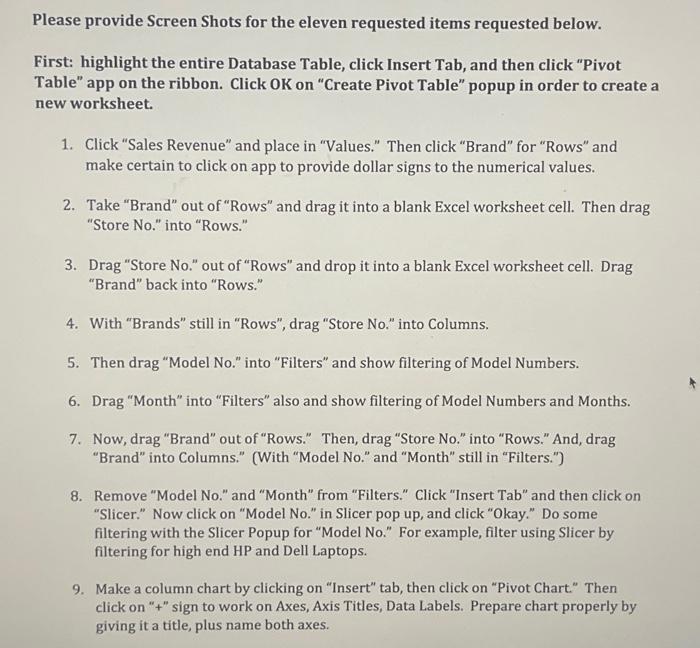
Please provide Screen Shots for the eleven requested items requested below. First: highlight the entire Database Table, click Insert Tab, and then click "Pivot Table" app on the ribbon. Click OK on "Create Pivot Table" popup in order to create a new worksheet. 1. Click "Sales Revenue" and place in "Values." Then click "Brand" for "Rows" and make certain to click on app to provide dollar signs to the numerical values. 2. Take "Brand" out of "Rows" and drag it into a blank Excel worksheet cell. Then drag "Store No." into "Rows." 3. Drag "Store No." out of "Rows" and drop it into a blank Excel worksheet cell. Drag "Brand" back into "Rows." 4. With "Brands" still in "Rows", drag "Store No." into Columns. 5. Then drag "Model No." into "Filters" and show filtering of Model Numbers. 6. Drag "Month" into "Filters" also and show filtering of Model Numbers and Months. 7. Now, drag "Brand" out of "Rows." Then, drag "Store No." into "Rows." And, drag "Brand" into Columns." (With "Model No." and "Month" still in "Filters.") 8. Remove "Model No." and "Month" from "Filters." Click "Insert Tab" and then click on "Slicer." Now click on "Model No." in Slicer pop up, and click "Okay." Do some filtering with the Slicer Popup for "Model No." For example, filter using Slicer by filtering for high end HP and Dell Laptops. 9. Make a column chart by clicking on "Insert" tab, then click on "Pivot Chart" Then click on "+" sign to work on Axes, Axis Titles, Data Labels. Prepare chart properly by giving it a title, plus name both axes
Step by Step Solution
There are 3 Steps involved in it

Get step-by-step solutions from verified subject matter experts
 Study Help