



Question: please show step by step 6.-Add a concatenation formula to a text box in the Officer TicketListing report a. Open OfficerTicketListing in Design view. To
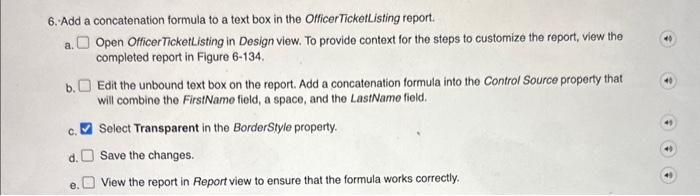
6.-Add a concatenation formula to a text box in the Officer TicketListing report a. Open OfficerTicketListing in Design view. To provide context for the steps to customize the report, view the completed report in Figure 6-134. b. Edit the unbound text box on the report. Add a concatenation formula into the Control Source property that will combine the FirstName field, a space, and the LastName field. c. Select Transparent in the BorderStyle property. d. Save the changes. e. View the report in Report view to ensure that the formula works correctly. 6.-Add a concatenation formula to a text box in the Officer TicketListing report a. Open OfficerTicketListing in Design view. To provide context for the steps to customize the report, view the completed report in Figure 6-134. b. Edit the unbound text box on the report. Add a concatenation formula into the Control Source property that will combine the FirstName field, a space, and the LastName field. c. Select Transparent in the BorderStyle property. d. Save the changes. e. View the report in Report view to ensure that the formula works correctly
Step by Step Solution
There are 3 Steps involved in it

Get step-by-step solutions from verified subject matter experts