







Question: please show step by step 8. Edit the TicketsSubreport in Design view. a. Open the TicketsSubreport in Design view. If needed, open the Property Sheet
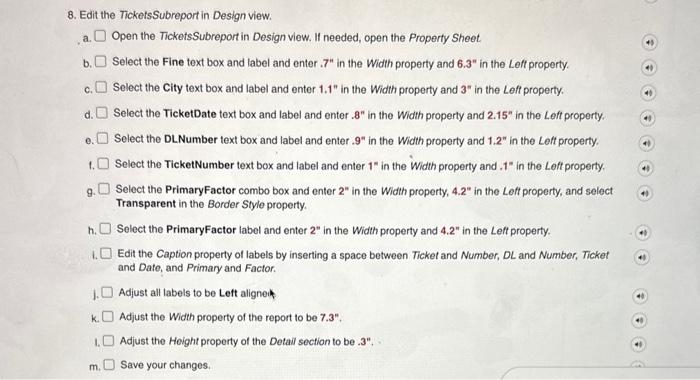
8. Edit the TicketsSubreport in Design view. a. Open the TicketsSubreport in Design view. If needed, open the Property Sheet b. Select the Fine text box and label and enter . 7 in the Width property and 6.3 in the Loft property. c. Select the City text box and label and enter 1.1" in the Width property and 3" in the Leff property. d. Select the TicketDate text box and label and enter .8 in the Width property and 2.15 in the Left property. e. Select the DLNumber text box and label and enter .9" in the Width property and 1.2n in the Left property. 1. Select the TicketNumber text box and label and enter 1" in the Width property and .1" in the Left property. 9. Select the PrimaryFactor combo box and enter 2" in the Width property, 4.2" in the Left property, and select Transparent in the Border Style property. h. Select the PrimaryFactor label and enter 2" in the Width property and 4.2" in the Left property. 1. Edit the Caption property of labels by inserting a space between Ticket and Number, DL and Number, Ticket and Date, and Primary and Factor. 1. Adjust all labels to be Left aligneik k. Adjust the Width property of the report to be 7.3". 1. Adjust the Hoight property of the Detail section to be .3". m. Save your changes. 8. Edit the TicketsSubreport in Design view. a. Open the TicketsSubreport in Design view. If needed, open the Property Sheet b. Select the Fine text box and label and enter . 7 in the Width property and 6.3 in the Loft property. c. Select the City text box and label and enter 1.1" in the Width property and 3" in the Leff property. d. Select the TicketDate text box and label and enter .8 in the Width property and 2.15 in the Left property. e. Select the DLNumber text box and label and enter .9" in the Width property and 1.2n in the Left property. 1. Select the TicketNumber text box and label and enter 1" in the Width property and .1" in the Left property. 9. Select the PrimaryFactor combo box and enter 2" in the Width property, 4.2" in the Left property, and select Transparent in the Border Style property. h. Select the PrimaryFactor label and enter 2" in the Width property and 4.2" in the Left property. 1. Edit the Caption property of labels by inserting a space between Ticket and Number, DL and Number, Ticket and Date, and Primary and Factor. 1. Adjust all labels to be Left aligneik k. Adjust the Width property of the report to be 7.3". 1. Adjust the Hoight property of the Detail section to be .3". m. Save your changes
Step by Step Solution
There are 3 Steps involved in it

Get step-by-step solutions from verified subject matter experts
 Study Help