







Question: Please show your VB code in excel. AutoSave Off v Assignment 4 (2) - Excel O Search Vivian Cress VC File Home Insert Page Layout
 Please show your VB code in excel.
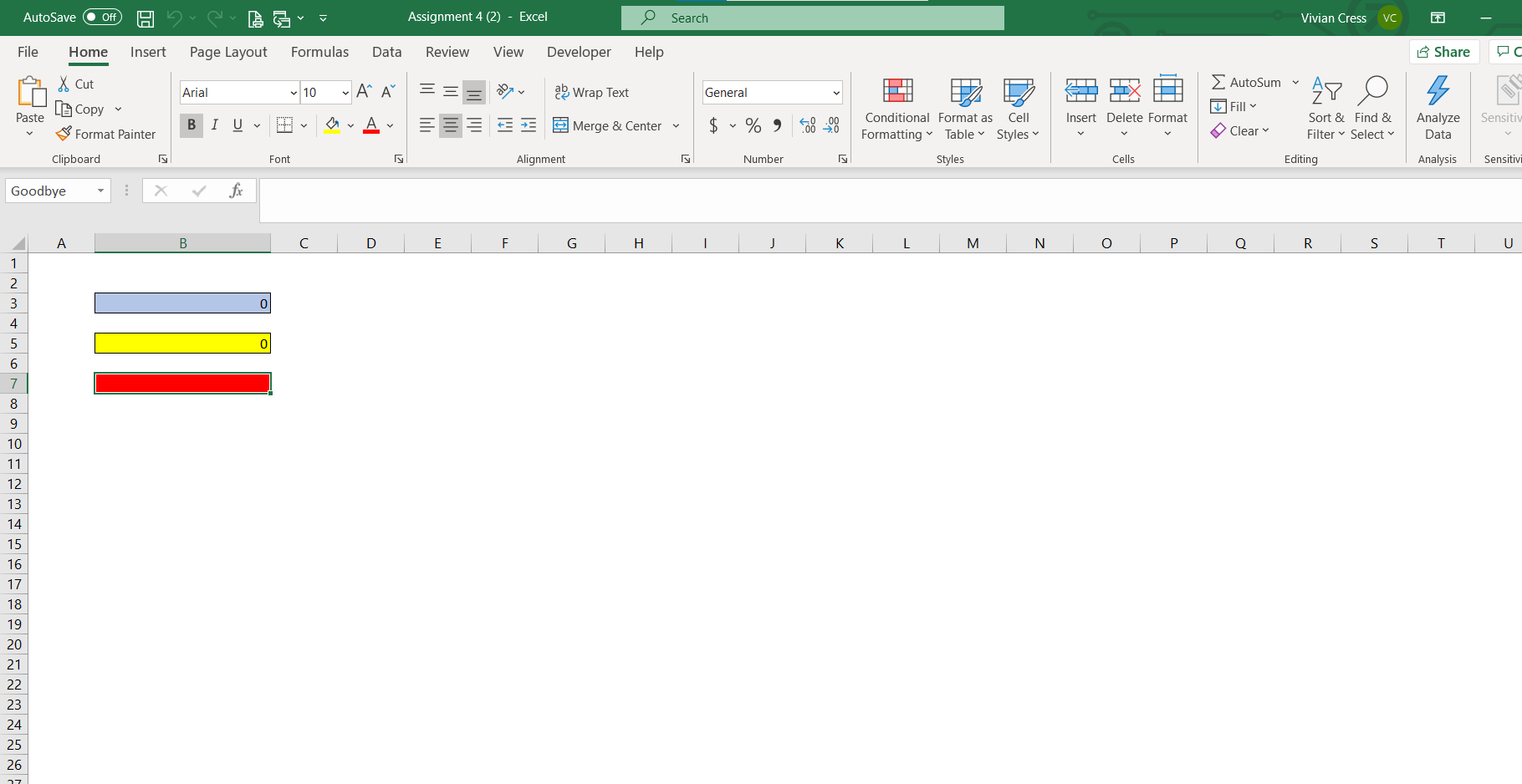
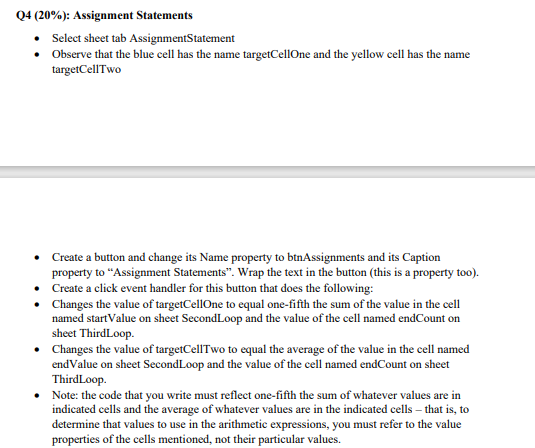
AutoSave Off v Assignment 4 (2) - Excel O Search Vivian Cress VC File Home Insert Page Layout Formulas Data Review View Developer Help Share Arial AutoSum 10 ~ A Wrap Text General AY O 3 MI & Cut La Copy Format Painter Fill Paste Insert Delete Format Av BI U Sensitiv + Merge & Center $ % 0-0 Clear Conditional Format as Cell Formatting Table Styles Styles Sort & Find & Filter Select Analyze Data Clipboard Font Alignment Number Cells Editing Analysis Sensitivi Goodbye X fx A B D E F G . 1 K L M N O O R S T U 1 2 3 0 4 5 0 6 7 8 9 10 11 12 13 14 15 16 17 18 19 20 21 22 23 24 25 26 Q4 (20%): Assignment Statements Select sheet tab AssignmentStatement Observe that the blue cell has the name targetCellone and the yellow cell has the name targetCellTwo Create a button and change its Name property to btnAssignments and its Caption property to Assignment Statements. Wrap the text in the button (this is a property too). Create a click event handler for this button that does the following: Changes the value of targetCellOne to equal one-fifth the sum of the value in the cell named startValue on sheet SecondLoop and the value of the cell named endCount on sheet ThirdLoop Changes the value of targetCellTwo to equal the average of the value in the cell named end Value on sheet Second Loop and the value of the cell named endCount on sheet ThirdLoop Note: the code that you write must reflect one-fifth the sum of whatever values are in indicated cells and the average of whatever values are in the indicated cells - that is, to determine that values to use in the arithmetic expressions, you must refer to the value properties of the cells mentioned, not their particular values. AutoSave Off v Assignment 4 (2) - Excel O Search Vivian Cress VC File Home Insert Page Layout Formulas Data Review View Developer Help Share Arial AutoSum 10 ~ A Wrap Text General AY O 3 MI & Cut La Copy Format Painter Fill Paste Insert Delete Format Av BI U Sensitiv + Merge & Center $ % 0-0 Clear Conditional Format as Cell Formatting Table Styles Styles Sort & Find & Filter Select Analyze Data Clipboard Font Alignment Number Cells Editing Analysis Sensitivi Goodbye X fx A B D E F G . 1 K L M N O O R S T U 1 2 3 0 4 5 0 6 7 8 9 10 11 12 13 14 15 16 17 18 19 20 21 22 23 24 25 26 Q4 (20%): Assignment Statements Select sheet tab AssignmentStatement Observe that the blue cell has the name targetCellone and the yellow cell has the name targetCellTwo Create a button and change its Name property to btnAssignments and its Caption property to Assignment Statements. Wrap the text in the button (this is a property too). Create a click event handler for this button that does the following: Changes the value of targetCellOne to equal one-fifth the sum of the value in the cell named startValue on sheet SecondLoop and the value of the cell named endCount on sheet ThirdLoop Changes the value of targetCellTwo to equal the average of the value in the cell named end Value on sheet Second Loop and the value of the cell named endCount on sheet ThirdLoop Note: the code that you write must reflect one-fifth the sum of whatever values are in indicated cells and the average of whatever values are in the indicated cells - that is, to determine that values to use in the arithmetic expressions, you must refer to the value properties of the cells mentioned, not their particular values
Step by Step Solution
There are 3 Steps involved in it

Get step-by-step solutions from verified subject matter experts
 Study Help