







Question: Please try to answer all if possible :-) Practice Database - March 2021 1. Create a database in your HOME FOLDER, C-Database Systems called Practice
Please try to answer all if possible :-)
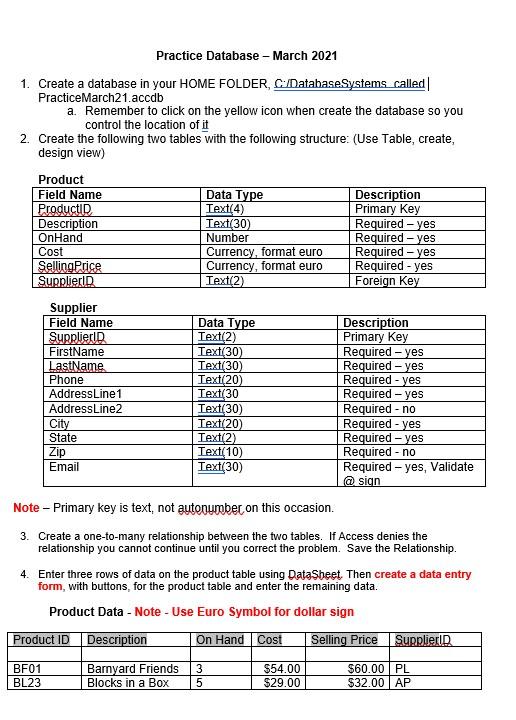
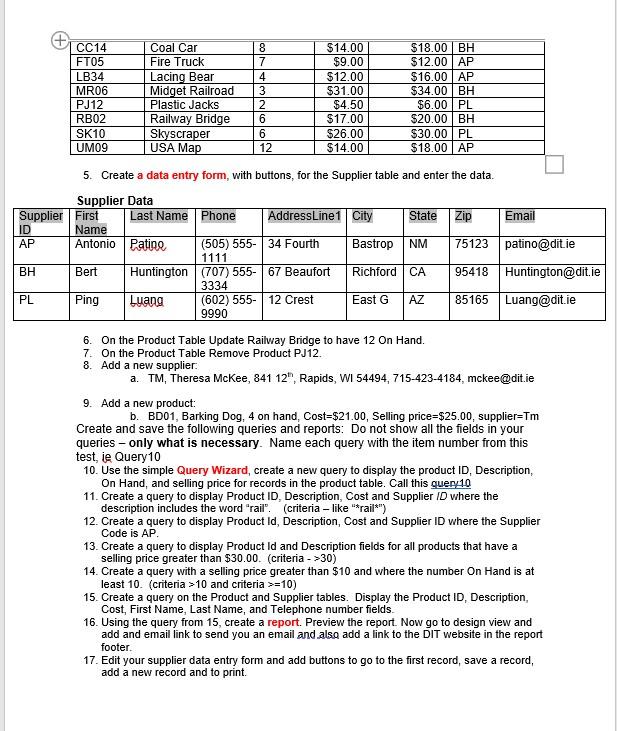
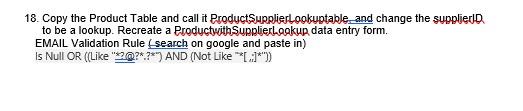
Practice Database - March 2021 1. Create a database in your HOME FOLDER, C-Database Systems called Practice March21.accdb a. Remember to click on the yellow icon when create the database so you control the location of it 2. Create the following two tables with the following structure: (Use Table, create, design view) Product Field Name Productid Description On Hand Cost Selling Price Supplieri Data Type Text(4) Text(30) Number Currency, format euro Currency, format euro Text(2) Description Primary key Required - yes Required - yes Required - yes Required - yes Foreign Key Supplier Field Name Suppliers FirstName LastName Phone AddressLine1 AddressLine2 City State Zip Email Data Type Text(2) Text(30) Text(30) Text(20) Text(30 Text(30) Text(20) Text(2) Text(10) Text(30) Description Primary key Required - yes Required - yes Required - yes Required - yes Required - no Required - yes Required - yes Required - no Required - yes, Validate @ sign Note - Primary key is text, not autonumber on this occasion. 3. Create a one-to-many relationship between the two tables. If Access denies the relationship you cannot continue until you correct the problem. Save the Relationship. 4. Enter three rows of data on the product table using DataSheet. Then create a data entry form, with buttons, for the product table and enter the remaining data. Product Data - Note - Use Euro Symbol for dollar sign Product ID Description On Hand Cost Selling Price Supplier BF01 BL23 Barnyard Friends Blocks in a Box 3 5 $54.00 $29.00 $60.00 PL $32.00 AP CC14 FT05 LB34 MR06 PJ12 RBO2 SK10 UM09 Coal Car Fire Truck Lacing Bear Midget Railroad Plastic Jacks Railway Bridge Skyscraper USA Map 8 7 4 3 2 6 6 12 $14.00 $9.00 $12.00 $31.00 $4.50 $17.00 $26.00 $14.00 $18.00 BH $12.00 AP $16.00 AP $34.00 BH $6.00 PL $20.00 BH $30.00 PL $18.00 AP 5. Create a data entry form, with buttons, for the Supplier table and enter the data. Supplier Data Supplier First Last Name Phone AddressLine1 City State Zip Email ID Name AP Antonio Patine (505) 555- 34 Fourth Bastrop NM 75123 patino@dit.ie 1111 BH Bert Huntington (707) 555- 67 Beaufort Richford CA 95418 Huntington@dit.ie 3334 PL Ping Luang (602) 555-12 Crest East G AZ 85165 Luang@dit.ie 9990 6. On the Product Table Update Railway Bridge to have 12 On Hand. 7. On the Product Table Remove Product PJ12. 8. Add a new supplier. a. TM, Theresa McKee, 841 12", Rapids, WI 54494, 715-423-4184, mckee@dit.ie 9. Add a new product: b. BD01, Barking Dog, 4 on hand, Cost=$21.00, Selling price=$25.00, supplier=Tm Create and save the following queries and reports: Do not show all the fields in your queries-only what is necessary. Name each query with the item number from this test, ie Query 10 10. Use the simple Query Wizard, create a new query to display the product ID, Description, On Hand, and selling price for records in the product table. Call this query 10 11. Create a query to display Product ID. Description, Cost and Supplier ID where the description includes the word "rail. (criteria - like "rail*") 12. Create a query to display Product Id, Description, Cost and Supplier ID where the Supplier Code is AP. 13. Create a query to display Product Id and Description fields for all products that have a selling price greater than $30.00. (criteria - >30) 14. Create a query with a selling price greater than $10 and where the number On Hand is at least 10. (criteria >10 and criteria >=10) 15. Create a query on the Product and Supplier tables. Display the Product ID, Description Cost, First Name, Last Name, and Telephone number fields. 16. Using the query from 15, create a report. Preview the report. Now go to design view and add and email link to send you an email and also add a link to the DIT website in the report footer. 17. Edit your supplier data entry form and add buttons to go to the first record, save a record, add a new record and to print. 18. Copy the Product Table and call it ProductSupplierlookuptable and change the supplied to be a lookup. Recreate a Productwith SupplierLagkup data entry form. EMAIL Validation Rule search on google and paste in) Is Null OR ((Like "20?*?*') AND (Not Like (.1*') Practice Database - March 2021 1. Create a database in your HOME FOLDER, C-Database Systems called Practice March21.accdb a. Remember to click on the yellow icon when create the database so you control the location of it 2. Create the following two tables with the following structure: (Use Table, create, design view) Product Field Name Productid Description On Hand Cost Selling Price Supplieri Data Type Text(4) Text(30) Number Currency, format euro Currency, format euro Text(2) Description Primary key Required - yes Required - yes Required - yes Required - yes Foreign Key Supplier Field Name Suppliers FirstName LastName Phone AddressLine1 AddressLine2 City State Zip Email Data Type Text(2) Text(30) Text(30) Text(20) Text(30 Text(30) Text(20) Text(2) Text(10) Text(30) Description Primary key Required - yes Required - yes Required - yes Required - yes Required - no Required - yes Required - yes Required - no Required - yes, Validate @ sign Note - Primary key is text, not autonumber on this occasion. 3. Create a one-to-many relationship between the two tables. If Access denies the relationship you cannot continue until you correct the problem. Save the Relationship. 4. Enter three rows of data on the product table using DataSheet. Then create a data entry form, with buttons, for the product table and enter the remaining data. Product Data - Note - Use Euro Symbol for dollar sign Product ID Description On Hand Cost Selling Price Supplier BF01 BL23 Barnyard Friends Blocks in a Box 3 5 $54.00 $29.00 $60.00 PL $32.00 AP CC14 FT05 LB34 MR06 PJ12 RBO2 SK10 UM09 Coal Car Fire Truck Lacing Bear Midget Railroad Plastic Jacks Railway Bridge Skyscraper USA Map 8 7 4 3 2 6 6 12 $14.00 $9.00 $12.00 $31.00 $4.50 $17.00 $26.00 $14.00 $18.00 BH $12.00 AP $16.00 AP $34.00 BH $6.00 PL $20.00 BH $30.00 PL $18.00 AP 5. Create a data entry form, with buttons, for the Supplier table and enter the data. Supplier Data Supplier First Last Name Phone AddressLine1 City State Zip Email ID Name AP Antonio Patine (505) 555- 34 Fourth Bastrop NM 75123 patino@dit.ie 1111 BH Bert Huntington (707) 555- 67 Beaufort Richford CA 95418 Huntington@dit.ie 3334 PL Ping Luang (602) 555-12 Crest East G AZ 85165 Luang@dit.ie 9990 6. On the Product Table Update Railway Bridge to have 12 On Hand. 7. On the Product Table Remove Product PJ12. 8. Add a new supplier. a. TM, Theresa McKee, 841 12", Rapids, WI 54494, 715-423-4184, mckee@dit.ie 9. Add a new product: b. BD01, Barking Dog, 4 on hand, Cost=$21.00, Selling price=$25.00, supplier=Tm Create and save the following queries and reports: Do not show all the fields in your queries-only what is necessary. Name each query with the item number from this test, ie Query 10 10. Use the simple Query Wizard, create a new query to display the product ID, Description, On Hand, and selling price for records in the product table. Call this query 10 11. Create a query to display Product ID. Description, Cost and Supplier ID where the description includes the word "rail. (criteria - like "rail*") 12. Create a query to display Product Id, Description, Cost and Supplier ID where the Supplier Code is AP. 13. Create a query to display Product Id and Description fields for all products that have a selling price greater than $30.00. (criteria - >30) 14. Create a query with a selling price greater than $10 and where the number On Hand is at least 10. (criteria >10 and criteria >=10) 15. Create a query on the Product and Supplier tables. Display the Product ID, Description Cost, First Name, Last Name, and Telephone number fields. 16. Using the query from 15, create a report. Preview the report. Now go to design view and add and email link to send you an email and also add a link to the DIT website in the report footer. 17. Edit your supplier data entry form and add buttons to go to the first record, save a record, add a new record and to print. 18. Copy the Product Table and call it ProductSupplierlookuptable and change the supplied to be a lookup. Recreate a Productwith SupplierLagkup data entry form. EMAIL Validation Rule search on google and paste in) Is Null OR ((Like "20?*?*') AND (Not Like (.1*')
Step by Step Solution
There are 3 Steps involved in it

Get step-by-step solutions from verified subject matter experts
 Study Help