







Question: Please type code and run it Starter files provided: objectdraw.jar Acme.jar ReflectingPond You will be creating three files: ReflectingPond.java (the main GUl controller), PondQuadrants.java and
Please type code and run it 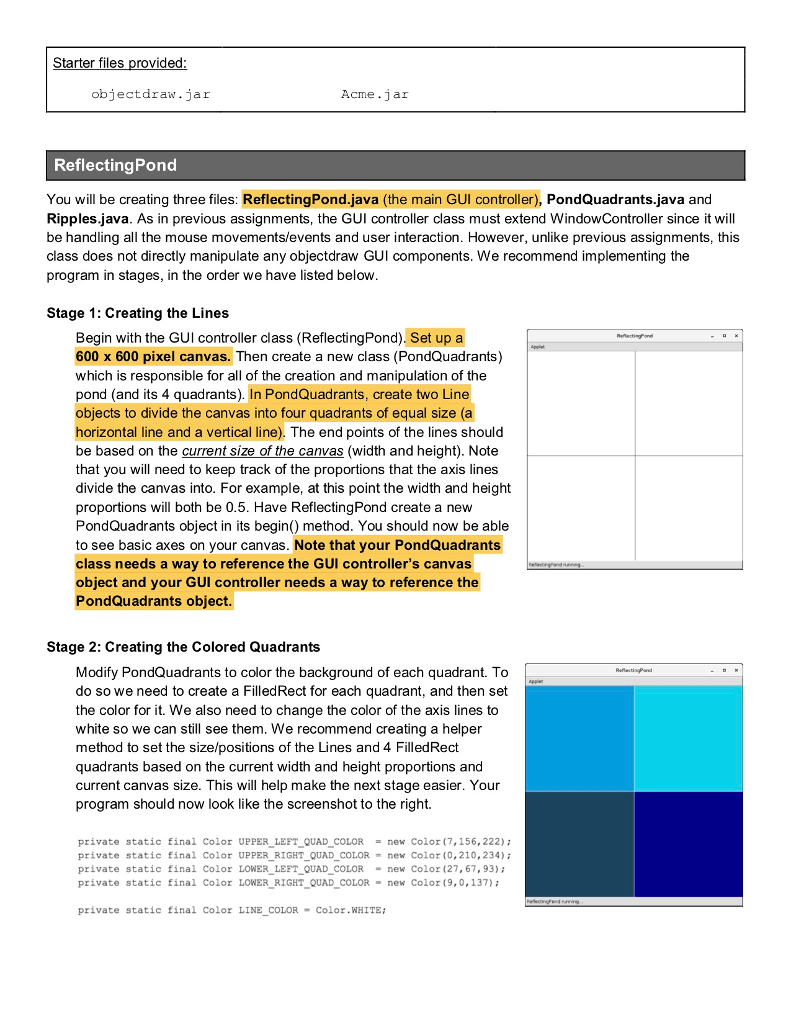
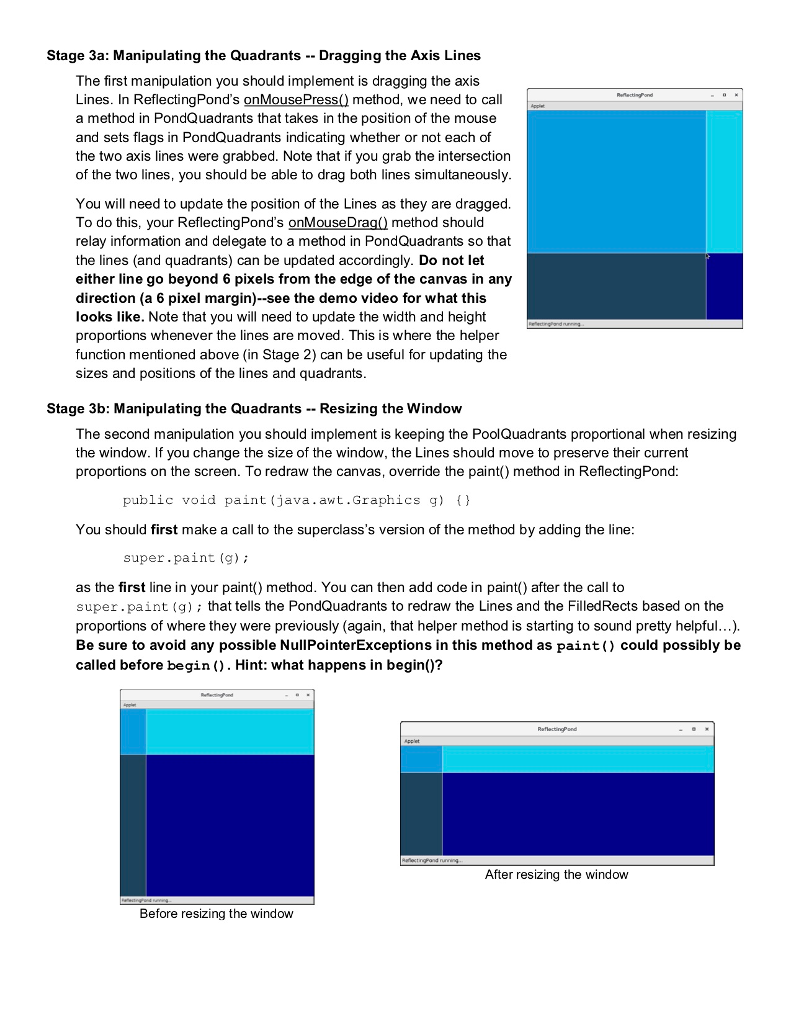
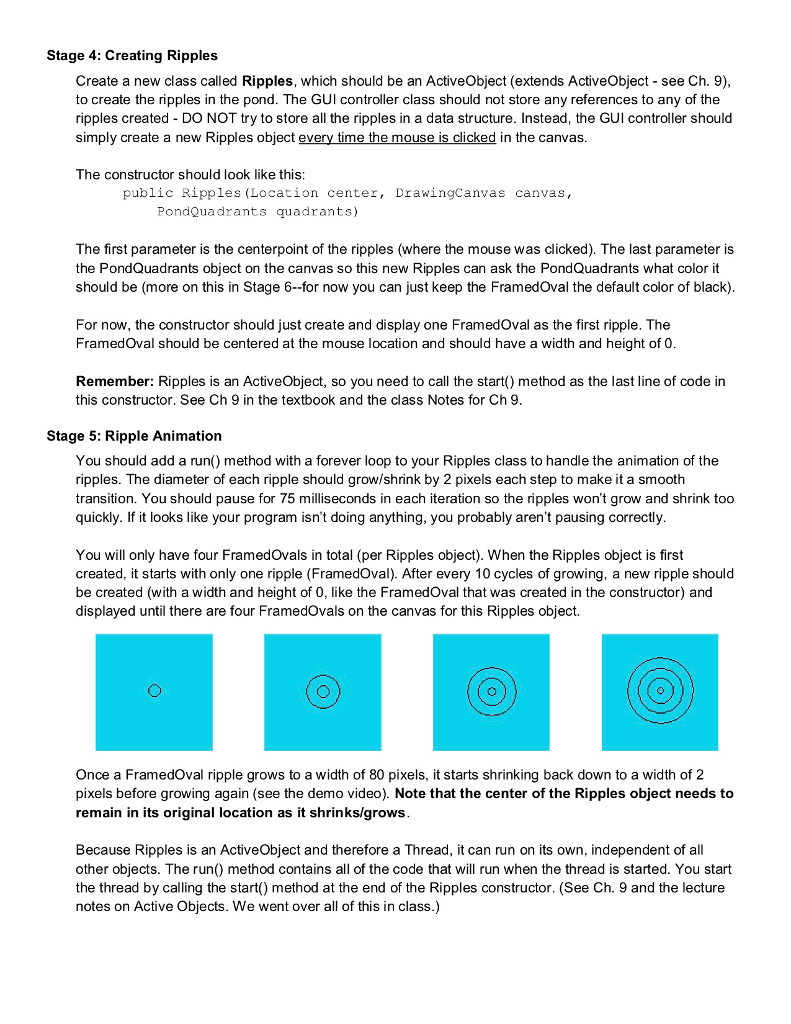
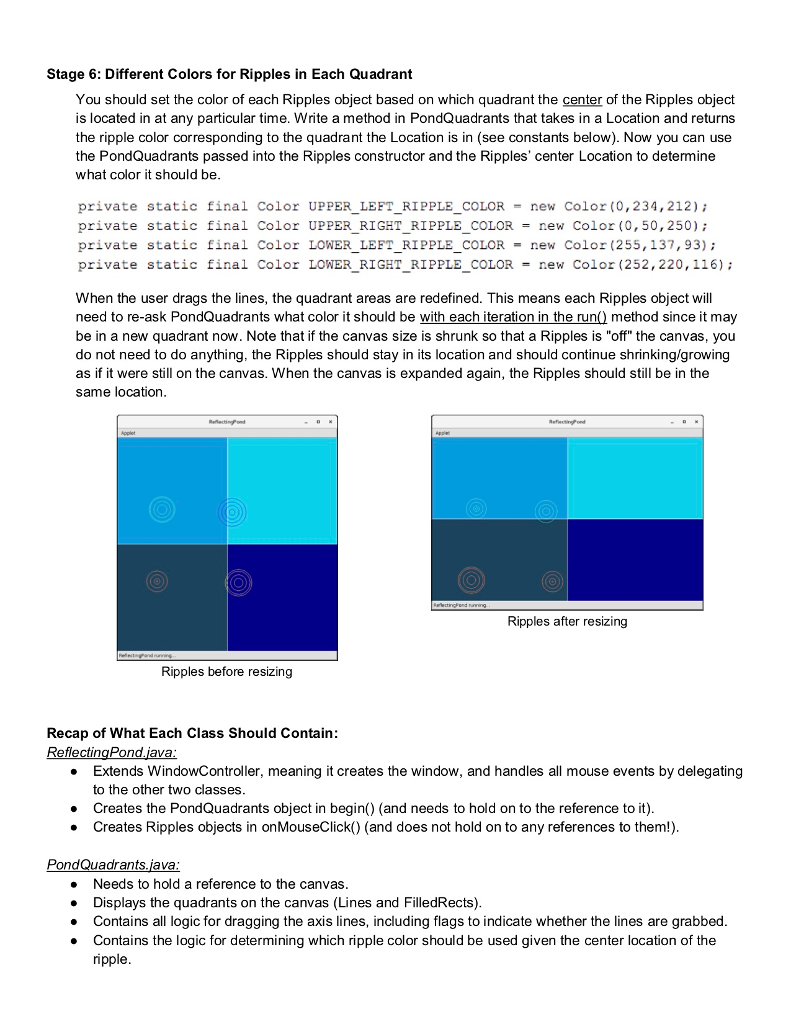
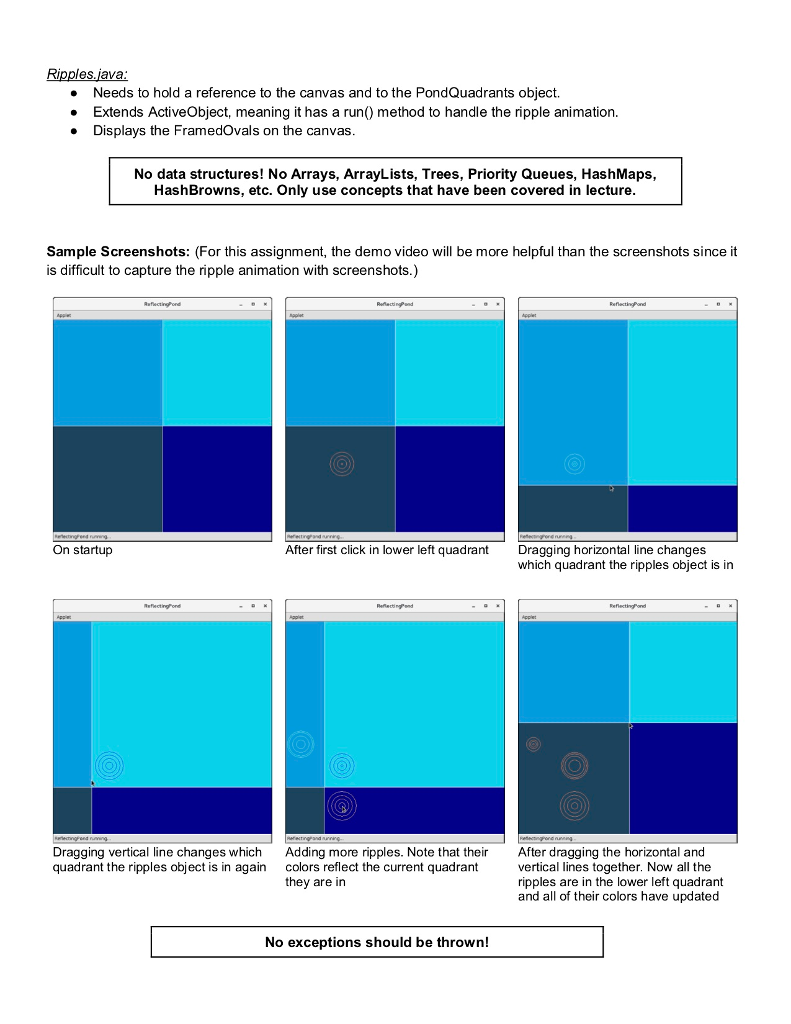
Starter files provided: objectdraw.jar Acme.jar ReflectingPond You will be creating three files: ReflectingPond.java (the main GUl controller), PondQuadrants.java and Ripples.java. As in previous assignments, the GUI controller class must extend WindowController since it will be handling all the mouse movementslevents and user interaction. However, unlike previous assignments, this class does not directly manipulate any objectdraw GUI components. We recommend implementing the program in stages, in the order we have listed below Stage 1: Creating the Lines Begin with the GUI controller class (ReflectingPond). Set up a 600 x 600 pixel canvas. Then create a new class (PondQuadrants) which is responsible for all of the creation and manipulation of the pond (and its 4 quadrants). In PondQuadrants, create two Line objects to divide the canvas into four quadrants of equal size (a horizontal line and a vertical line). The end points of the lines should be based on the current size of the canvas (width and height). Note that you will need to keep track of the proportions that the axis lines divide the canvas into. For example, at this point the width and height proportions will both be 0.5. Have ReflectingPond create a new PondQuadrants object in its begin() method. You should now be able to see basic axes on your canvas. Note that your PondQuadrants class needs a way to reference the GUI controller's canvas object and your GUI controller needs a way to reference the PondQuadrants object. Stage 2: Creating the Colored Quadrants Modify PondQuadrants to color the background of each quadrant. To do so we need to create a FilledRect for each quadrant, and then set the color for it. We also need to change the color of the axis lines to white so we can still see them. We recommend creating a helper method to set the size/positions of the Lines and 4 FilledRect quadrants based on the current width and height proportions and current canvas size. This will help make the next stage easier. Your program should now look like the screenshot to the right. private static final Color UPPER-LEFT-QUAD-COLOR = new Color (7,156,222); private static final Color UPPER RIGHT QUAD COLOR new Color (0,210,234) private static final Color LOWER LEFT QUAD COLORnew Color (27, 67,93) private static final Color LOWER RIGHT QUAD COLOR new Color(9,0,137) private static final Color LINE COLORColor.WHITE; Starter files provided: objectdraw.jar Acme.jar ReflectingPond You will be creating three files: ReflectingPond.java (the main GUl controller), PondQuadrants.java and Ripples.java. As in previous assignments, the GUI controller class must extend WindowController since it will be handling all the mouse movementslevents and user interaction. However, unlike previous assignments, this class does not directly manipulate any objectdraw GUI components. We recommend implementing the program in stages, in the order we have listed below Stage 1: Creating the Lines Begin with the GUI controller class (ReflectingPond). Set up a 600 x 600 pixel canvas. Then create a new class (PondQuadrants) which is responsible for all of the creation and manipulation of the pond (and its 4 quadrants). In PondQuadrants, create two Line objects to divide the canvas into four quadrants of equal size (a horizontal line and a vertical line). The end points of the lines should be based on the current size of the canvas (width and height). Note that you will need to keep track of the proportions that the axis lines divide the canvas into. For example, at this point the width and height proportions will both be 0.5. Have ReflectingPond create a new PondQuadrants object in its begin() method. You should now be able to see basic axes on your canvas. Note that your PondQuadrants class needs a way to reference the GUI controller's canvas object and your GUI controller needs a way to reference the PondQuadrants object. Stage 2: Creating the Colored Quadrants Modify PondQuadrants to color the background of each quadrant. To do so we need to create a FilledRect for each quadrant, and then set the color for it. We also need to change the color of the axis lines to white so we can still see them. We recommend creating a helper method to set the size/positions of the Lines and 4 FilledRect quadrants based on the current width and height proportions and current canvas size. This will help make the next stage easier. Your program should now look like the screenshot to the right. private static final Color UPPER-LEFT-QUAD-COLOR = new Color (7,156,222); private static final Color UPPER RIGHT QUAD COLOR new Color (0,210,234) private static final Color LOWER LEFT QUAD COLORnew Color (27, 67,93) private static final Color LOWER RIGHT QUAD COLOR new Color(9,0,137) private static final Color LINE COLORColor.WHITE
Step by Step Solution
There are 3 Steps involved in it

Get step-by-step solutions from verified subject matter experts
 Study Help