







Question: Please use java in Android Studio. Please show code and make app look like screenshots. Thanks! Requirements Create an application to draw a filled blue
Please use java in Android Studio. Please show code and make app look like screenshots. Thanks!
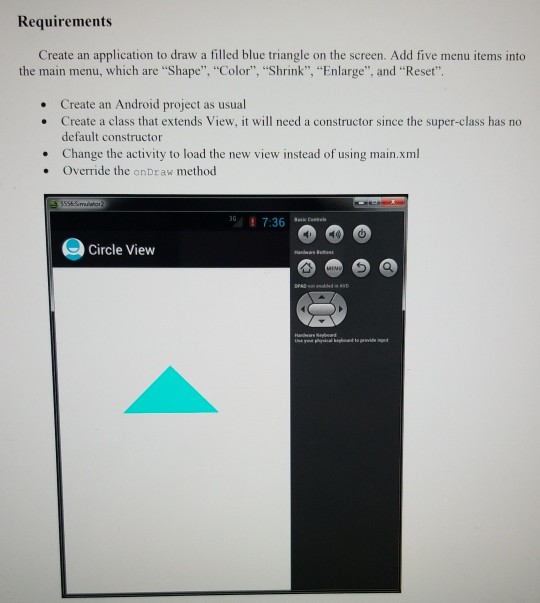
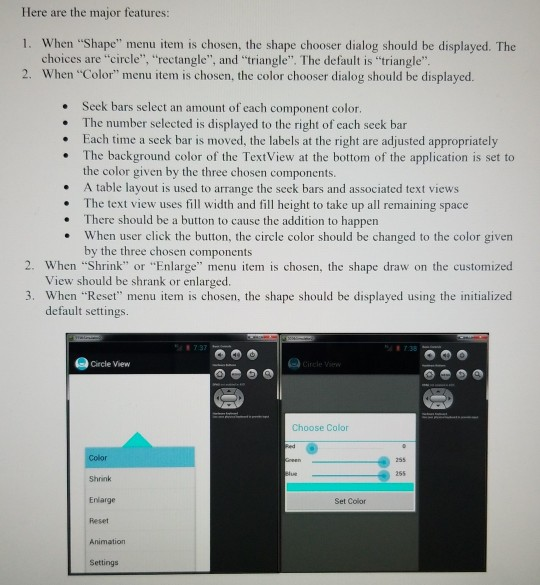
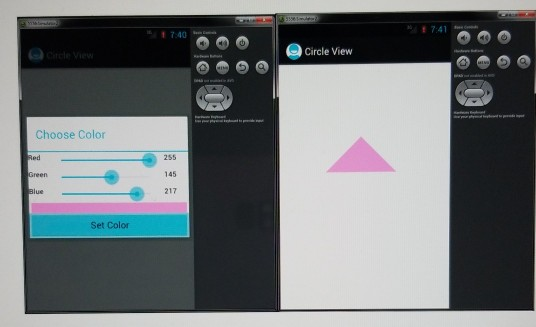
Requirements Create an application to draw a filled blue triangle on the screen. Add five menu items into the main menu, which are "Shape", "Color", "Shrink", "Enlarge", and "Reset". Create an Android project as usual Create a class that extends View, it will need a constructor since the super-class has no default constructor Change the activity to load the new view instead of using main.xml Override the onDraw method 5556 m ore 17:36 Barat Circle View Here are the major features: 1. When "Shape" menu item is chosen, the shape chooser dialog should be displayed. The choices are "circle", "rectangle", and "triangle". The default is "triangle". 2. When "Color" menu item is chosen, the color chooser dialog should be displayed. Seek bars select an amount of each component color. The number selected is displayed to the right of each seek bar Each time a seck bar is moved, the labels at the right are adjusted appropriately The background color of the TextView at the bottom of the application is set to the color given by the three chosen components. A table layout is used to arrange the seek bars and associated text views The text view uses fill width and fill height to take up all remaining space There should be a button to cause the addition to happen When user click the button, the circle color should be changed to the color given by the three chosen components 2. When "Shrink" or "Enlarge" menu item is chosen, the shape draw on the customized View should be shrank or enlarged. 3. When "Reset" menu item is chosen, the shape should be displayed using the initialized default settings Circle View Choose Color Color Shrink Enlarge Set Color Animation Settings 17:00 Circle View Choose Color 145 217 alue Set Color Requirements Create an application to draw a filled blue triangle on the screen. Add five menu items into the main menu, which are "Shape", "Color", "Shrink", "Enlarge", and "Reset". Create an Android project as usual Create a class that extends View, it will need a constructor since the super-class has no default constructor Change the activity to load the new view instead of using main.xml Override the onDraw method 5556 m ore 17:36 Barat Circle View Here are the major features: 1. When "Shape" menu item is chosen, the shape chooser dialog should be displayed. The choices are "circle", "rectangle", and "triangle". The default is "triangle". 2. When "Color" menu item is chosen, the color chooser dialog should be displayed. Seek bars select an amount of each component color. The number selected is displayed to the right of each seek bar Each time a seck bar is moved, the labels at the right are adjusted appropriately The background color of the TextView at the bottom of the application is set to the color given by the three chosen components. A table layout is used to arrange the seek bars and associated text views The text view uses fill width and fill height to take up all remaining space There should be a button to cause the addition to happen When user click the button, the circle color should be changed to the color given by the three chosen components 2. When "Shrink" or "Enlarge" menu item is chosen, the shape draw on the customized View should be shrank or enlarged. 3. When "Reset" menu item is chosen, the shape should be displayed using the initialized default settings Circle View Choose Color Color Shrink Enlarge Set Color Animation Settings 17:00 Circle View Choose Color 145 217 alue Set Color
Step by Step Solution
There are 3 Steps involved in it

Get step-by-step solutions from verified subject matter experts
 Study Help