







Question: PowerPoint Module Graded Lab Assignment Creating a PowerPoint using Equations You are a work study student in the Math Department. The dean has requested you
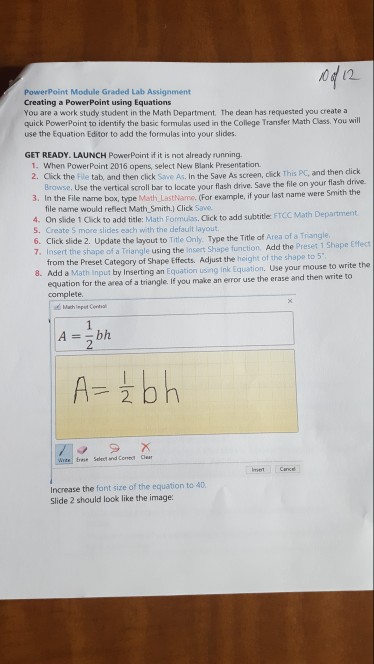
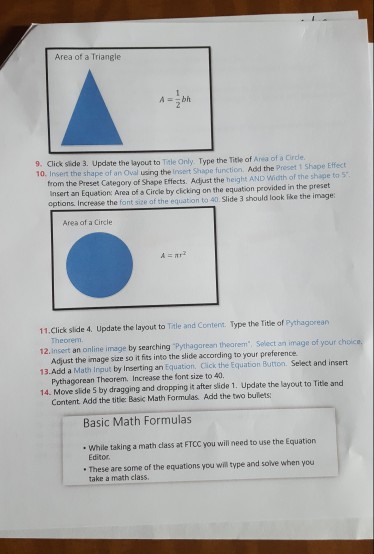
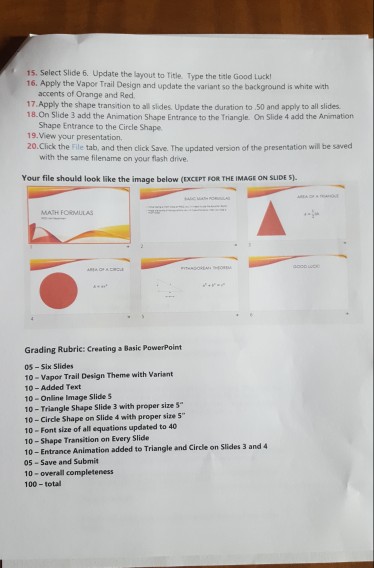
PowerPoint Module Graded Lab Assignment Creating a PowerPoint using Equations You are a work study student in the Math Department. The dean has requested you create a quick PowerPoint to identify the basic formulas used in the College Transfer Math Class. You will use the Equation Editor to add the formulas into your slides GET READY. LAUNCH PowerPoint if it is not already running 1. When PowerPoint 2016 opens, select New Blank Presentation 2. Click the File tab, and then click Save As, In the Save As screen, cick This PC, and then dick Browse, Use the vertical scrolil bar to locate your flash drive. Save the file on your flash drive 3. In the File name box, type Math LastName. (For example, if your last name were Smith the file name would reflect Math_Smith.) Click Save. 4. On slide 1 Click t S. Create S more slides each with the default layout. 6. Click slide 2. Update the layout to Titile Only. Type the Title of Area of a Triangle 7. Insert the shape of a Triangle 4. On side 1 Clickto to o add title: Math Formulas. Click to add subtitle: FTCC Math Department s using the Insert Shape function. Add the Preset 1 Shape Efect m the Preset Category of Shape Effects. Adjust the height of the shape to 5 d a Math Input by Inserting an Equation using Ink Equation. Use your mouse to write the 8. Ad equation for the area of a triangle. If you make an error use the erase and then write to complete. A =-bh 2 A- z bh 2. Increase the font size of the equation to 40. Slide 2 should look like the image
Step by Step Solution
There are 3 Steps involved in it

Get step-by-step solutions from verified subject matter experts
 Study Help