







Question: Prepare a data input section in the exact order as given below. Naming of the input 'sheet' should be INPUT . Do NOT cellprotect the
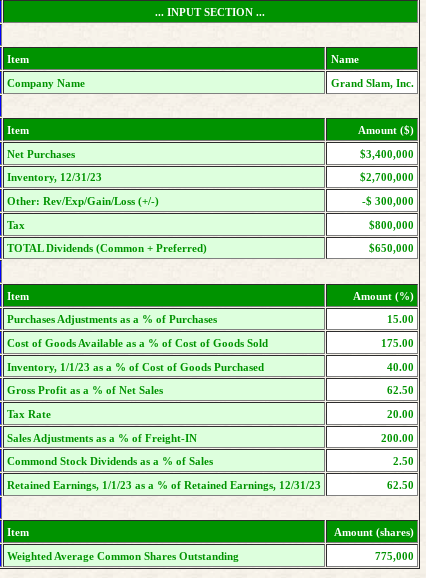
Prepare a data input section in the exact order as given below. Naming of the input 'sheet' should be "INPUT". Do NOT cellprotect the numeric data of this section, as you must allow for the possibility of change to this information. Use the amounts given as a test of your output. Enter Pct as the %, not decimal (80% entered as 80, not 0.80). Your input should be placed in the following Rows [1-24]/Columns [A-B], with the heading "... INPUT SECTION ..." centered over allcolumns to which it relates:
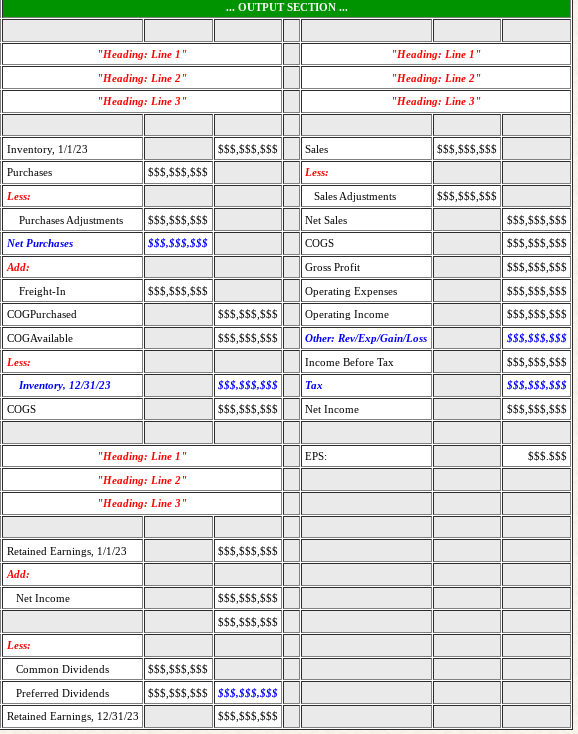
Prepare an output section that produces the following items: 1) "COGS Schedule", 2) "Income Statement", and 3) "Retained Earning Statement". The reporting period is for the calendar year of 2023. The output items should be placed on a separate 'sheet' (the heading "... OUTPUT SECTION ..." should be centered over all columns to which it relates: [A1..G1]). Naming of the output 'sheet' should be "OUTPUT". No number (dollar amount, shares, or percentage) or company name should be typed (hard coded) directly into any cell in the output section, as this would prevent your output from being correct when the input is changed. Instead, the output section must reference the appropriate amounts (shares, dollars, and percents) and name from the input and/or output sections. Your output should be placed in the following spreadsheet Rows [1-31]/Columns [A-G], using the color scheme as shown, where $$$ represent dollar amounts:
Any time you multiply or divide, you should "round" the result. To round an amount located in cell "M1", use the expression =ROUND(M1,x), where x is the number of places to be rounded. Note that rounding the cell to 0 places is NOT the same as "formatting" the cell to print 0 places, which should also be done
INPUT SECTION ... ... OUTPUT SECTION ... INPUT SECTION ... ... OUTPUT
Step by Step Solution
There are 3 Steps involved in it

Get step-by-step solutions from verified subject matter experts
 Study Help