







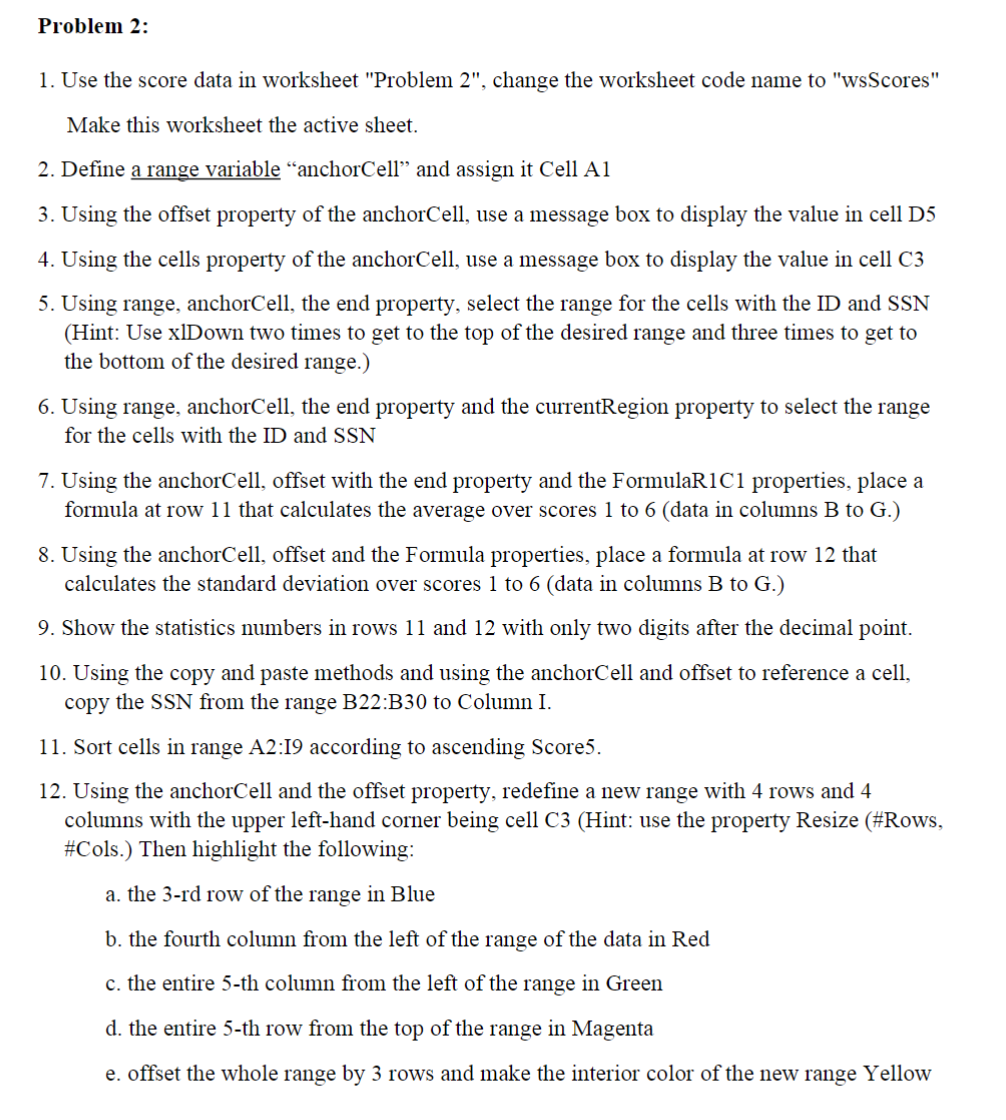
Question: Problem 2 : Use the score data in worksheet Problem 2 , change the worksheet code name to wsScores Make this worksheet the active
Problem :
Use the score data in worksheet "Problem change the worksheet code name to "wsScores"
Make this worksheet the active sheet.
Define a range variable "anchorCell" and assign it Cell A
Using the offset property of the anchorCell, use a message box to display the value in cell D
Using the cells property of the anchorCell, use a message box to display the value in cell C
Using range, anchorCell, the end property, select the range for the cells with the ID and SSN
Hint: Use xlDown two times to get to the top of the desired range and three times to get to
the bottom of the desired range.
Using range, anchorCell, the end property and the currentRegion property to select the range
for the cells with the ID and SSN
Using the anchorCell, offset with the end property and the FormulaRC properties, place a
formula at row that calculates the average over scores to data in columns B to G
Using the anchorCell, offset and the Formula properties, place a formula at row that
calculates the standard deviation over scores to data in columns B to G
Show the statistics numbers in rows and with only two digits after the decimal point.
Using the copy and paste methods and using the anchorCell and offset to reference a cell,
copy the SSN from the range B:B to Column I.
Sort cells in range A:I according to ascending Score
Using the anchorCell and the offset property, redefine a new range with rows and
columns with the upper lefthand corner being cell CHint: use the property Resize #Rows,
#Cols. Then highlight the following:
a the rd row of the range in Blue
b the fourth column from the left of the range of the data in Red
c the entire th column from the left of the range in Green
d the entire th row from the top of the range in Magenta
e offset the whole range by rows and make the interior color of the new range Yellow
The before and after are provided.
Step by Step Solution
There are 3 Steps involved in it
1 Expert Approved Answer
Step: 1 Unlock

Question Has Been Solved by an Expert!
Get step-by-step solutions from verified subject matter experts
Step: 2 Unlock
Step: 3 Unlock
 Study Help