







Question: Problem B Cont. Problem A Using Classes Text, Font and Color 1) Create a text by instantiating this class as follows - Ex: Text text
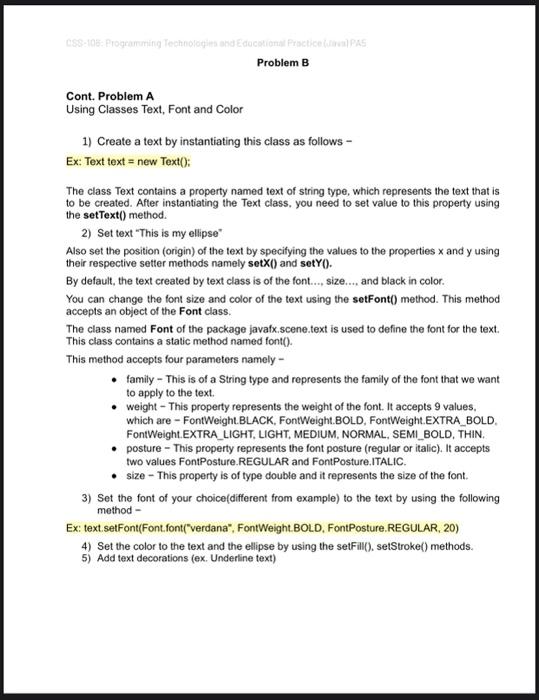
Problem B Cont. Problem A Using Classes Text, Font and Color 1) Create a text by instantiating this class as follows - Ex: Text text = new Text(); The class Text contains a property named text of string type, which represents the text that is to be created. After instantiating the Text class, you need to set value to this property using the setText() method. 2) Set text "This is my ellipse" Also set the position (origin) of the text by specifying the values to the properties x and y using their respective setter methods namely setX() and set Y(). By default, the text created by text class is of the font..., size.... and black in color. You can change the font size and color of the text using the setFont() method. This method accepts an object of the Font class. The class named Font of the package javafx.scene.text is used to define the font for the text. This class contains a static method named font(). This method accepts four parameters namely - - family - This is of a String type and represents the family of the font that we want to apply to the text. - weight - This property represents the weight of the font. It accepts 9 values. which are - FontWeight.BLACK, FontWeight.BOLD, FontWeight.EXTRA_BOLD. FontWeight.EXTRA_LIGHT, LIGHT, MEDIUM, NORMAL, SEMI_BOLD, THIN. - posture - This property represents the font posture (regular or italic). It accepts two values FontPosture.REGULAR and FontPosture.ITALIC. - size - This property is of type double and it represents the size of the font. 3) Set the font of your choice(different from example) to the text by using the following method - Ex: text.setFont(Font.font("verdana", FontWeight.BOLD, FontPosture.REGULAR, 20) 4) Set the color to the text and the ellipse by using the setFill(), setStroke() methods. 5) Add text decorations (ex. Underline text)
Step by Step Solution
There are 3 Steps involved in it

Get step-by-step solutions from verified subject matter experts
 Study Help