







Question: Programming: C# Calculate Order Amount Button Use an IF condition to check if the customer name has been entered (not empty). If the customer name
Programming: C#
- Calculate Order Amount Button
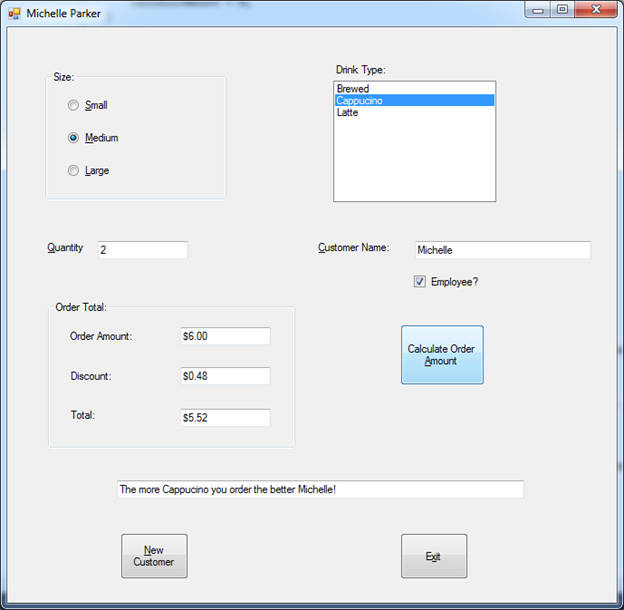
- Use an IF condition to check if the customer name has been entered (not empty). If the customer name is empty then display a message to the user in a message box Must enter a Customer Name before placing an order. and set focus to the Customer Name text box. If a name has been entereed, continue with the processing below.
- Clear Message Text Box
- Test the quantity entered in the quantity textbox to make sure it is numeric (use TryParse). If it isnt numeric display a message box with the message Please enter a numeric quantity and set focus to the Quantity textbox.
- Make sure that a drink type has been selected in the list box. If there is a selection, save the selection to a variable, if a drink hasnt been selected set the variable = .
- Calculate Order Amount based on the size selected and quantity entered (use nested if).
- Small = $2.00
- Medium = $3.00
- Large = $4.00
- Calculate Discount (use nested if)
- Employee and more than 2 ordered = 10% discount (use logical operator)
- Employee and 2 or less ordered = 8% discount
- Non-Employee and more than 4 ordered = 5% discount
- Calculate Total = Order Amount Discount
- Display Order Amount, Discount, Total in currency format in textboxes.
- Display a message to the user in the message box using a SWITCH structure.
- You can use any message you want, but you need to have a different message for 0 ordered, 1 ordered, 2 ordered, 3 or more are ordered.
-
- In the message you should include the customer name and drink type (see GUI design for an example message and drink/customer name)
- New Customer Button
- Clear all textboxes on the form
- Small radio buttons should be checked
- Nothing should be selected in the Drink Type list box
- Employee check box should be unchecked
- Set focus to Quantity text box
- Exit Button
- Close form
- All methods must have comments explaining what is done in that method.
X Michelle Parker Size: Drink Type: Brewed Cappucino Latte Small Medium O Large Quantity 2 Customer Name: Michelle Employee? Order Total: Order Amount: $6.00 Calculate Order Amount Discount: $0.48 Total: $5.52 The more Cappucino you order the better Michelle! New Customer Est
Step by Step Solution
There are 3 Steps involved in it
1 Expert Approved Answer
Step: 1 Unlock

Question Has Been Solved by an Expert!
Get step-by-step solutions from verified subject matter experts
Step: 2 Unlock
Step: 3 Unlock
 Study Help